
Most pages about Samsung Flow list the features and stop there. The edges are the part worth knowing. Samsung Flow is generous inside its own boundary and gives you nothing outside it. Here is what it does and what each device needs. Three limits decide whether to install it.
The quick answer: Samsung Flow is Samsung's own app for linking a Galaxy phone to a Windows PC. It unlocks the PC with the phone's fingerprint, shows notifications, mirrors the screen and moves files both ways. Phone Link from Microsoft covers most of that with no download. If you only want photos, one small tool covers that on any phone. Free for iPhone Free for Mac Free for Android Free for Windows

Samsung Flow is Samsung's own app, not part of Windows
The name gives nothing away, so here is the plain description.
- Samsung Flow is written by Samsung and is a separate download, not part of Windows. That is the first thing people get wrong about it. The app it most resembles is one Microsoft builds into Windows.
- Samsung Flow pairs a Galaxy phone or tablet with a PC running Windows 10 or Windows 11. A Galaxy Book is an ordinary Windows laptop, so nothing about the setup differs there.
- Samsung Flow can pair the Galaxy phone with a Galaxy tablet instead of a PC. The tablet then plays the part the PC plays here, and everything below still applies.
- Samsung Flow costs nothing on the Galaxy phone or on the Windows PC. No paid tier gates any of the four features it offers.

Samsung Flow connects over Bluetooth or your shared Wi-Fi
Getting the two devices talking asks for no account and no website.
- Samsung Flow links the Galaxy phone and the PC over Bluetooth or the Wi-Fi network they already share. Bluetooth suits notifications. Wi-Fi is the faster of the two once files are involved. Bluetooth carries far less data per second.
- Samsung Flow pairs the phone and the PC directly, with no account to create first. You confirm the same code on both screens and that is the whole sign-up.
- Samsung Flow needs the Galaxy phone and the PC on the same network before anything crosses. A phone in another room on mobile data cannot reach the PC. Careful setup changes nothing there.


Camera to Clipboard sends a Galaxy photo to the PC clipboard
If a photo on the PC is all you want from Samsung Flow, one small app covers that job.
- A photo sent with Camera to Clipboard lands on the Windows clipboard, ready for Ctrl + V. There is no folder to open and no file to attach. The photo arrives where you were already working.
- Camera to Clipboard runs on any Android phone and on iPhone, not only on a Galaxy. The same pairing still works after you change phone brand. It covers the other phones in the house too.
- Camera to Clipboard sends the photo from the phone to the PC across your own network. Nothing is uploaded to a cloud service. The two apps use the internet only to find each other, so a phone hotspot works too.
- Camera to Clipboard sends one photo or a whole batch straight from the phone's gallery. Scanned documents cross the same way.

Pair Camera to Clipboard with the PC in four steps
Pairing happens once, and it takes about ten seconds.
- Install Camera to Clipboard on the phone and the Windows app on the PC.
- Pair them once by scanning a QR code.
- Take or pick a photo on the phone and send it.
- Press Ctrl + V on the PC.
A video clip travels the same way. It is saved as a file on the PC, never re-encoded, and its file path goes on the clipboard.
Free to download and try on both ends. The free version adds a small watermark and caps photos at 1920px. Pro removes both.

Samsung Flow unlocks the PC and shows the phone's notifications
Almost everyone comes to Samsung Flow for one of its four features. Two of them move nothing across.
- Samsung Flow unlocks a Windows PC with the fingerprint already registered on the Galaxy phone. You put a finger on the phone instead of typing the Windows password. This is the feature people keep it installed for.
- Unlocking a PC through Samsung Flow works only once the Galaxy phone has a fingerprint registered. The app borrows the phone's own biometrics and adds none of its own.
- Samsung Flow shows the Galaxy phone's notifications on the PC as they arrive. A message that lights up the phone lying face down also appears on the monitor in front of you.
- Samsung Flow lets you choose which apps on the Galaxy phone may send notifications to the PC. The list sits in the app's own settings, so a noisy app can be left off it.

Samsung Flow mirrors the Galaxy screen and moves files both ways
The other two features are the ones that carry something between the devices.
- Samsung Flow puts the Galaxy phone's screen in a window on the Windows desktop. Samsung calls that Smart View. The mouse acts as your finger, so you can drive a phone app from the keyboard.
- Samsung Flow sends files from the Galaxy phone to the PC and from the PC back to the phone. Photos cross as files like anything else, with no size limit imposed by a messaging app.
- File transfer in Samsung Flow is a send and receive tool, not a browsable copy of the camera roll. You pick what to send on the device that holds it. The PC cannot reach into the phone's library on its own.
- A file sent through Samsung Flow lands in the download folder you picked on the PC. That folder is set in the app, and everything it receives goes there.

Install Samsung Flow on the Galaxy phone and on the PC
Setting up is a two-sided job. A half-finished setup is the usual reason people call the app broken.
- Install Samsung Flow on the Windows PC from the Microsoft Store.
- Install Samsung Flow on the Galaxy phone from its app store.
- Open the app on both and let the PC find the phone. Confirm the same code on the two screens.
- Accept the permission prompts on the phone, then send a file in each direction.

Finish both halves of the setup before calling Samsung Flow broken
Three things about that sequence catch people out.
- Samsung Flow does nothing with only the Windows half installed, because the Galaxy phone needs the matching app. Half the confused questions about it come from someone waiting on a phone that was never set up.
- Samsung Flow passes no notifications and no files until the prompts on the Galaxy phone are accepted. Android gates notification access and file access separately. Dismissing one prompt stops one feature and leaves the rest working.
- A Samsung Flow pairing is worth testing in both directions before you rely on it. Send one file from the phone and one from the PC. The setup is then either finished or obviously not.

Samsung Flow ignores every phone that is not a Galaxy
This is the first of the three limits, and it is absolute rather than partial.
- Samsung Flow pairs only with Samsung Galaxy hardware. A Pixel, a OnePlus, a Xiaomi or a Motorola is locked out. Every one of those runs Android. Samsung wrote the app for its own devices rather than for Android in general.
- Samsung Flow offers an iPhone owner nothing at all, and no iPhone version is coming. Anyone hoping to link an iPhone to a Windows PC should stop here. The general phone to computer guide covers that instead.
- Samsung Flow is a Windows app, so a Mac paired with a Galaxy phone gets nothing from it. Galaxy plus Mac is a common combination and it sits entirely outside what this app covers.

Samsung Flow ties your photo habit to staying on Galaxy hardware
The Galaxy requirement costs more over time than it looks on the day you install the app.
- A house with one Galaxy and one phone of another brand needs a second transfer tool anyway. Only the Galaxy can pair with Samsung Flow. Whatever you install for the other phone ends up doing both jobs.
- Moving from a Galaxy to another brand takes Samsung Flow away with it. You start again on a new tool, which is a real cost for something you do every week.
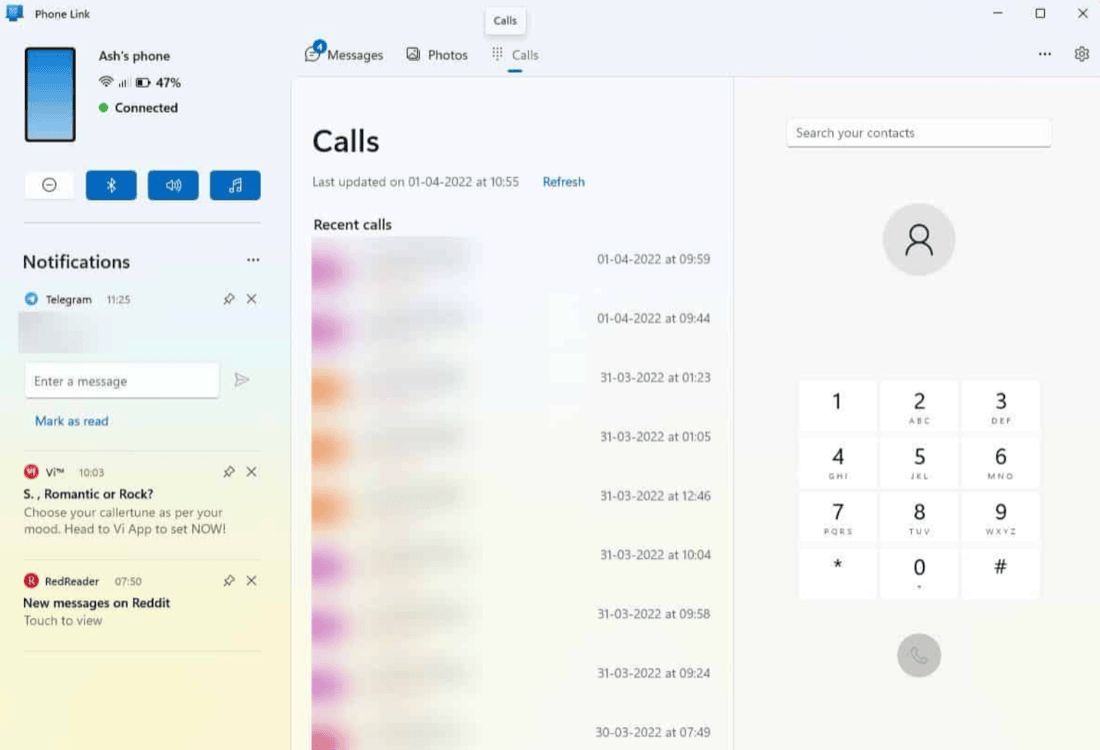
Windows Phone Link covers most of Samsung Flow with no download
The second limit is awkward, because Microsoft's own Phone Link has grown into the same space.
- Windows comes with Phone Link already installed, so nothing has to be added on the PC side. Samsung Flow needs a Microsoft Store download on the same machine before anything happens.
- A Samsung Galaxy phone has Link to Windows built into the system, so Phone Link needs no phone-side download either. That makes Phone Link a zero-install pairing on exactly the hardware Samsung Flow was written for.
- Phone Link puts a phone's notifications, messages and calls on the PC, which is Samsung Flow's notification mirroring and more. Answering a text from the keyboard is the part people install Phone Link for.
- Phone Link can mirror a Samsung phone's screen and drag files between the two on supported models. Which models qualify varies, so check your own phone rather than assuming. On many Galaxy handsets that is two more overlaps with Samsung Flow.

Samsung Flow keeps one feature Phone Link cannot match
Two differences still separate the two apps, one in each direction.
- Unlocking the Windows PC with the phone's fingerprint is the one Samsung Flow feature Phone Link has no answer for. If that is what you came for, Samsung Flow is genuinely the app to install.
- Phone Link needs the phone and the PC signed in to the same Microsoft account. Samsung Flow never asks for an account. A work account on the PC and a personal one on the phone is a common mismatch. It is one reason Phone Link photos stop working.

A photo sent with Samsung Flow arrives as a file in a folder
The third limit is quieter than the other two, and it costs you time every day.
- A photo sent from a Galaxy phone with Samsung Flow arrives on the PC as a file. It lands in a folder rather than inside the document you are writing. The transfer finishes where your actual task begins.
- Every file-based transfer from a phone to a PC leaves three more steps of your own. They are the same three whichever app produced the file:
- Find the folder the file landed in.
- Attach it, or drag it into the email or document.
- Delete the spare copy later, or stop caring and let it pile up.
- A year of sending photos from a Galaxy phone by file transfer fills a folder with copies you needed once. Each one was pasted somewhere the same afternoon and never opened again.

Samsung Flow's clipboard sharing carries text, not your photo
Samsung Flow does have a clipboard feature, and that is where the confusion starts.
- The clipboard button in Samsung Flow syncs text you copy on the Galaxy phone, not a picture. Copy a line on the phone and it is ready to paste on the PC. A photo does not travel that way.
- Pressing Ctrl + V after a Samsung Flow photo transfer pastes whatever was on the clipboard before. The photo sits on disk as a file and the clipboard is untouched. That mismatch is what makes the last step feel slow.
- Dragging a photo out of the Samsung Flow Smart View window still produces a file. Smart View can drag files between the two devices. The copy lands in your download folder rather than in the document.

Samsung Flow beats Phone Link on features and loses on phones
These are the five ways to get a phone photo onto a Windows PC. The ratings follow what decides which one you keep using.
| Method | Phones it pairs with | What you have to install | Where a sent photo ends up | Can unlock the PC with a fingerprint | Works with no internet |
|---|---|---|---|---|---|
| Camera to Clipboard | Any Android phone and iPhone | One app on each device | On the clipboard, ready to paste | No | Needs internet to connect, the photo stays on your Wi-Fi |
| Samsung Flow | Samsung Galaxy only | One app on each device | A file in a folder | Yes, using the phone's fingerprint | Yes, Bluetooth or shared Wi-Fi |
| Windows Phone Link | Android fully, iPhone in part | Nothing on a Galaxy phone or PC | A file in a folder | No | No, both ends need an account |
| USB cable and File Explorer | Any Android phone | Nothing at all | A file in a folder | No | Yes, nothing leaves the desk |
| Google Photos | Any Android phone and iPhone | An account on both ends | A file in Downloads, after a wait | No | No, uploads then downloads |
Common questions about Samsung Flow
What is Samsung Flow?
Samsung Flow is Samsung's own app for linking a Galaxy phone or tablet to a Windows PC or a Galaxy Book. The two connect over Bluetooth or the Wi-Fi network they share. It unlocks the PC with the phone's fingerprint, shows notifications, mirrors the screen and transfers files both ways. The app has to be installed on the phone and on the PC.
Does Samsung Flow work with a phone that is not a Samsung?
No. Samsung Flow pairs only with Samsung Galaxy phones and tablets, so a Pixel, a OnePlus or a Xiaomi cannot use it. There is no iPhone version at all. It is a Windows app too, so a Mac gets nothing from it.
Is Samsung Flow the same as Phone Link?
No, they are two separate apps from two different companies. Phone Link is Microsoft's and comes with Windows, covering notifications, messages, calls and, on many Samsung phones, photos and screen mirroring. Samsung Flow is Samsung's own, and it adds one thing Phone Link has no answer for. That is unlocking the PC with the phone's fingerprint.
Can Samsung Flow transfer photos from a Galaxy phone to a PC?
Yes. Samsung Flow moves files both ways, so photos cross like any other file and land in a folder on the PC. If you want to paste the photo straight into an email, Camera to Clipboard puts it on the Windows clipboard instead. It works on any phone, not only a Galaxy.