
If you just want a photo off your phone and onto your computer quickly, the answer is not a cable. It is not the cloud either. A direct wireless transfer is faster, and here is how it compares to every built-in option.
The quick answer: The fastest way to move a photo from phone to computer is a direct transfer over your local Wi-Fi. Camera to Clipboard puts the photo on your computer's clipboard in seconds, ready to paste. No cable is needed, and nothing is uploaded to the cloud. A USB cable or a cloud sync still works, and both are covered below.
Free for iPhone Free for Mac Free for Android Free for Windows
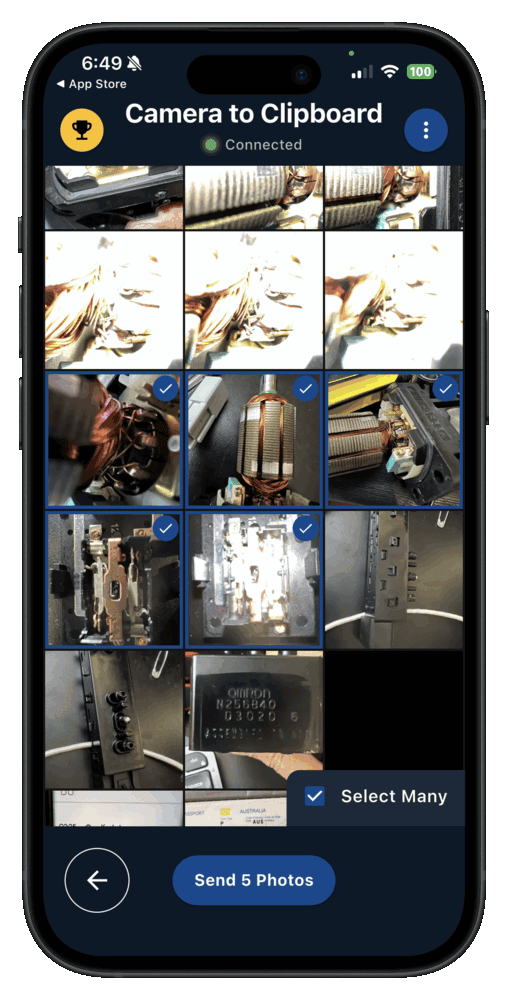
Camera to Clipboard puts a phone photo on your computer clipboard
Camera to Clipboard connects the phone and the computer directly over your own local Wi-Fi.
- Camera to Clipboard puts a phone photo on the computer clipboard, ready for Ctrl + V or Cmd + V. Snap a new photo on the phone or pick one from the gallery, and it is there.
- A phone photo sent with Camera to Clipboard travels device to device, so there is no upload wait and no download wait. The picture crosses your own network rather than a company's server.
- Camera to Clipboard moves photos from an iPhone or an Android phone to Windows or a Mac. Every combination of the two works, so a household running both needs only this one app.
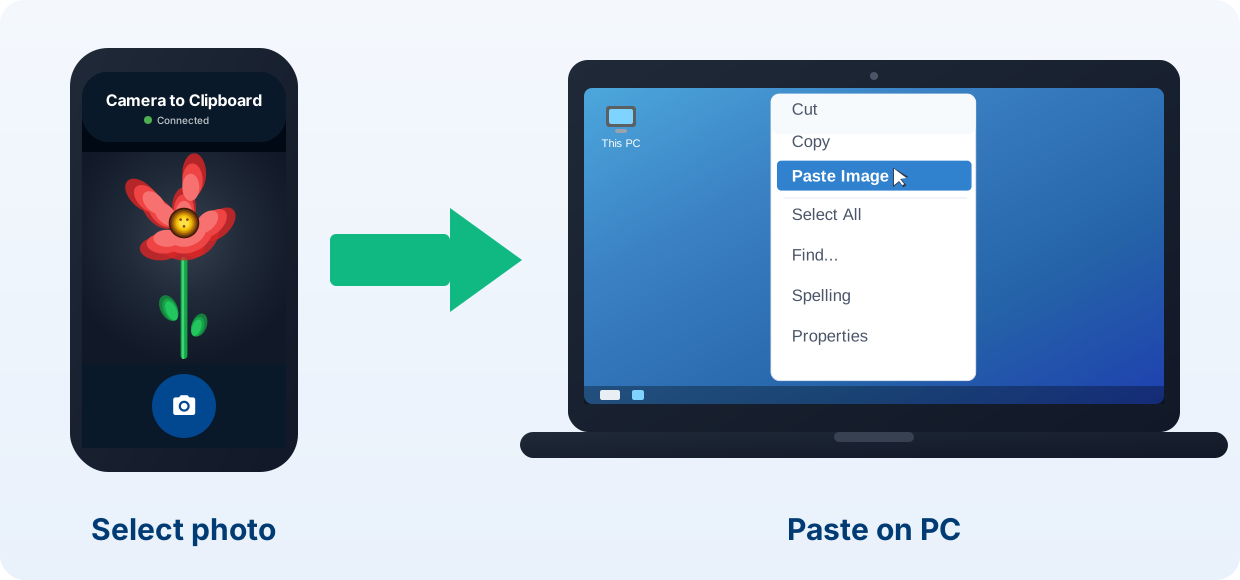
Pair the phone and the computer once, then send photos any time
The whole setup is four steps, and the pairing only happens once.
- Install Camera to Clipboard on your phone and the desktop app on your computer.
- Pair them once by scanning a QR code.
- On the phone, take a photo or pick one from your gallery.
- Press Ctrl + V or Cmd + V on your computer to paste. Done.
Free to download and try, on iPhone, Android, Windows and Mac. The free version adds a small watermark and caps photos at 1920px. Pro removes both.
A USB cable and cloud sync move phone photos, just not quickly
Both are worth having, and both add a step you do not need for a single photo.
- A USB cable is the best way to move hundreds of phone photos to a computer at once. Plug the phone in, unlock it and allow file access. Then drag photos out of the phone's storage in File Explorer, or import them in the Photos app. For one photo it is slow.
- iCloud, Google Photos and OneDrive send a phone photo up to a server and back down again. Let the cloud app back up your camera roll, then open the same account on the computer. It is a fine automatic backup, and it uses your storage quota.

Email and chat apps shrink a phone photo, and Bluetooth is slow
These last two ways need no setup at all, which is the whole of their appeal.
- Emailing or messaging a phone photo to yourself compresses the image before it lands. It gets tedious past one or two photos. The copy you keep is the smaller one.
- Bluetooth sends a photo from an Android phone to a Windows PC, and not from an iPhone at all. It is one of the slowest ways to move a picture, and pairing can be fiddly.

A direct Wi-Fi transfer beats a cable and the cloud for phone photos
A cable makes you find and plug in hardware, and the cloud sends your photo to a server first. A direct transfer does neither.
- Sending a phone photo to a computer over your own Wi-Fi needs no cable at all. There is nothing to find, nothing to plug in and no adapter to keep on the desk.
- Camera to Clipboard sends the photo from the phone straight to the computer, not up to a server and back. There is no upload to sit through and no storage quota being used.
- A phone photo sent with Camera to Clipboard lands on the computer's clipboard, ready to paste. It is not dropped into a folder that you then have to go and open.

Camera to Clipboard sends a phone photo over the phone's own hotspot
Two more things matter once the photo is heading for the computer.
- Camera to Clipboard reaches a laptop that is running on the phone's own hotspot. The hotspot's mobile data lets the two apps find each other. The photo itself stays on that local network.
- Camera to Clipboard hands the computer a phone photo at full resolution, with no compression on Pro. Nothing is scaled down or re-encoded between the phone and the clipboard.
| What you want to do | Camera to Clipboard | Cable / cloud |
|---|---|---|
| Move a photo from phone to computer | ✔ | ✔ |
| No cable needed | ✔ | Cloud only, not USB |
| Nothing uploaded to the cloud | ✔ | Cloud uploads your photo |
| No upload-then-download wait | ✔ | Two trips over the internet |
| Photo lands ready to paste | ✔ | Saves a file first |
| Works with iPhone and Android | ✔ | ✔ |
| Works over a phone hotspot | ✔ | Cloud sends the photo to a server |
| Uses no storage quota | ✔ | Cloud uses your quota |
| Free to download and try | ✔ | ✔ |

Use Camera to Clipboard for one phone photo and a cable for hundreds
Every method here works, so what separates them is how much you are moving and how soon you need it. Match your situation to one of these three.
- Camera to Clipboard is the best way to get a phone photo onto a computer when you are about to use it. Pick it on the phone, send it, and paste it into the message you are already writing.
- A USB cable is the best way to move an entire camera roll from a phone to a computer. The whole lot copies across in one drag, and nothing is uploaded on the way.
- Cloud sync is the best way to keep a phone's photos backed up and reachable from any computer. New pictures upload on their own, and you download only the ones you want.
Common questions
What is the fastest way to transfer photos from a phone to a computer?
A direct wireless transfer over your local Wi-Fi. Camera to Clipboard sends the photo straight to your computer's clipboard in seconds.
How can I transfer photos without a cable or the cloud?
Use a local wireless transfer app. Camera to Clipboard connects your phone and computer directly over Wi-Fi, so nothing is uploaded and no cable is needed.
Does it work for both iPhone and Android?
Yes. Any phone can send to any computer: iPhone or Android to Windows or Mac.