
Most guides copy your photos into a folder. Often you do not want a file, you want to paste the picture into an email, a chat or an image editor. Here is how to copy photos from an iPhone to a computer's clipboard, plus the one built-in option Apple offers.
The quick answer: A cable, iCloud or email gives you a file to open and copy. Camera to Clipboard puts the picture straight on the clipboard, ready for Ctrl + V or Cmd + V. Apple's Universal Clipboard does the same job, but only between an iPhone and a Mac.
Free for iPhone Free for Mac Free for Android Free for Windows
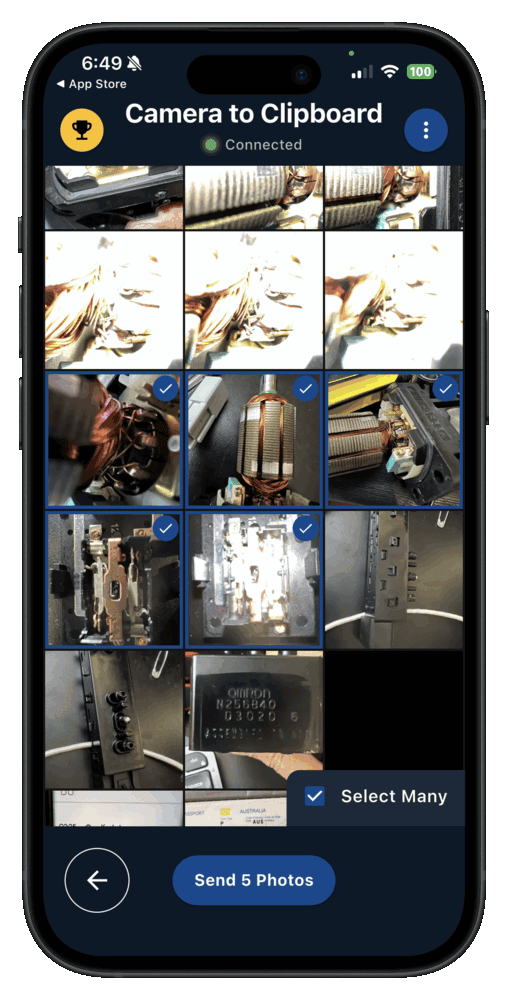
Camera to Clipboard copies an iPhone photo to the computer clipboard
Three things separate Camera to Clipboard from every method that hands you a file.
- Camera to Clipboard sends an iPhone photo to your computer over your own Wi-Fi. The two apps pair once, and the photo itself never leaves your network.
- A photo sent with Camera to Clipboard lands on the computer's clipboard, not in Downloads. It behaves as if you had copied it there yourself, and no file is saved unless you ask for one.
- Camera to Clipboard copies iPhone photos to a Windows PC and to a Mac. The same tap works whichever computer is on the other end.
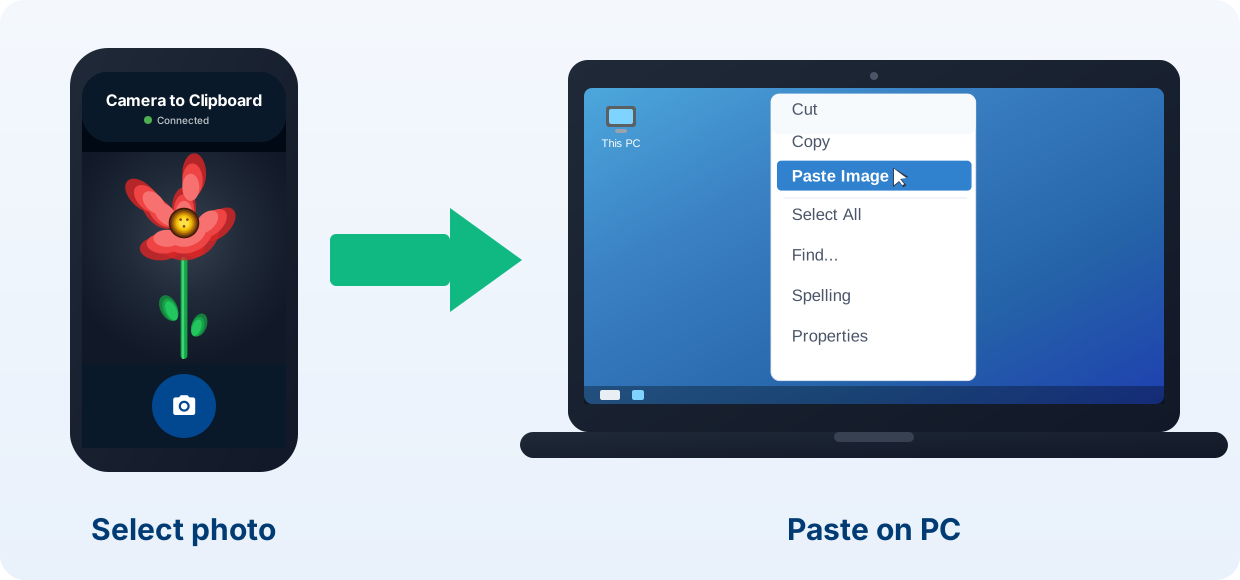
Pair once, then copy photos from iPhone to computer with one tap
Setting Camera to Clipboard up takes about a minute from scratch.
- Install Camera to Clipboard on your iPhone and the desktop app on your computer.
- Pair them once by scanning the QR code the desktop app shows (about ten seconds).
- On the iPhone, take a new photo or pick one from your library.
- Switch to your computer and press Ctrl + V (Windows) or Cmd + V (Mac). The photo pastes in.
Free to download and try. Prefer a file sometimes? The desktop app can also save a copy to a folder, so you get both. The free version adds a small watermark and caps photos at 1920px. Pro removes both.

Apple's built-in Universal Clipboard works only iPhone to Mac
Apple has one built-in way to copy an iPhone photo to a Mac clipboard, and it is free. Setting Universal Clipboard up takes four steps.
- Sign both the iPhone and the Mac into the same Apple ID.
- Turn on Wi-Fi, Bluetooth and Handoff on both (Handoff is under General > AirPlay & Handoff).
- On the iPhone, open a photo, tap Copy.
- On the Mac, press Cmd + V to paste.
Two limits come with Universal Clipboard. It never reaches a Windows PC, and both devices must share one Apple ID and sit close together.

Universal Clipboard often stops working with no error
Even on two Apple devices set up correctly, the clipboard can go quiet.
- Universal Clipboard can stop copying between an iPhone and a Mac with no message at all. Nothing says the copy failed, so the Mac quietly pastes an older item.
- Reports of Universal Clipboard dying overnight run for years on Apple's own forums. See the threads on Apple's support forums and r/applehelp on Reddit, where it works one day and not the next.
Saving an iPhone photo as a file adds four steps before you paste
Think about what you actually do with a phone photo on a computer.
- Most phone photos on a computer get pasted somewhere, not filed away. A screenshot goes into a bug report, a receipt into a spreadsheet, a picture into a chat or into Photoshop or Figma.
- Saving an iPhone photo to Downloads costs four extra steps before the paste. You save it, hunt for the file, open it and copy it. Going straight to the clipboard removes all four.

Camera to Clipboard beats Universal Clipboard on Windows
Now you have seen both. Here is where the dedicated app pulls ahead.
- Camera to Clipboard copies an iPhone photo into a Windows PC's clipboard, and Universal Clipboard cannot. Apple built its version for Macs only, and no setting unlocks a PC.
- Copying an iPhone photo with Camera to Clipboard needs no shared Apple ID and no Handoff. There is no Bluetooth pairing and no same-account rule between the phone and the computer.
- Camera to Clipboard copies the iPhone photo to the computer on one tap, every time. Nothing fails in silence, and there is nothing to re-pair afterwards.

Camera to Clipboard also copies Android photos and can save a file
Two more differences show up once you put the two side by side.
- Camera to Clipboard also copies photos from an Android phone into a computer's clipboard. Universal Clipboard works only with Apple hardware at both ends.
- The Camera to Clipboard desktop app can keep a copy of the iPhone photo in a folder as well. You get the paste and the file, instead of choosing between them.
Here is the full comparison, row by row.
| What you want to do | Camera to Clipboard | Universal Clipboard |
|---|---|---|
| Copy an iPhone photo to a computer clipboard | ✔ | ✔ |
| Works with a Windows PC | ✔ | Mac only |
| No shared Apple ID or Handoff | ✔ | Needs same Apple ID and Handoff |
| Also works with Android phones | ✔ | Apple devices only |
| Full resolution, no compression | ✔ on Pro | ✔ |
| Works over a phone hotspot | ✔ | Needs Bluetooth and devices close by |
| Can also save a file when you want one | ✔ | Clipboard only |
| Free to download and try | ✔ | ✔ |

Use Camera to Clipboard for Windows and either method on a Mac
Both methods end in a paste, so the computer on the other end decides. Find your situation below.
- Copying an iPhone photo into a Windows PC's clipboard needs Camera to Clipboard. Universal Clipboard cannot reach a PC, so there is nothing built in to fall back on.
- Copying one iPhone photo or a whole batch into a Mac's clipboard is fastest with Camera to Clipboard. Select them all on the phone in one go, then paste them on the Mac.
- Universal Clipboard is worth using for an iPhone photo only on a Mac that already has Handoff on. Setting Handoff up from scratch takes longer than installing an app that works with either computer.
Common questions
Can I copy an iPhone photo straight to a Windows clipboard?
Yes. Universal Clipboard only works iPhone to Mac, but Camera to Clipboard copies directly into the clipboard on both Windows and Mac.
Does copying the photo reduce its quality?
No. On Pro the full-resolution image is placed on the clipboard with no compression.
Where does the photo go, a file or the clipboard?
Straight to the clipboard, so you can paste immediately. If you also want a saved file, the desktop app can keep a copy in a folder.