
Android and Windows play together more nicely than iPhone and Windows, so you have several good options. Camera to Clipboard is the instant clipboard way. The built-in ways are Phone Link, a USB cable and Google Photos. All of them work with any Android phone, including Samsung Galaxy.
The quick answer: An Android photo reaches a Windows PC fastest over your own Wi-Fi. Camera to Clipboard puts the photo straight into your PC's clipboard in seconds, ready to paste. Phone Link, a USB cable and Google Photos are covered below.
Free for iPhone Free for Mac Free for Android Free for Windows
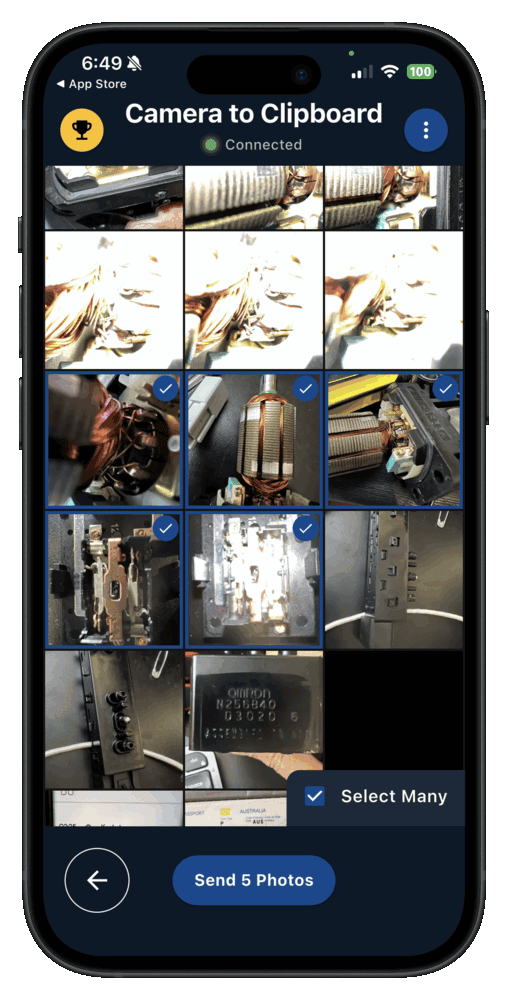
Camera to Clipboard drops an Android photo into your PC clipboard
Camera to Clipboard is a pair of apps, one on the Android phone and one on the Windows PC. Here is what that pair gives you.
- A photo picked in Camera to Clipboard on an Android phone reaches the Windows clipboard in seconds. Press Ctrl + V to paste it into an email, a document, a chat or an image editor.
- Camera to Clipboard sends a photo to a Windows PC from any Android phone. Samsung, Google Pixel, OnePlus and Xiaomi handsets all pair the same way.
- An Android photo sent with Camera to Clipboard crosses your own Wi-Fi and is never uploaded. The two apps use the internet only to find each other.
- Camera to Clipboard still sends Android photos when the laptop is on the phone's hotspot. The phone's mobile data connects the two apps, and the photo stays on that local network.
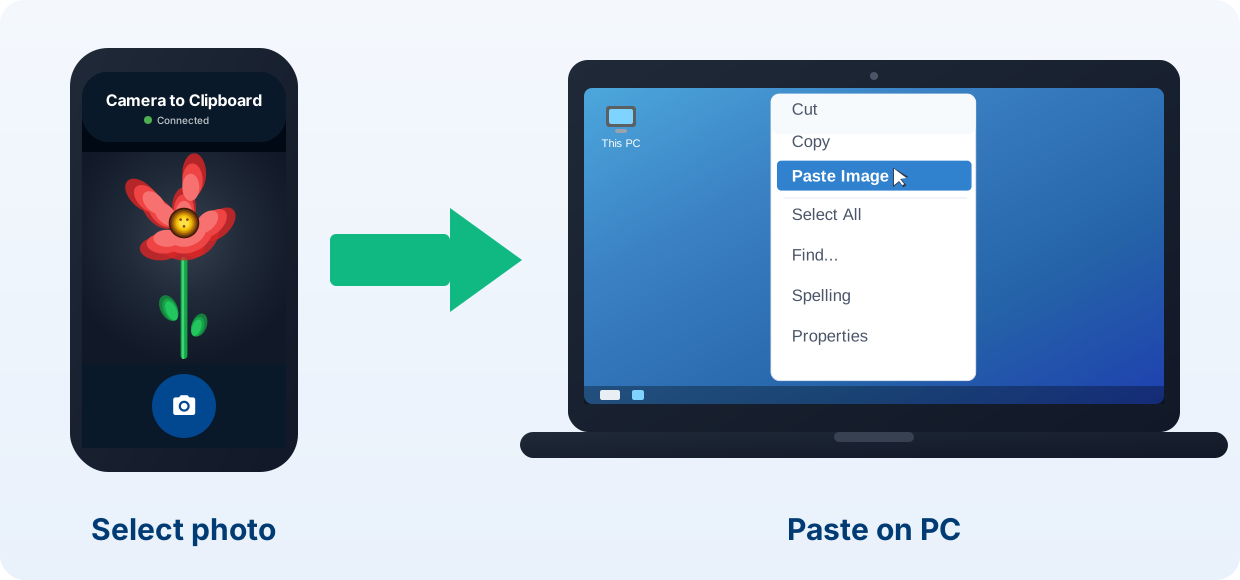
Send an Android photo to the PC in four steps after one pairing
Pairing happens once. After that, every photo takes the same four steps.
- Install Camera to Clipboard on your Android phone and the desktop app on your PC.
- Pair them once by scanning a QR code.
- On the phone, take a photo or pick one from your gallery.
- Press Ctrl + V on your PC to paste. Done.
Free to download and try on both Android and Windows. The free version adds a small watermark and caps photos at 1920px. Pro removes both.
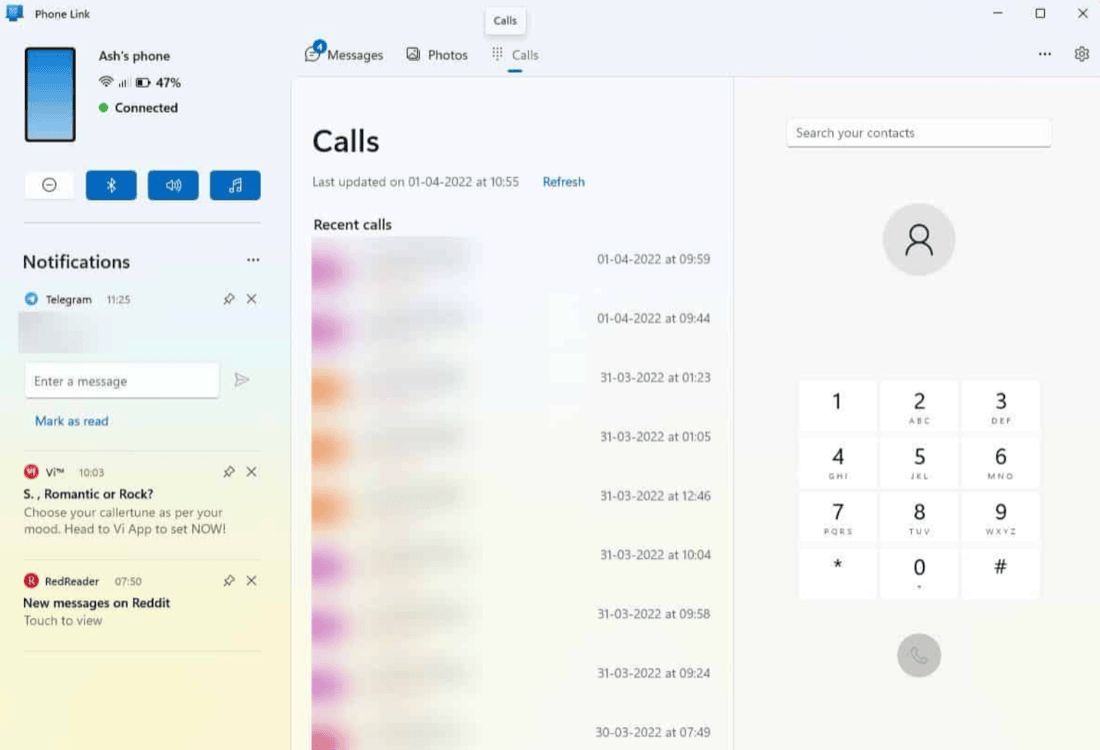
Use Windows Phone Link when the Android photo you want is recent
Phone Link is Microsoft's own app for pairing a phone with Windows. It is the built-in way to reach an Android photo without a cable.
- Pair an Android phone with Windows by opening Phone Link on the PC and Link to Windows on the phone. The PC shows a QR code, the phone scans it, and both ends use the same Microsoft account.
- Phone Link puts the paired Android phone's pictures in its Photos tab, and on Windows 11 in File Explorer too. Microsoft is moving that browsing into File Explorer, where the phone sits in the left pane.
- The Photos tab in Phone Link holds only your most recent Android photos, so an older shot will not appear there. For anything further back you need File Explorer, the cable or Google Photos.
Official apps: Phone Link for Windows, Link to Windows for Android, or Link to Windows for iPhone.
Copy hundreds of Android photos to the PC over a USB cable
A cable is the right tool when you are moving a whole camera roll rather than one photo.
- Connect the phone to the PC with a USB-C cable.
- On the phone, tap the notification and choose File transfer (MTP).
- Open File Explorer on Windows and find the phone under This PC.
- Browse to DCIM > Camera and drag the photos into a folder.
Nothing is uploaded and no account is involved, but you do need the cable and a free port.

Back up Android photos to Google Photos and download them on the PC
Google Photos suits the photos you want kept safe rather than used this minute.
- Google Photos backs up the Android camera roll on its own once backup is switched on. New shots upload in the background whenever the phone is on Wi-Fi.
- Any backed-up Android photo can be downloaded on the PC at photos.google.com. A browser is all the Windows side needs, so there is nothing to install.
- Photos backed up to Google Photos use the free 15 GB that Gmail and Drive also share. A large camera roll fills it, and extra space is a paid Google plan.

Camera to Clipboard beats Phone Link for one quick Android photo
Now you have seen both kinds. Phone Link and a cable are solid for bulk copying, but both end in a file you must open.
- An Android photo sent with Camera to Clipboard lands on the PC clipboard, ready for Ctrl + V. You are not left opening a file or hunting through a gallery tab.
- Camera to Clipboard sends any photo in the Android gallery to the PC, not just the recent ones Phone Link shows. Older shots are reachable without scrolling a sync window.
- Sending an Android photo to a Windows PC with Camera to Clipboard needs no USB cable. There is nothing to plug in and no File Explorer window to browse.
- Camera to Clipboard still moves Android photos to a Windows laptop that is joined to the phone's hotspot. The hotspot's mobile data is what lets the two apps find each other, and the photo itself stays on that local network.
- Android photos arrive on the PC at full resolution on Pro. Pro sends the picture without re-encoding it, and no copy goes to the cloud.
| What you want to do | Camera to Clipboard | Phone Link / USB |
|---|---|---|
| Get an Android photo onto a Windows PC | ✔ | ✔ |
| Photo lands ready to paste | ✔ | Opens a file or gallery tab |
| Reach any photo, not just recent | ✔ | Phone Link shows recent only |
| No cable needed | ✔ | USB needs a cable |
| Works over a phone hotspot | ✔ | Phone Link needs both signed in |
| Works with Samsung and every Android | ✔ | ✔ |
| Full resolution, no compression | ✔ on Pro | ✔ |
| Free to download and try | ✔ | ✔ |

Use Camera to Clipboard for a few Android photos and USB for a batch
All four methods here do get Android photos onto a Windows PC. The choice comes down to how many photos you are moving, and how soon you need them.
- Use Camera to Clipboard for the Android photos you are about to use on the PC, one or several. Pick them on the phone, send, and paste them into whatever you are working in.
- Open Phone Link when the Android photo you want is one you took a moment ago. Microsoft's app already knows the paired phone, and the recent shots sit in one tab.
- Copy the whole Android camera roll to the PC at once with a USB cable and File Explorer. It is slower to set up, but it drags whole folders across in one go.
- Let Google Photos back up the Android camera roll so the PC can pull photos from it later. Everything backs up on its own, and you fetch what you need at photos.google.com.
Common questions
How do I transfer photos from Android to PC wirelessly?
The quickest way is Camera to Clipboard, which sends a photo straight to your PC's clipboard in seconds. Phone Link and Google Photos also work but are slower for a single photo.
How do I transfer photos from Samsung to a laptop?
The same methods apply to Samsung Galaxy phones. Camera to Clipboard works on any Android phone including Samsung, or use a USB-C cable with File Explorer.
Does it work over a hotspot?
Yes. The transfer stays on your local network, so it works even when your laptop is tethered to the phone's hotspot.