
Search for Huawei Share and Windows and you get photos of a phone tapped against a laptop. Every one of those laptops is a Huawei MateBook. If your PC came from anyone else, that tap is not something you switched off by accident. This guide covers what Huawei Share still does on an ordinary Windows 10 or Windows 11 PC.
The quick answer: the NFC tap, Huawei Share OneHop, is a MateBook feature. It works on no other PC. Huawei Share's computer sharing does work on any Windows 10 or Windows 11 PC. It puts the phone in File Explorer as a network folder. That suits a batch. For one photo to paste now, Camera to Clipboard is faster. Free for iPhone Free for Mac Free for Android Free for Windows

Huawei Share OneHop only works on Huawei's own MateBook laptops
Three things have to line up before the tap does anything. A laptop from another maker has none of them.
- Huawei Share OneHop is a feature Huawei builds into its own MateBook laptops rather than into Windows. It is sold with the hardware, the way a fingerprint reader is.
- The OneHop tap lands on an NFC tag built into the MateBook's own body. Huawei puts a small labelled tag on the palm rest of many models.
- Huawei PC Manager is the desktop half of OneHop, and Huawei ships it with its own computers. It has to be installed and running on the PC, or a tap has nobody to talk to.
- No Windows 10 or Windows 11 setting turns OneHop on for another maker's laptop. Half of the feature is Huawei's hardware and half is Huawei's software.

Treat an unofficial Huawei PC Manager install as an experiment
People do go looking for a way in, so here is what those searches find.
- Unofficial guides to installing Huawei PC Manager on a non-Huawei laptop exist, and Huawei supports none of them. They are community edits to software written for one range of computers.
- Windows Nearby sharing is Microsoft's own PC to PC feature and has nothing to do with Huawei Share. Google's Quick Share, once called Nearby Share, is a different product again.
- People hunt for OneHop in Bluetooth settings, Phone Link and Windows Nearby sharing. It is in none of them, and Windows cannot supply the MateBook half.

Camera to Clipboard sends a Huawei photo to any Windows PC
A PC that is not a MateBook cannot have the tap, but it can still have the speed.
- A photo sent from a Huawei phone with Camera to Clipboard lands on the Windows clipboard, ready for Ctrl + V. There is no folder to open and no attachment to find.
- Camera to Clipboard reaches a Windows 10 or Windows 11 PC from any maker, because it needs only Wi-Fi. No NFC tag, no matching brand at both ends and no manufacturer's desktop software.
- Camera to Clipboard sends the photo straight from the phone to the PC and never uploads it to a cloud. The two apps use the internet only to find each other. The picture itself crosses your own Wi-Fi.
- Camera to Clipboard moves one Huawei photo or a whole batch at full resolution. A video crosses the same way, saved as a file on the PC with its path on the clipboard.

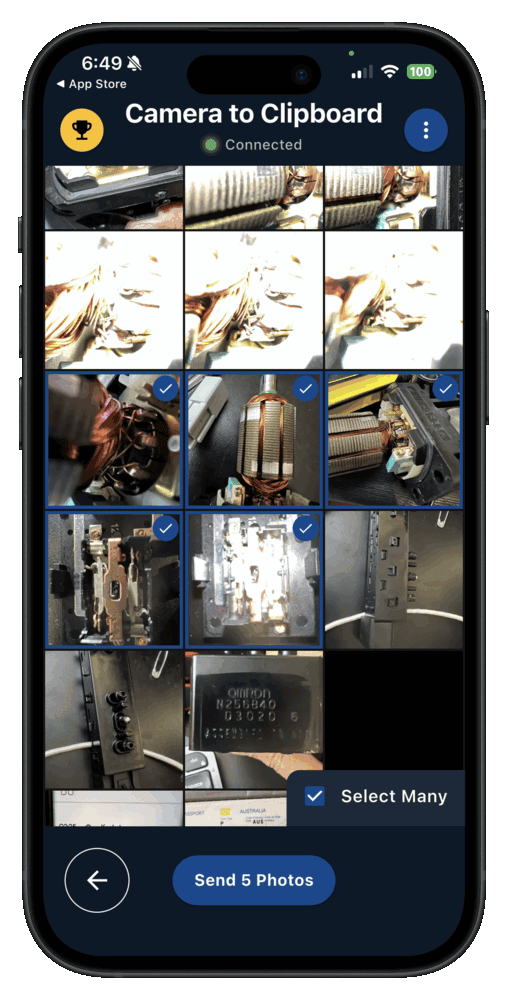
Pair Camera to Clipboard with your Windows PC in four steps
Pairing happens once and takes about ten seconds.
- Install Camera to Clipboard on the phone and the Windows app on the PC.
- Pair them once by scanning a QR code.
- Take or pick a photo on the phone and send it.
- Press Ctrl + V on the PC.
Free to download and try on both ends. There is more detail in the Android to PC guide and the Wi-Fi transfer guide.
| What you want to do | Camera to Clipboard | Huawei Share |
|---|---|---|
| Get a Huawei photo onto a Windows PC | ✔ | ✔ |
| Works on a laptop that is not a MateBook | ✔ | Network folder only, no tap |
| Photo lands ready to paste | ✔ | Leaves a file to open |
| Nothing to install on the PC | Desktop app, one install | ✔ |
| Works from an iPhone as well | ✔ | Huawei and Honor devices only |
| Full resolution, no compression | ✔ on Pro | ✔ |
| Free to download and try | ✔ | ✔ |

Open your Huawei phone in File Explorer with computer sharing
Huawei Share has a second feature with nothing to do with the MateBook. It offers the phone's storage to your network using the file sharing protocol Windows already speaks.
- Put the Huawei phone and the Windows PC on the same Wi-Fi network.
- Open Huawei Share in the phone's connection settings and turn on computer sharing.
- Note the name the phone will show on computers, plus the user name and password it lists.
- On the PC, open File Explorer and go to This PC then Network.
- Double-click the phone's name and enter that user name and password.
- Open the phone's internal storage or album folder and drag what you want onto the PC.

Set the Wi-Fi to private if Windows cannot see the Huawei phone
Three things trip people up at this point.
- A Windows PC that cannot find the Huawei phone under Network usually has network discovery switched off. Windows disables discovery on a network marked public, so set the Wi-Fi connection to private.
- The computer sharing switch inside Huawei Share is worded differently across EMUI, Magic UI and HarmonyOS. Look for the option sitting next to Huawei Share rather than for one exact label.
- The user name and password Huawei Share shows are generated by the phone, not your Huawei account. They stop other machines on the network browsing your storage. The phone shows them again when you need them.

Copying from the Huawei network folder leaves you a file to open
What lands at the Windows end is the phone's own files.
- Photos copied out of the Huawei Share network folder are the phone's originals at full size. Nothing is recompressed on the way, unlike the same pictures sent through a chat app.
- A photo dragged out of the Huawei Share folder is still a file to find, open or attach. That is fine for a batch you are archiving and slow for one picture.

Huawei Share OneHop moves photos to a MateBook with one tap
If you do own a MateBook, here is what the tap actually does.
- Tapping a Huawei phone on a MateBook's Huawei Share tag sends the photos open on the phone. There is no pairing screen and no file picker on the PC side.
- Huawei Share OneHop uses NFC only as the trigger and sends the photos over a direct wireless link. NFC cannot carry anything the size of a photo, which is why a batch takes seconds.
- A Huawei phone and a MateBook joined by Huawei Share can mirror the phone's screen onto the laptop. Huawei sells that wider feature as multi-screen collaboration, and files drag between the two screens.
- Huawei Share OneHop does nothing unless Huawei PC Manager is running on the MateBook. A tap that gets no response is very often this rather than a broken tag.

Most Windows laptops have no NFC reader to tap at all
The obstacle is physical, which is what makes the search a waste of time.
- Most Windows laptops have no NFC reader in them, so a phone tapped against one is talking to nothing. NFC is standard on phones because of contactless payment and rare on laptops.
- The Huawei Share tag on a MateBook is a passive NFC tag powered by the phone held against it. It has no battery and no wiring. On some later MateBook models it sits under the trackpad.
- Sticking a blank NFC tag onto a non-Huawei laptop does not recreate Huawei Share OneHop. All the tag does is tell the phone which machine it touched. Huawei PC Manager does the rest.
- The NFC tap is the one part of Huawei Share a non-Huawei Windows PC cannot have. Everything Huawei Share does over the network is still open to you.

A Huawei phone from late 2019 has no Google Play on it
This changes the answer for anyone holding a recent Huawei phone.
- Huawei phones launched from late 2019 onwards have no Google Mobile Services and no Play Store. A United States trade restriction from May 2019 stopped Google licensing its apps for new Huawei devices.
- A Huawei phone bought before the 2019 restrictions still has Google Play and behaves like any other Android phone. The P30 generation and earlier were certified before the change. The Mate 30 was the first flagship without.
- Google Photos and Google Drive are not available as a way of getting pictures off a newer Huawei phone. A cloud upload is the usual fallback when a direct transfer fails, and here it is missing.

Install a transfer app from AppGallery or sideload the APK
Which store your phone has decides which apps you can plan around.
- Huawei's AppGallery is the app store on a Huawei phone with no Google services. Its catalogue differs from Google Play, so plenty of well-known apps are missing.
- An Android app published only on Google Play has to be sideloaded onto a newer Huawei phone as an APK. You download the installer yourself, which puts the safety of the file on you.
- Camera to Clipboard is published on Google Play and is not in Huawei's AppGallery today. A Huawei phone from before the Google split installs it normally, and a newer one sideloads the APK.

OneHop stops working the day you replace the MateBook
OneHop is not badly made. It belongs to a family of features that end at one brand's hardware.
- Huawei Share OneHop stops being available the day you replace a MateBook with another maker's laptop. Nothing about your phone changed, and half of the feature lived in the old laptop.
- A manufacturer builds a phone to PC transfer feature to sell its own computers. The tap is an argument for buying a MateBook next time. Working on a rival's laptop would remove it.
- Only Huawei ships both halves of Huawei Share OneHop, so only Huawei decides how long it lasts. One company owns the phone software and the desktop software.
- A phone to PC transfer that needs nothing but Wi-Fi survives both a new phone and a new laptop. Wi-Fi is on every phone and every computer sold. There is no brand to be cut off from.

OneHop is the only one of five Huawei methods needing a MateBook
Five ways get a photo off a Huawei phone and onto a Windows PC. They differ in what you must own first and in what you are holding at the end.
| Method | Works on a non-Huawei Windows PC | What arrives at the Windows end | Whether it needs the internet | What you set up first |
|---|---|---|---|---|
| Camera to Clipboard | Yes, any brand of PC | A paste, ready for Ctrl + V | Needs internet to connect, the photo stays on your Wi-Fi | Two apps and one QR scan |
| Huawei Share computer sharing | Yes, any brand of PC | A network folder to browse | No, same Wi-Fi is enough | A phone switch plus a password |
| Huawei Share OneHop tap | No, MateBook only | Files copied straight across | No, the two devices talk directly | A MateBook and Huawei PC Manager |
| USB cable and File Explorer | Yes, any brand of PC | Files in a folder on the PC | No, the cable carries it all | A cable that carries data |
| Cloud upload or email | Yes, any brand of PC | A download to fetch and open | Yes, both ends must be online | An account on both devices |

Match the Huawei method to what you are about to do
All five move photos, so the choice is about what you own and what comes next.
- Camera to Clipboard is the best way to get one Huawei photo into an email or a document on Windows. The picture arrives on the clipboard, so the next step is Ctrl + V.
- Huawei Share's computer sharing is the best way to copy a month of Huawei photos onto Windows. Browsing the phone in File Explorer lets you see dates and pick as you go.
- A USB cable is the best way to move an entire Huawei camera roll onto a Windows PC. Nothing wireless matches a cable once you are past a few hundred files.
- Huawei Share OneHop is the right choice if you already own both a MateBook and a Huawei phone. It is the fastest of the five when you have the hardware.
Common questions about Huawei Share on Windows
Does Huawei Share work with a Windows 10 PC that is not a MateBook?
Partly. The NFC tap, Huawei Share OneHop, is built for Huawei's own MateBook laptops running Huawei PC Manager. It is not available to you. Huawei Share's computer sharing does work on any Windows 10 or Windows 11 PC. It puts the phone on your local network as a folder. Open it from This PC and Network in File Explorer.
Why can I not install Huawei PC Manager on my own Windows laptop?
Huawei ships PC Manager with its own computers. The OneHop tap also depends on an NFC tag built into the laptop itself. A laptop from another maker has no such tag and usually no NFC reader. An unofficial install would have nothing to tap.
How do I get one Huawei photo onto Windows without setting up a share?
Send it over your local Wi-Fi instead. Camera to Clipboard puts the photo straight on the Windows clipboard. Press Ctrl and V into an email or a document. There is no cable, no network folder and no cloud upload.
Can a Huawei phone with no Google services still send photos to Windows?
Yes. Huawei Share's computer sharing and a plain USB cable both work without any Google service. What changes is which apps you can install. Anything published only on Google Play has to come from Huawei's AppGallery or be sideloaded as an APK.