
Android does not have AirDrop, because AirDrop is an Apple-only feature. It has its own equivalent instead, Quick Share, for sharing between phones. When the photo is going to a computer, Camera to Clipboard gets closer.
The quick answer: There is no AirDrop for Android. For Android to Android, use Quick Share, which is built in. For a photo straight to a PC or Mac, use Camera to Clipboard. It lands on the computer's clipboard over local Wi-Fi, ready to paste, and nothing is uploaded.
Free for iPhone Free for Mac Free for Android Free for Windows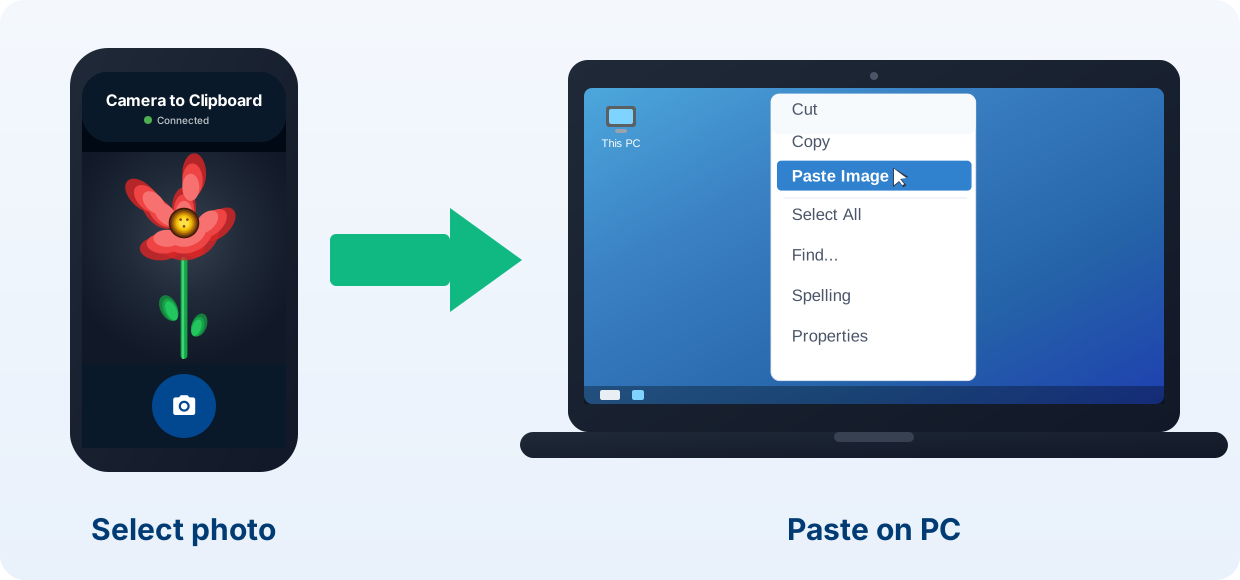
Camera to Clipboard puts an Android photo on your PC or Mac clipboard
If you want AirDrop on Android so that a photo reaches a computer, this is the closest match.
- Camera to Clipboard sends an Android photo straight to a PC or Mac clipboard. Press Ctrl + V or Cmd + V to paste it. No file lands in a folder first.
- Camera to Clipboard works from any Android phone, Samsung Galaxy included. There is no supported model list to check.
- An Android photo sent with Camera to Clipboard crosses your own Wi-Fi and is never uploaded. The two apps use the internet only to find each other. A laptop on the phone's hotspot works too.

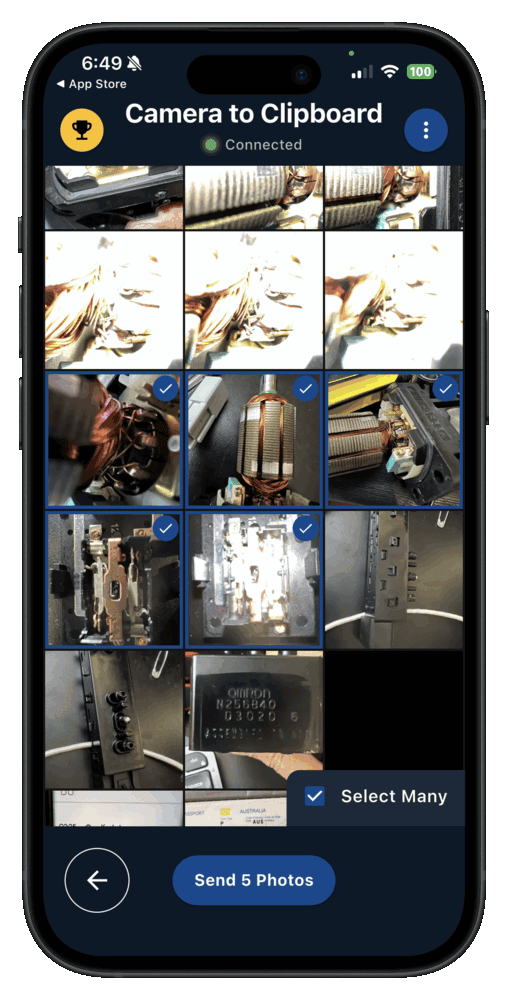
Pair the Android phone once, then send a photo in four steps
Setup takes about ten seconds, and you only do it once.
- Install Camera to Clipboard on your Android phone and on your PC or Mac.
- Pair them once by scanning a QR code.
- On the phone, take a photo or pick one from your gallery.
- Press Ctrl + V, or Cmd + V on a Mac, to paste it.
Free to download and try on Android, Windows and Mac. The free version adds a small watermark and caps photos at 1920px. Pro removes both.

Android has no AirDrop, but Quick Share is its built-in equivalent
AirDrop is Apple-only, built into the iPhone, iPad and MacBook, and it will never appear on Android.
- Quick Share is the AirDrop equivalent built into Android. It was called Nearby Share until Samsung and Google merged their two systems in 2024.
- Quick Share sends between two Android phones, and to Windows through its free Windows app. Since November 2025 it can also reach an iPhone, from a short list of recent Android phones.
- A photo sent with Quick Share arrives as a file in a folder, not on the clipboard. You still have to go and open it.
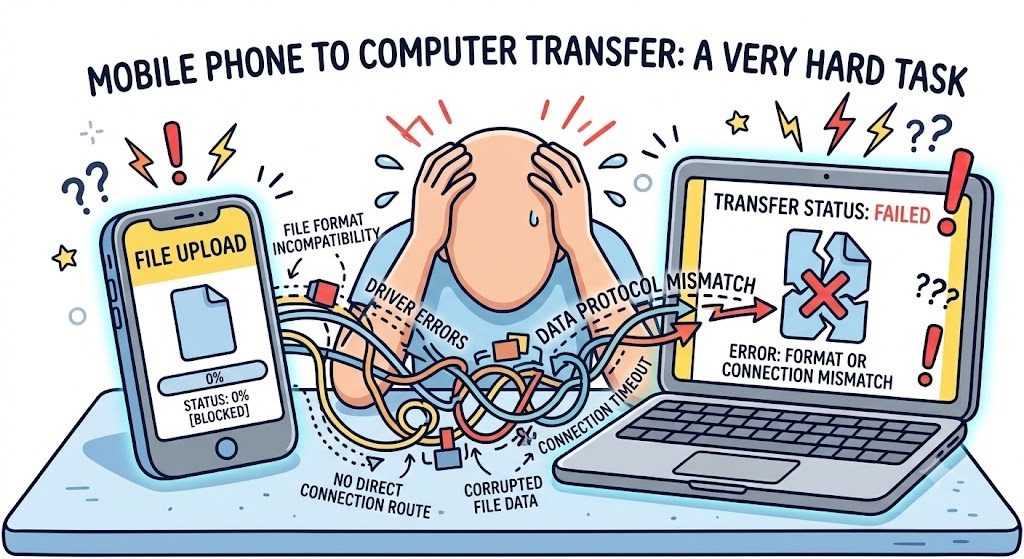
Quick Share and LocalSend send a photo without uploading it anywhere
Two free options move the photo across your own network, and both end in a saved file.
- Quick Share is the closest AirDrop feeling between two Android phones. Pick a photo, tap Share, then choose the nearby device. On a computer it saves a file.
- PairDrop in a browser and LocalSend as a small app reach a Mac, a PC or another phone. Both devices need the page or the app open at the same time. PairDrop is the community fork of the original Snapdrop code, and it keeps the direct device to device transfer. Snapdrop itself was bought by LimeWire and now sends files through LimeWire's servers rather than straight between your devices.
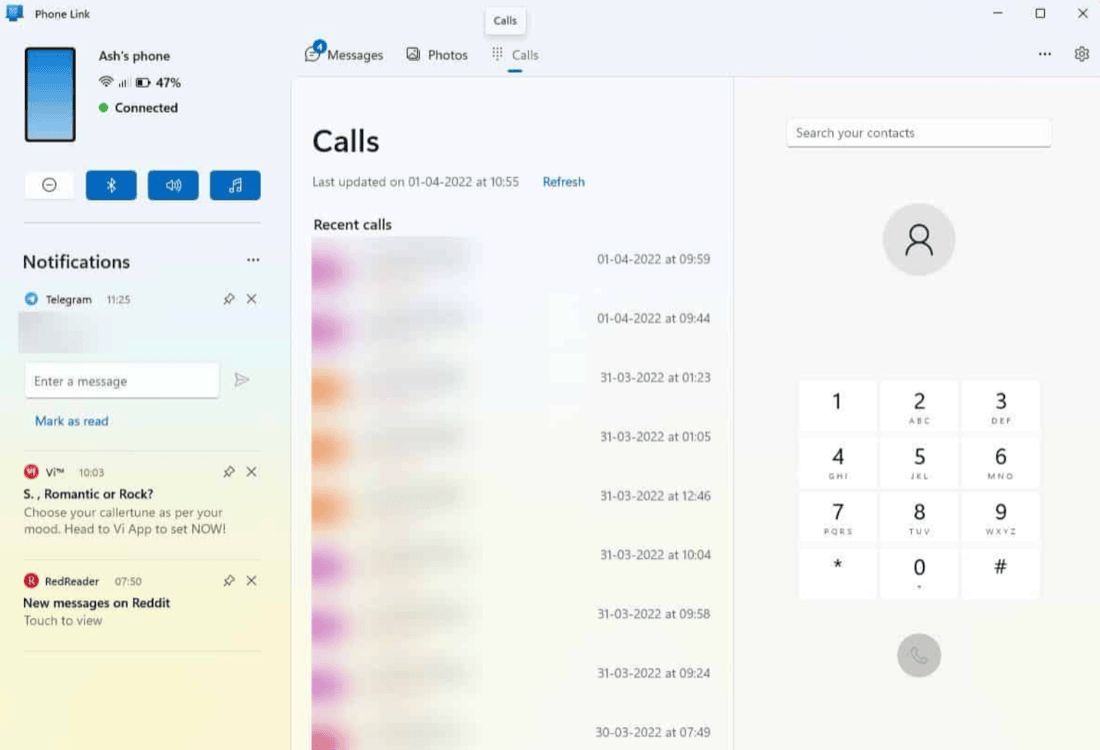
Use Microsoft Phone Link for whole files from Android to Windows
Phone Link is the heavier option, and it pays off for ongoing use.
- Phone Link on Windows mirrors your Android phone, so you can drag recent photos across. The Link to Windows app on the phone is the other half.
- Phone Link needs both apps signed in to the same Microsoft account. That is a heavier setup than a one-off share.
- Phone Link runs on Windows only, so it never reaches a Mac. On a Mac it is not an option at all.
Use Send Anywhere only when the two devices are far apart
Cloud transfer tools solve a different problem, and they charge you for it in time.
- Send Anywhere moves a photo between two devices that are nowhere near each other. It hands you a six digit key to download the file.
- A photo sent a long way with Send Anywhere goes through the company's servers. You wait for an upload and then a download.
- Send Anywhere leaves you with a saved file, not an image ready to paste. Opening it and attaching it is still your job.

Camera to Clipboard beats Quick Share by skipping the saved file
Quick Share and the file tools are fine, right up until you want to use the photo.
- Camera to Clipboard sends an Android photo to a Mac as easily as to a Windows PC. Phone Link never reaches a Mac. Quick Share reaches one only from a few recent phones.
- An Android photo sent with Camera to Clipboard lands on the clipboard, ready to paste. There is no Downloads folder to go and open afterwards.
- Camera to Clipboard never uploads your Android photo on the way to the computer. It crosses your own local Wi-Fi, which removes the upload then download wait.

Camera to Clipboard sends a full resolution photo over a hotspot too
Two more things matter when the photo is going to a computer.
- Camera to Clipboard delivers the Android photo at full resolution, not the shrunken copy a chat app sends. Nothing is recompressed on the way across.
- Camera to Clipboard still reaches a laptop running on the phone's own hotspot. The hotspot's mobile data lets the two apps find each other. The photo stays on that local network.
| What you want to do | Camera to Clipboard | Quick Share / others |
|---|---|---|
| Send an Android photo to a Windows PC | ✔ | ✔ |
| Send an Android photo to a Mac | ✔ | Phone Link cannot, Quick Share only from recent phones |
| Photo lands ready to paste | ✔ | Saves a file first |
| No cable needed | ✔ | ✔ |
| Nothing uploaded to a cloud | ✔ | Cloud tools upload |
| Full resolution, no compression | ✔ on Pro | Varies by tool |
| No account needed | ✔ | Phone Link needs a Microsoft account |
| Works over a phone hotspot | ✔ | Cloud tools send the photo to a server |
| Free to try | ✔ | ✔ |

Pick Quick Share for phones and Camera to Clipboard for a computer
The right answer depends on what is at the other end.
- Quick Share is the built-in AirDrop answer between two Android phones. It behaves the way AirDrop does on an iPhone, with nothing to install.
- Camera to Clipboard is the best way to get an Android photo onto a PC or Mac when you are about to use it. Send it from the phone, then paste it.
- Phone Link is the best way to move whole files and folders from an Android phone to a Windows PC. The heavier setup pays off for ongoing use.
Common questions
Does Android have AirDrop?
No. AirDrop is Apple-only, so it does not exist on Android. Android's built-in equivalent is Quick Share, for Android to Android and Android to Windows. For a photo straight into a PC or Mac clipboard, Camera to Clipboard gets closest.
How do I AirDrop from Android to a PC?
You cannot, because AirDrop is Apple-only. Camera to Clipboard gets you the same instant result. It sends an Android photo straight into your PC or Mac clipboard over local Wi-Fi, ready to paste. For whole files to a Windows PC, Quick Share or Phone Link also work.
What is the Android equivalent of AirDrop?
Quick Share, formerly Nearby Share, is Android's built-in AirDrop equivalent. It covers Android to Android, and Android to Windows through the Windows app. It saves a file rather than dropping to the clipboard. To land a photo ready to paste on a PC or Mac, Camera to Clipboard is the closest match.