
Short version: there is no official AirDrop for Windows. AirDrop is Apple only and never came to the PC. This guide gives you the five alternatives that do work, with Camera to Clipboard as the closest AirDrop feeling on a Windows PC.
The quick answer: The closest thing to AirDrop for a Windows PC is Camera to Clipboard. It sends a photo from your phone straight into your PC's clipboard, ready to paste with Ctrl + V. No cable, and nothing uploaded to a cloud. The other four alternatives are below.
Free for iPhone Free for Mac Free for Android Free for Windows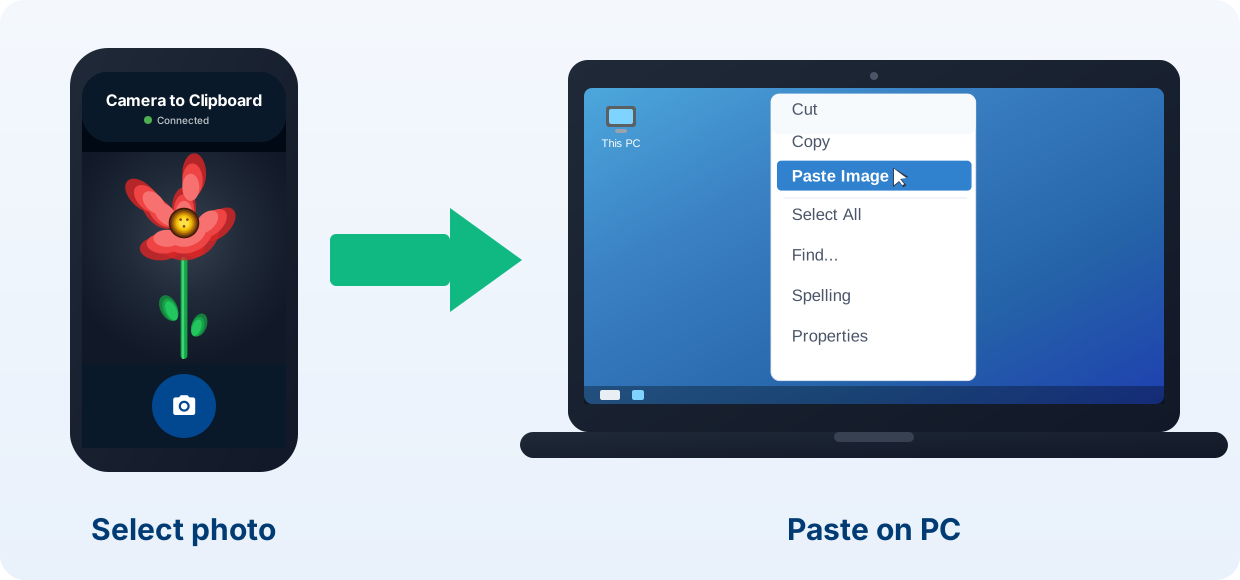
Camera to Clipboard is the easiest AirDrop-style transfer on Windows
Here is what the app does when the PC is the screen you need.
- Camera to Clipboard drops an iPhone or Android photo onto the Windows clipboard in seconds. Take a photo, or pick one from your library. It arrives before you put the phone down.
- A photo sent with Camera to Clipboard pastes into Windows with Ctrl + V. It lands in an email, a chat, a Word document or an image editor.
- Camera to Clipboard carries the picture straight across your own Wi-Fi. Nothing is uploaded to a cloud. Your phone's own hotspot works too.

Pair Camera to Clipboard with your Windows PC in four steps
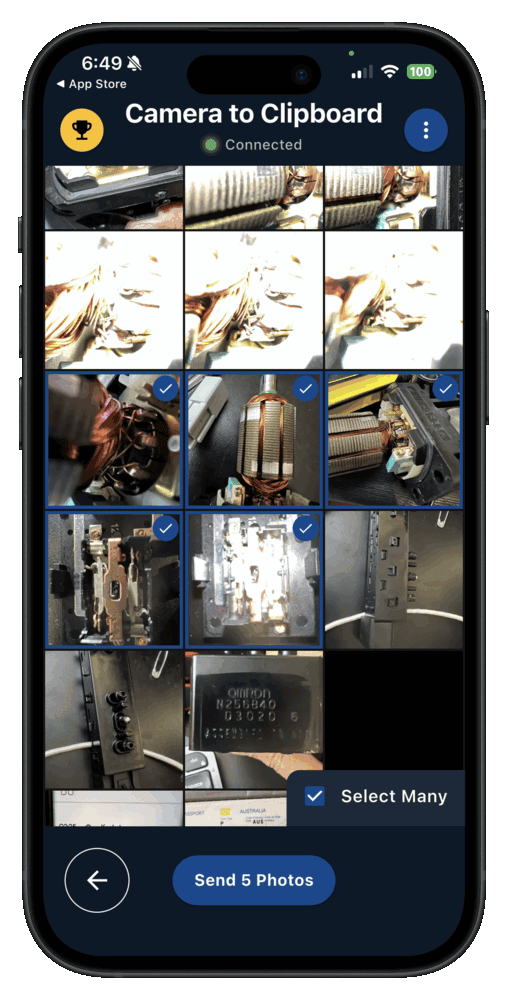
Pairing happens once, and it takes about ten seconds.
- Install Camera to Clipboard on your phone and the desktop app on your Windows PC.
- Pair them once by scanning a QR code.
- On the phone, take a photo or pick one from your library.
- Press Ctrl + V on the PC to paste it.
Free to download and try on iPhone, Android and Windows. The free version adds a small watermark and caps photos at 1920px. Pro removes both.

There is no AirDrop for Windows because Apple never licensed it
AirDrop is not an open standard that any device can join.
- AirDrop is Apple's own system, built for the iPhone, the iPad and the Mac. It is not a feature Windows can switch on.
- AirDrop finds nearby devices over Bluetooth, then moves the file over a direct Wi-Fi link. Both halves are Apple's own code.
- Microsoft never got a licence for AirDrop, and Apple never shipped a Windows version. That is why you will not find it anywhere in Windows.

Any AirDrop for Windows download you find is really another app
Search results are full of tools borrowing the AirDrop name.
- Every app sold as AirDrop for Windows is a third-party tool under a borrowed name. Apple has released nothing for the PC, and no download changes that.
- Five cross-platform apps between them cover every job you would have used AirDrop for. Each one is good at a different part of it, and they are all below.

1. Camera to Clipboard is the closest AirDrop feeling on Windows
Pick this one if what you liked about AirDrop was the instant arrival.
- Camera to Clipboard sends an iPhone or Android photo straight to the Windows clipboard. It travels over your local Wi-Fi, and nothing is uploaded to a cloud.
- Camera to Clipboard sends a video clip across your own Wi-Fi as well. The clip is saved as a file on the PC, and its file path goes on the clipboard.
- Camera to Clipboard is built for photos and clips, not for folders of mixed files. That is the one catch, and the tools below cover it.
2. Microsoft Phone Link is the best built-in option for Android
If your phone runs Android, Windows already ships a tool for this.
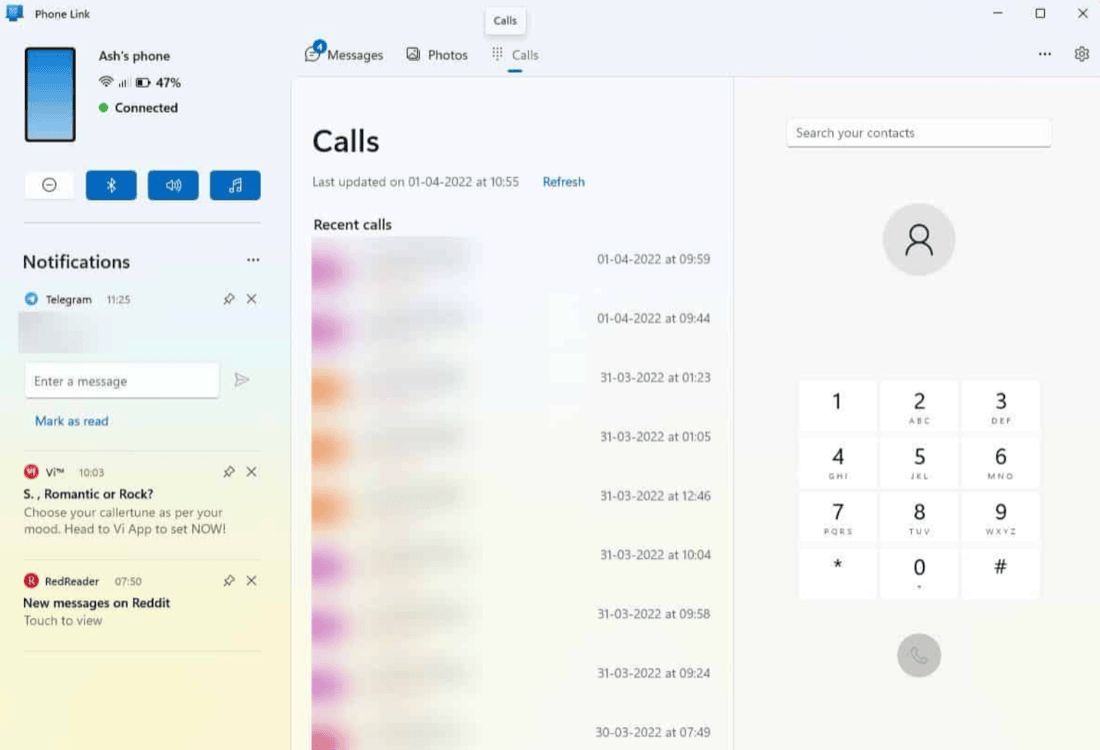
- Microsoft Phone Link on the PC pairs with the Link to Windows app on Android. Install both, then sign in once.
- Phone Link mirrors your recent Android photos, texts, calls and notifications on the desktop. You drag a photo off the panel into a document.
- Phone Link can receive a file sent from an iPhone, on iOS 16 or later. Send it from the normal iPhone share sheet, or from Windows File Explorer with the Share command.
- Phone Link's photo library panel works with Android only, and it cannot browse an iPhone's files. You push each iPhone file across yourself, one share at a time.

3. PairDrop and LocalSend save the photo as a file, not a paste
Two open-source tools move files between any devices on one network.
- PairDrop and LocalSend send files between an iPhone, an Android phone and a Windows PC. One runs in a browser tab, the other as a small app.
- PairDrop and LocalSend drop the photo into your Downloads folder, not onto the clipboard. Both devices also have to sit on the same network.
- Choose PairDrop over Snapdrop, because LimeWire bought Snapdrop. Snapdrop now sends your files through LimeWire's servers. PairDrop is the community fork of the code from before that sale.

4. Quick Share, once Nearby Share, is Android to Windows only
Google's own wireless transfer has a proper Windows app.
- Quick Share is Google's own transfer tool, and it beams files from an Android phone to a Windows PC. Google renamed it from Nearby Share in 2024. It is the nearest thing to a native AirDrop experience on Windows.
- Quick Share has no iPhone support at all. It runs from Android to Windows only, so it is no help if you carry an iPhone.

5. Send Anywhere, email and cloud drives upload the photo first
These are the universal fallback, and they work between any two devices.
- Send Anywhere, plain email and a cloud drive move a photo from any phone to any PC. Nothing has to match, which is why they always work.
- Send Anywhere, email and cloud drives upload your photo to a server before the PC sees it. That is slower, it uses data, and the picture passes through someone else's machine.
Only Camera to Clipboard lands the photo on Windows ready to paste
For the most common job, one photo onto the PC, three things set it apart.
- Camera to Clipboard sends photos to a Windows PC from an iPhone as well as from an Android phone. Phone Link and Quick Share only ever work from Android.
- A photo sent with Camera to Clipboard arrives on the Windows clipboard ready to paste. Nothing lands in a Downloads folder for you to open first.
- Photos sent to Windows with Camera to Clipboard arrive at full resolution. Email and chat apps shrink an image before they send it.

Camera to Clipboard never uploads your photo to anyone's server
Where the picture travels matters as much as how fast it gets there.
- Camera to Clipboard moves the picture from the phone to the Windows PC without uploading it. Email, Send Anywhere and cloud drives all hand your photo to somebody else's machine first.
- Camera to Clipboard still gets a photo onto a Windows PC over a phone hotspot. The two apps use the internet only to find each other. The photo itself stays on that local network.
| What you want to do | Camera to Clipboard | AirDrop-style alternatives |
|---|---|---|
| Works iPhone to Windows | ✔ | Phone Link and Quick Share are Android only |
| Works Android to Windows | ✔ | ✔ |
| No cable needed | ✔ | ✔ |
| Nothing uploaded to a cloud | ✔ | Send Anywhere and email upload first |
| Photo lands ready to paste | ✔ | Others save a file first |
| Full resolution, no compression | ✔ on Pro | Email and chat compress |
| No account needed | ✔ | Some need a sign-in |
| Works over a phone hotspot | ✔ | Cloud tools send the photo to a server |
| Free to try | ✔ | ✔ |

Your phone decides which AirDrop for Windows alternative to use
These five split by the phone you carry, not by the PC you send to.
- Camera to Clipboard is the AirDrop replacement for getting an iPhone photo onto a Windows PC. It is the only option here that treats the iPhone as a first-class citizen.
- Phone Link and Camera to Clipboard both get an Android photo onto a Windows PC. Phone Link is the all-round connection. Camera to Clipboard is quicker for just the photo.
- Windows Nearby sharing is already built in for sending a file from one PC to another. That is Microsoft's own feature, not Google's Quick Share, and it needs no AirDrop alternative at all.
Common questions
Is there an AirDrop for Windows?
No. AirDrop is Apple only, and there is no official AirDrop for Windows. Use a cross-platform app instead. Camera to Clipboard is the closest match, and it drops a phone photo straight into your PC's clipboard over your local Wi-Fi.
How do I AirDrop from iPhone to a Windows PC?
You cannot, because Windows does not support AirDrop. Use a cross-platform alternative. With Camera to Clipboard you pair the iPhone and PC once, then a photo lands in the Windows clipboard in seconds. PairDrop and LocalSend work over the local network too.
What is the Windows equivalent of AirDrop?
Windows has no single built-in equivalent. Windows Nearby sharing covers PC to PC, and Phone Link and Quick Share cover Android to Windows. For an iPhone photo the closest AirDrop-style tool is Camera to Clipboard, which lands it ready to paste.