
Getting a photo off your phone and onto a PC should be simple. Between cables, cloud accounts and format headaches, it rarely is. Here is an honest ranking of the phone to PC transfer apps worth using in 2026, starting with Camera to Clipboard.
The quick answer: For a photo you want to use right now, Camera to Clipboard is the fastest. It lands the image on your PC clipboard over local Wi-Fi, ready to paste. For whole folders and other file types, LocalSend or Microsoft Phone Link fits better. The full ranking is below.
Free for iPhone Free for Mac Free for Android Free for Windows
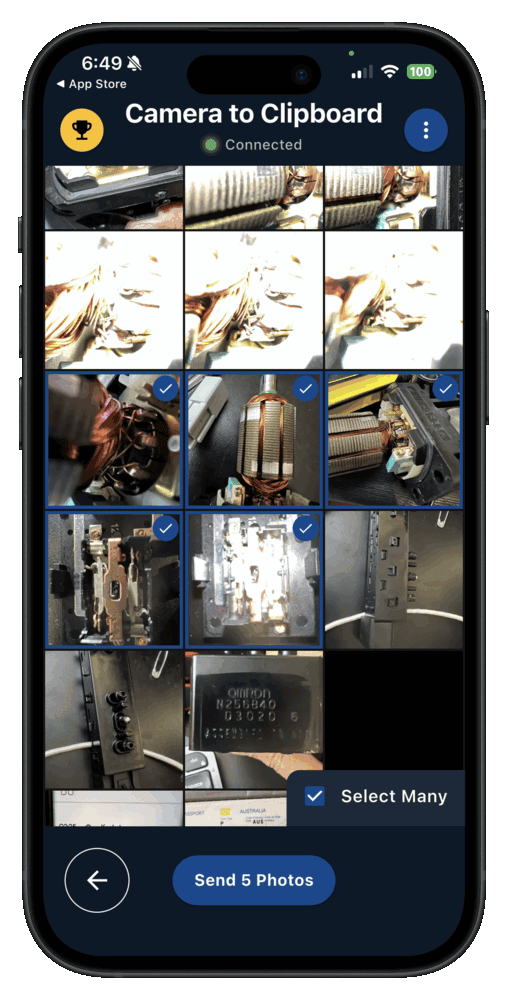
Camera to Clipboard puts a phone photo on your PC clipboard
The app at number one works like this, and setup takes about a minute.
- Install Camera to Clipboard on your phone and on your PC.
- Pair them once by scanning a QR code, which takes about ten seconds.
- On the phone, take a photo or pick one from your library.
- Press Ctrl + V on the PC to paste it.
Free to download and try on iPhone, Android, Windows and Mac. The free version adds a small watermark and caps photos at 1920px. Pro removes both.

Which phone to PC transfer app is best depends on what you send
No one app wins every job, so this ranking follows what you are moving.
- A clipboard app is the right pick when you are about to use the photo. It hands you something to paste instead of a file to find.
- A whole file sender is the right pick for a big folder or a long video. It moves any file type across your local network.
- A sync service is the right pick for backing up a whole camera roll. It runs on its own, but one photo takes a while to appear.

1. Camera to Clipboard is the pick for a photo you will use on a PC
It takes the top spot for removing the steps people usually hate.
- Camera to Clipboard needs no account, no cable and no cloud upload. There is nothing to sign up for before the first photo.
- A photo sent with Camera to Clipboard reaches the PC clipboard in seconds. Paste it into an email, a document or a chat with Ctrl + V.
- Camera to Clipboard runs on iPhone, Android, Windows and Mac. The phone app sends to the desktop app on either computer.
- Camera to Clipboard is built around images, not large folders. It is the wrong tool for moving several gigabytes at once.
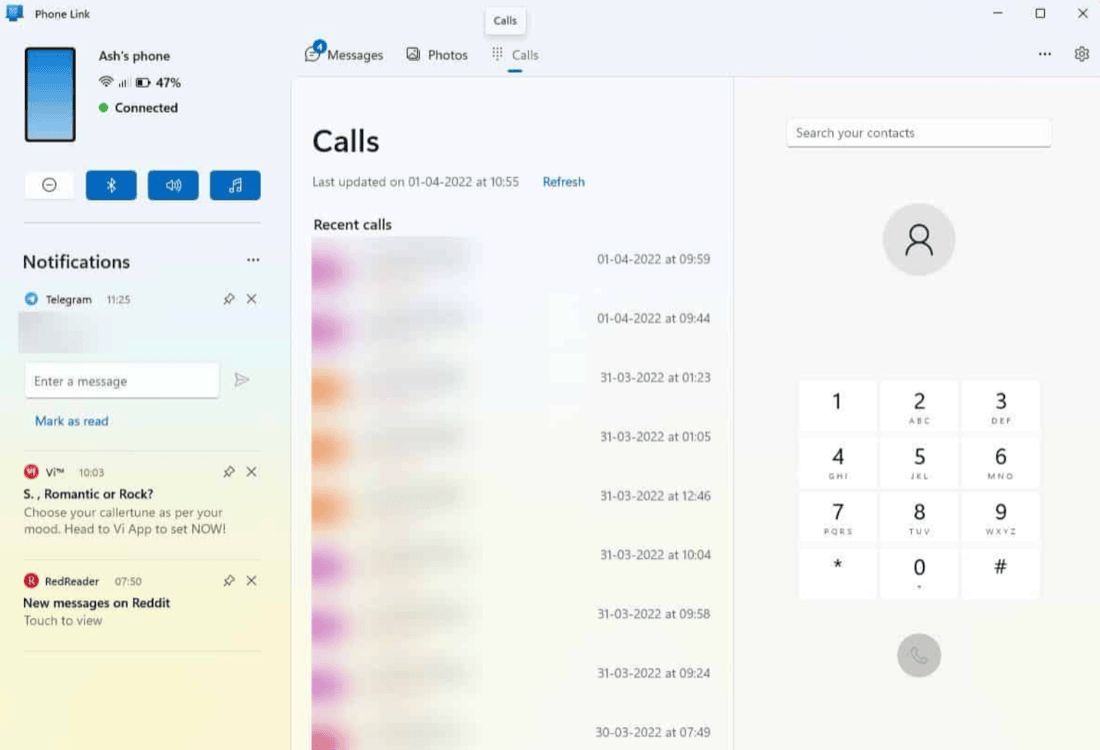
2. Microsoft Phone Link is strong on Android and weak on iPhone
Microsoft Phone Link on the PC pairs with the Link to Windows app on the phone.
- Microsoft Phone Link mirrors Android photos, texts, calls and notifications on a Windows PC. It is more than a file transfer tool.
- Phone Link wants a Microsoft sign in and a long list of phone permissions. Setup takes longer than anything else on this list.
- The Phone Link photo panel is Android only, but an iPhone can push a file to the PC. Send it from the iPhone share sheet, or from File Explorer with the Share command.
- Phone Link cannot browse an iPhone file system. Apple keeps that closed, and file sending needs iOS 16 or later.

3. PairDrop and LocalSend are the best free whole file senders
Both send whole files between two devices on your local network, with no account.
- PairDrop sends whole files from a browser tab, with nothing to install. It is the community fork that kept the original Snapdrop behaviour.
- LocalSend is a small open source app that sends whole files on every platform. It is the better of the two if you do this often.
- Snapdrop now belongs to LimeWire, and files travel through LimeWire's servers. Reach for PairDrop or another Snapdrop alternative to keep the file on your own network.
- PairDrop and LocalSend hand you a downloaded file, not a clipboard image. For a photo you are about to paste, that is a step too many.

4. AirDroid does everything but needs an account and shows ads
AirDroid is the feature rich option here, and that cuts both ways.
- AirDroid adds screen mirroring, remote control and desktop SMS to file transfer. It is a phone management console rather than a sender.
- AirDroid needs an account, and the free tier shows ads and caps remote data. That is a lot of setup for one picture.
- AirDroid transfers can travel through the company's own relay servers. They do not always stay on your local network.
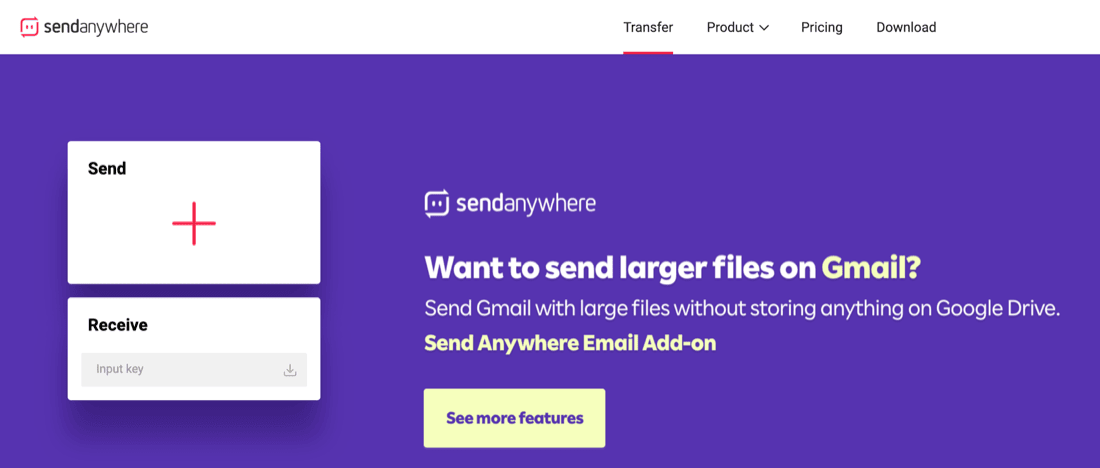
5. Send Anywhere sends any file with a six digit key
Send Anywhere is neat for a one off send between two devices.
- Send Anywhere moves any file type at full quality once you type its six digit key. A basic transfer needs no account at either end.
- Send Anywhere keys and links expire, so it is not a set and forget tool. You start every transfer by hand.
- Larger or expired Send Anywhere transfers fall back to the company's cloud. The free app is ad supported as well.

6. iCloud and Google Photos are backups, not fast transfers
These two are sync services rather than transfer apps, and it shows.
- iCloud Photos and Google Photos mirror a camera roll to the web for a PC to download. That is ideal for a permanent backup of everything.
- A new shot has to sync before it reaches the web, so one photo is slow. Every other app here beats them for a picture you need now.
- Every photo in iCloud Photos or Google Photos passes through a cloud server. Both also eat into a storage quota you may pay for.
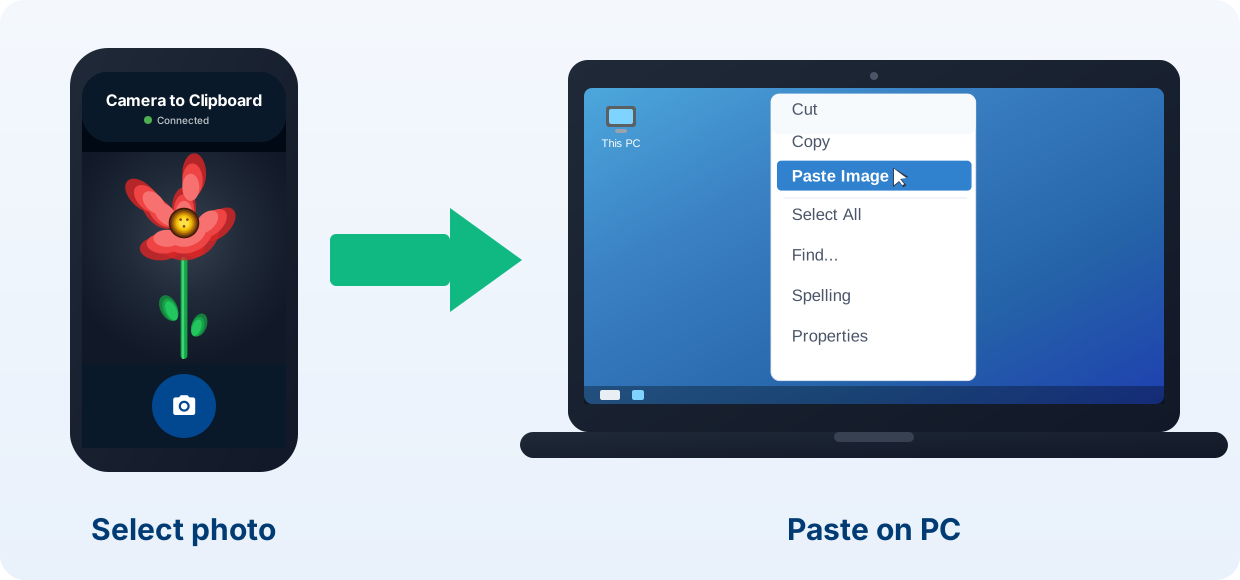
Camera to Clipboard beats other transfer apps for everyday photos
Most apps above add a step to the commonest job, getting one photo onto a PC.
- A photo sent with Camera to Clipboard lands on the PC clipboard, ready to paste. No file waits in a downloads folder for you to open.
- Camera to Clipboard sends a phone photo to a PC without any account. There is no email address and no password to create.
- Camera to Clipboard never uploads your photo to a cloud server or a relay. That removes the upload and download wait completely.

Camera to Clipboard sends full resolution photos over your own Wi-Fi
Two more things separate it from a chat app or a sync service.
- Camera to Clipboard delivers a photo at full resolution, not the shrunken copy a chat app sends. Nothing is recompressed, so you paste what the camera took.
- Camera to Clipboard moves photos from an iPhone or Android phone to Windows and Mac over your own Wi-Fi. The two apps use the internet only to find each other. A phone hotspot works too.
| What you want to do | Camera to Clipboard | Other transfer apps |
|---|---|---|
| Photo lands ready to paste (Ctrl+V) | ✔ | Saves a file first |
| No account needed | ✔ | Most need sign-in |
| Nothing uploaded to a cloud or relay | ✔ | Often via cloud relay |
| Full resolution, no compression | ✔ on Pro | Varies |
| Works over a phone hotspot | ✔ | Photo goes over mobile data |
| Free to try | ✔ | ✔ |
| Cross-platform (iPhone + Android + Win + Mac) | ✔ | Often platform-limited |
| Set up in under a minute | ✔ | Account and pairing setup |
| Send one photo or a whole batch | ✔ | Varies |

Use Camera to Clipboard for photos and LocalSend for whole folders
The choice comes down to what you are moving.
- Camera to Clipboard is the best app for a phone photo you will use on a PC. Send one photo or a batch, then press Ctrl + V.
- Microsoft Phone Link is the best app for using an Android phone from a Windows PC all day. It mirrors photos, texts, calls and notifications.
- LocalSend and PairDrop are the best apps for a batch of files or a large document. Both are free, and neither device has to sign in.
- iCloud Photos and Google Photos are the best way to keep a whole photo library backed up. Sync is slow for one photo, right for everything at once.
Common questions
What is the best app to transfer photos from phone to PC?
For a photo you actually want to use, Camera to Clipboard is the pick. It lands on your PC clipboard in seconds, with no account and no cloud. Phone Link is a strong second on Android, and LocalSend is best for whole files.
Is there a free file transfer app for phone to computer?
Yes. Camera to Clipboard is free to download and try on iPhone, Android, Windows and Mac. LocalSend and PairDrop are free and open source. Phone Link is free on Windows, and AirDroid and Send Anywhere have free tiers.
What is the fastest way to move a photo from phone to PC?
A direct wireless transfer over your local Wi-Fi that drops the image onto your clipboard. With Camera to Clipboard there is no upload step and no file to open. The photo is ready to paste with Ctrl + V in seconds.