
Transferring a photo over Wi-Fi means it travels straight between two devices on the same network. Nothing is uploaded. It beats Bluetooth for speed and the cloud for privacy. This guide shows the easiest way with Camera to Clipboard, then compares the other Wi-Fi apps.
The quick answer: Put both devices on the same Wi-Fi, then use a direct transfer app. Camera to Clipboard drops the photo on your computer's clipboard in seconds, ready to paste. Nothing is ever uploaded to a server.
Free for iPhone Free for Mac Free for Android Free for Windows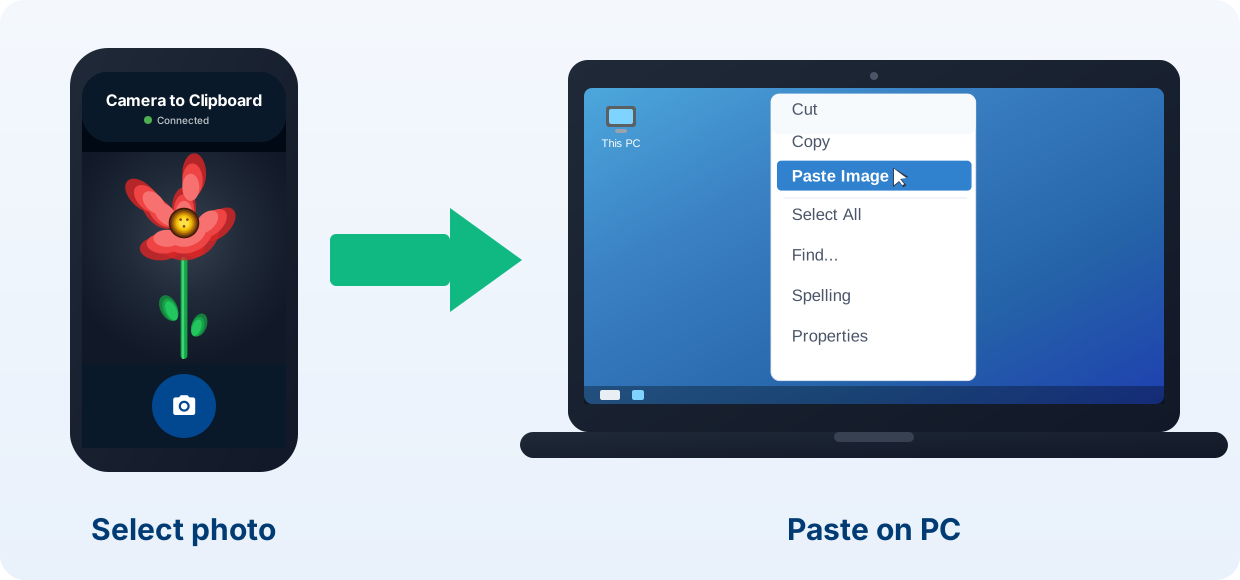
Camera to Clipboard transfers photos over Wi-Fi onto your clipboard
Here is what happens once both devices are on the same Wi-Fi.
- Camera to Clipboard puts a photo from your phone onto the computer clipboard. Capture it or pick it from your library. It arrives in seconds.
- A photo sent over Wi-Fi with Camera to Clipboard pastes with Ctrl + V. On a Mac it is Cmd + V. It drops into an email, a chat or a document.
- Camera to Clipboard works from an iOS or Android phone to Windows or Mac. One app covers every pairing. The steps are the same on each.

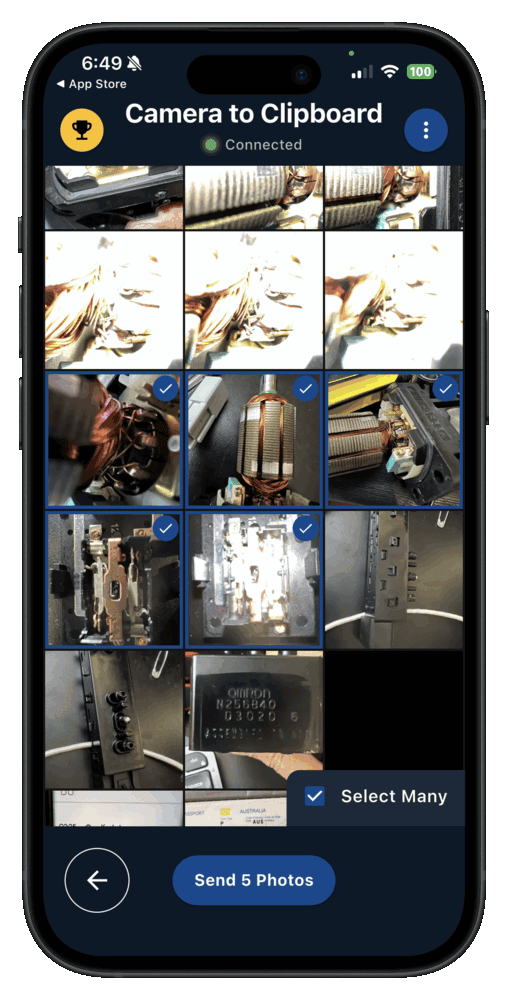

Pair the two apps once, then transfer photos over Wi-Fi
Pairing takes about ten seconds, and you only do it once.
- Install Camera to Clipboard on your phone and the desktop app on your computer.
- Put both devices on the same Wi-Fi network. A shared hotspot works too.
- Pair them once by scanning a QR code.
- On the phone, take a photo or pick one from your library.
- Press Ctrl + V on your computer, or Cmd + V on a Mac, to paste it.
Free to download and try on every platform, and the first transfer is free. The free version adds a small watermark and caps photos at 1920px. Pro removes both.

A Wi-Fi photo transfer hands the picture straight to the computer
Here is what makes a direct transfer different from a cloud upload.
- Two devices on the same Wi-Fi can hand a photo to each other directly. The picture never climbs up to a server and back down again.
- A direct Wi-Fi transfer app streams the photo across your own network. It opens a connection between the phone and the computer, then sends the picture.
- Camera to Clipboard uses a broker only to introduce the two devices to each other. The broker never sees the photo. The picture itself crosses your own Wi-Fi.

Send Anywhere transfers photos over Wi-Fi or through its servers
This one is a general file sender rather than a photo tool.
- Send Anywhere pairs two devices with a six-digit key. Type the key on the second device and the transfer starts.
- Send Anywhere sends directly over Wi-Fi when both devices share a network. When they do not, it relays the file through its own servers instead.
- A photo sent with Send Anywhere lands as a saved file, not on the clipboard. It handles any file type, which makes it a solid general-purpose tool.

PairDrop and LocalSend transfer photos over Wi-Fi for free
Both are open-source, AirDrop-style tools that work on your local network.
- PairDrop runs in a browser tab and needs no install. Open the same page on both devices and they see each other.
- LocalSend is an app you install on each device. Nearby devices appear in a list, then you send the file across.
- PairDrop and LocalSend need no account and cost nothing. Both are handy for a one-off file to any platform.
- A photo sent with PairDrop or LocalSend arrives as a downloaded file. You still have to open the folder and find it.

Use PairDrop, because Snapdrop now sends files through LimeWire
The two names look alike, and only one still keeps the transfer local.
- PairDrop is the community fork of the original Snapdrop code. It kept the direct local transfer that made Snapdrop popular.
- Snapdrop was bought by LimeWire and now sends files through LimeWire's servers. The file no longer goes straight between your two devices.

Cloud sync uploads your photo, so it is not a Wi-Fi transfer
These services feel wireless, but the photo takes a long way round.
- Google Photos, iCloud and OneDrive upload your photo to a server first. The computer then downloads it again from the cloud.
- A cloud round trip is slower than a Wi-Fi transfer for one picture. You wait for the upload, then you wait for the download.
- Cloud sync spends your storage quota on every photo it mirrors. It is still the right tool for keeping a whole library in step.

A Wi-Fi photo transfer keeps the full resolution, email does not
Quality is the quiet advantage of sending a photo across your own network.
- Email attachments and chat apps compress a photo to save bandwidth. The copy that lands on the other side is smaller and softer.
- A local Wi-Fi transfer has no reason to shrink the picture, so it sends the original. What you paste is what the camera took.

Camera to Clipboard sends a video over Wi-Fi and saves it as a file
Video works too, and it lands a little differently from a photo.
- A video sent with Camera to Clipboard crosses your own Wi-Fi at full quality. Nothing is uploaded to a server on the way.
- A video sent with Camera to Clipboard is saved as a file on the computer. Its file path goes on the clipboard, so Ctrl + V pastes the file.

Camera to Clipboard is the best Wi-Fi app for pasting a photo
Every option here moves a photo, but most leave you a file to find.
- A photo sent over Wi-Fi with Camera to Clipboard lands on the clipboard, not in a folder. Press Ctrl + V and it is already in the email or the document.
- Camera to Clipboard carries the photo across your own Wi-Fi, never through a server. No copy is left in anyone's cloud, and no storage quota is spent.
- A Wi-Fi photo transfer to the computer works on a phone hotspot as well. The two apps use the internet only to find each other.
| What you want to do | Camera to Clipboard | Other Wi-Fi apps |
|---|---|---|
| Send a photo phone to computer over Wi-Fi | ✔ | ✔ |
| Lands ready to paste, not just saved as a file | ✔ | Saves a file first |
| Nothing uploaded to a server | ✔ | Some relay via the cloud |
| Send several photos in one go | ✔ | Varies by app |
| Works over a phone hotspot | ✔ | Varies by app |
| No account needed | ✔ | Varies by app |
| Full resolution, no compression | ✔ on Pro | ✔ |
| Free to try | ✔ | ✔ |

Use Camera to Clipboard to paste and LocalSend for any other file
The choice comes down to what you want waiting at the other end.
- Camera to Clipboard is the best way to transfer photos over Wi-Fi when you are about to paste them. Pick one photo or a batch, send it, then press Ctrl + V.
- Send Anywhere and LocalSend are the best way to push any file type across Wi-Fi. Both write it to disk at the receiving end.
- Google Photos, iCloud and OneDrive are the best way to mirror a whole photo library. Set the sync up once and new pictures arrive on their own.
Common questions
How do I transfer photos over Wi-Fi without a cable?
Use a direct Wi-Fi app like Camera to Clipboard. Put both devices on the same network and pick a photo on the phone. It goes straight across, with nothing uploaded.
Is Wi-Fi transfer faster than Bluetooth?
Yes, dramatically. Bluetooth tops out at a few megabits per second. Wi-Fi is far faster, so a full-resolution photo moves across in seconds.
Is transferring photos over Wi-Fi safe?
Yes, when the transfer stays on your own network and nothing is uploaded. Camera to Clipboard sends the photo directly between your devices, so no copy is left on a server.