
Phone Link arrived on your PC without you choosing it, and now you want it gone. Removing it takes three steps rather than one. Windows ships the app preinstalled, and the phone half is a second app. The pairing itself sits on your Microsoft account. This page removes all three and says what to use instead. If your photos simply stopped appearing, the Phone Link photos guide fixes that without removing anything.
The quick answer: open Windows Settings, find Phone Link in the installed apps list and choose Uninstall. If that option is greyed out, one PowerShell command removes it. Then turn off Link to Windows on the phone. Remove the phone from your Microsoft account devices list too, or the pairing comes back. Free for iPhone Free for Mac Free for Android Free for Windows

Uninstall Phone Link from the Windows Settings app first
On most home PCs this is the whole job on the Windows side.
- Open Settings on the PC and go to Apps, then Installed apps.
- Search the list for Phone Link.
- Open the menu beside its entry and choose Uninstall.
- Confirm, and let Windows remove it.
Three details decide whether those steps work on your PC.
- Phone Link ships preinstalled with Windows, and preinstalled does not mean permanent. Microsoft puts it on the PC for you, and Settings still removes it like any other app.
- Windows 10 lists Phone Link under Apps and features instead of Installed apps. It is the same screen under an older name, and the Uninstall button is identical.
- Right-clicking Phone Link in the Start menu offers the same Uninstall. Use whichever is already open, because both run the same removal.

Uninstalling Phone Link leaves the phone app and the account link
The Windows uninstall is one removal of three, so here is what it does and does not touch.
- Uninstalling Phone Link removes the PC half of it and nothing else. The window, the app and its local data go. Your phone notices nothing.
- Link to Windows stays installed on the phone with its permissions intact. It keeps running in the background and keeps waiting for a computer to connect.
- The pairing between the phone and your Microsoft account survives the uninstall. That record lives on the account, so it follows you to any PC you sign in to.


Camera to Clipboard sends the photo Phone Link used to show
If the recent photos panel was the only part you used, one small app covers it.
- Camera to Clipboard sends a chosen photo from an iPhone or an Android phone to a Windows PC. Both versions do the same job, which closes the iPhone gap in Phone Link.
- A photo sent with Camera to Clipboard lands on the Windows clipboard, not in a folder. Press Ctrl + V in the email or document you already have open.
- Camera to Clipboard needs no Microsoft account, Google account or Apple ID. The two ends pair once by scanning a QR code, with no account record to unlink later.
- Camera to Clipboard sends the photo straight across your own Wi-Fi. Nothing is uploaded to anyone's server, and the two apps use the internet only to find each other. A phone hotspot works too.

Pair Camera to Clipboard with the PC in four steps
Pairing happens once, and it takes about ten seconds.
- Install Camera to Clipboard on the phone and the Windows app on the PC.
- Pair them once by scanning a QR code.
- Take or pick a photo on the phone and send it.
- Press Ctrl + V on the PC.
A video clip travels the same way. It is saved as a file on the PC, never re-encoded, and its file path goes on the clipboard.
Free to download and try on both ends. The free version adds a small watermark and caps photos at 1920px. Pro removes both.

Run one PowerShell command when the uninstall is greyed out
Sometimes the Uninstall button is dimmed with no explanation, and there are two reasons for that.
- A greyed out Uninstall usually means Windows is treating Phone Link as a system component. Some builds mark it as part of the operating system, and Settings then refuses to touch it.
- On a work or school PC, an administrator policy is what blocks the Phone Link uninstall. No amount of clicking changes that. Ask whoever manages the machine, because PowerShell is the wrong answer to a policy.
For the first case, open Windows PowerShell as an administrator and run one line. The package name is still the old one, because Microsoft renamed Your Phone but never renamed the package.
Get-AppxPackage Microsoft.YourPhone | Remove-AppxPackageThat clears Phone Link for the account you are signed in as.

Remove Phone Link for every account on the PC as well
The command above clears one user profile, and two things can undo it.
- Windows keeps a master copy of Phone Link that it installs into each new user profile. A second person signing in to the PC still gets a fresh Phone Link until that copy goes.
- A large Windows feature update can put Phone Link back on a PC you cleaned. Upgrades re-lay the apps Windows ships with, so check the installed apps list again after one.
Run this second line in the same administrator PowerShell window to take that master copy out.
Get-AppxProvisionedPackage -Online | Where-Object { $_.DisplayName -eq "Microsoft.YourPhone" } | Remove-AppxProvisionedPackage -Online
Turn off Link to Windows on the Android phone as well
The half that holds your messages and photos is the app on the phone, and it needs its own visit.
- Link to Windows is an ordinary app on most Android phones, so uninstall it from the app list. Remove it the way you would remove any downloaded app and it goes completely.
- Samsung builds Link to Windows into the system, where it can be switched off but not uninstalled. Look under the phone's own advanced features. Turning that switch off is the whole action available.
- Revoking the Link to Windows permissions stops it working even where it cannot be removed. Open Android's per-app permissions screen and take away photos, messages and notifications.

Forget the Phone Link Bluetooth pairing on an iPhone
An iPhone joins Phone Link a different way, so the removal is different too.
- Phone Link joins an iPhone over a Bluetooth pairing, so forgetting that pairing in iPhone Settings ends the link. Delete the Link to Windows app from the iPhone as well, if it is installed.
- Phone Link can receive a file sent from an iPhone running iOS 16 or later. You send it from the iPhone share sheet, or from Windows File Explorer with the Share command. Removing the pairing stops both.
- Phone Link's photo library panel is Android only, and it cannot browse an iPhone's files. There is no iPhone photos panel to lose, which is why iPhone owners tend to remove the app.

Remove the phone from your Microsoft account devices list
This is the step almost everyone skips, and it is why Phone Link appears to come back.
- The pairing between a phone and a PC is a record held against your Microsoft account. Wiping the app off one computer leaves that record exactly where it was.
- A phone still linked to your Microsoft account reconnects as soon as Phone Link exists on any PC you sign in to. A reinstall or a new laptop picks the pairing straight back up.
- Removing the linked phone is done in your Microsoft account in a browser, not in Windows Settings. Sign in at account.microsoft.com, open the devices section, and take the phone off the list.
- Disconnecting the phone inside Phone Link before you uninstall it saves that trip to the website. The controls disappear along with the app, so the order matters.

Phone Link is a real Microsoft app, not malware or adware
People removing Phone Link usually want to know whether it should have worried them.
- Phone Link is a first-party Microsoft app that ships with Windows. It is published by Microsoft and updated through the Microsoft Store. It did not arrive bundled with a download, and it is not malware.
- The question worth asking about Phone Link is how much access it wants, not whether Microsoft is trustworthy. Most people use one feature and grant it all of them.
- Linking a personal phone to a work Microsoft account puts your private messages on hardware your employer manages. That is a policy question rather than a security flaw. It is the best reason to remove the app from a work laptop.
- Microsoft's privacy statement is the only authoritative account of what Phone Link stores. Everything else online is inference, so read Microsoft's privacy statement if the detail matters.

Check the five kinds of data Phone Link asks an Android phone for
Tapping Allow once on the phone covers a good deal more than the photos panel.
- Phone Link asks an Android phone for five separate kinds of personal data. Each one is an ordinary Android permission, and the list is wider than most people picture.
- Your text messages, so you can read and send them from the PC.
- Your contacts, so those messages and calls show names instead of numbers.
- Your call history, along with the ability to place and answer calls.
- Your notifications, so they mirror onto the Windows desktop.
- Your photos and media, which is what fills the recent photos panel.
- Android grants those five permissions one at a time, so you can refuse the photo access. Turning photos and media off leaves the messaging side working. That is the middle ground between keeping Phone Link and removing it.
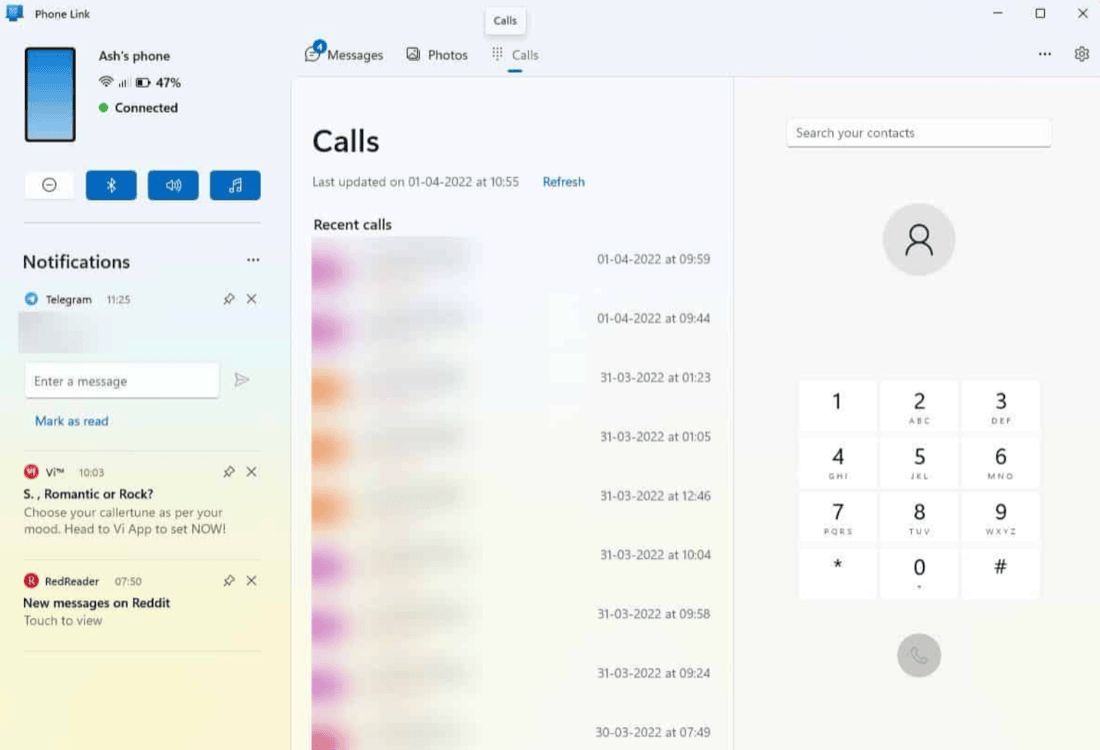
Weigh the texting and calling you lose before removing Phone Link
Two Phone Link features have no comfortable replacement, and both are worth a pause.
- Answering a text message from the PC keyboard is the Phone Link feature worth thinking twice about losing. That side of the app is reliable, and it is faster than picking the phone up.
- Phone notifications on the Windows desktop stop when Phone Link goes, with no first-party stand-in. Nothing else from Microsoft mirrors an Android phone's notifications onto a PC.
- Making and taking calls through the PC ends with Phone Link, and little else covers it. The few alternatives are tied to particular phone makers, so expect to pick the handset up again.

Fix the Phone Link photos panel instead of removing the app
If the photos stopped appearing and that is the whole complaint, removal is the wrong tool.
- Photos missing from the Phone Link panel usually come from battery optimisation or a missing media permission. Both take a minute to correct, and the Phone Link photos guide walks through every cause.
- The Phone Link photos panel only ever showed your last few dozen shots. It was never a way to find a photo from last month, so losing it costs less than it sounds.

Replace only the Phone Link feature you actually used
Phone Link bundles four unrelated jobs, so there is no single thing to install in its place.
- Getting photos from a phone onto a Windows PC is the easiest Phone Link gap to fill. A direct wireless transfer, a USB cable into File Explorer or your existing cloud sync all cover it. The phone to PC transfer apps roundup compares them.
- Texting from a PC without Phone Link works through Google Messages for web on Android. You pair a browser tab with the phone by scanning a QR code. It needs Google Messages to be the phone's texting app, and there is no iPhone equivalent.
- Moving any file rather than only a photo is covered by LocalSend on iPhone and Android. It is open source, runs over your local network, and asks for no account at either end.
Rated by what each one covers, whether it needs an account, and which phones it works with:
| Replacement | Phone Link feature it covers | Account needed | Works with an iPhone | Works with Android |
|---|---|---|---|---|
| Camera to Clipboard | Photos, straight to the clipboard | None, pairs by QR code | Yes | Yes |
| LocalSend | Photos and any other file | None, local network only | Yes | Yes |
| Google Messages for web | Texting from the PC | None, pairs by QR code | No | Yes, if it is the texting app |
| File Explorer over a USB cable | Photos, in bulk as files | None | Yes | Yes |
| iCloud Photos on Windows | Photos, whole library only | Apple Account required | Yes | No |
| OneDrive camera upload | Photos, whole library only | Microsoft account required | Yes | Yes |

Uninstall Phone Link unless you text and take calls on the PC
Phone Link does four separate jobs, and most people only ever used one, so find yourself below.
- Uninstall Phone Link if the recent photos panel is all you ever opened. A direct phone to PC transfer does that job better, works on an iPhone too, and leaves no account link behind.
- Keep Phone Link if you read and reply to text messages at the PC. Texting from the keyboard and taking a call through the PC are the two things nothing here replaces.
- Turn the photos permission off instead if you mostly text from the PC. Android grants Phone Link's five permissions separately, so the messaging half keeps working without camera roll access.
- Unlink the phone from your Microsoft account, not just from the PC. That account record survives a reinstall and follows you to a new computer.
Common questions about uninstalling Phone Link
Can I uninstall Phone Link from Windows?
Yes. Phone Link is preinstalled rather than permanent. Open the Windows Settings app, go to the installed apps list, find Phone Link and choose Uninstall. If that option is greyed out, one PowerShell command removes it instead.
Why is the uninstall option for Phone Link greyed out?
Windows may be treating Phone Link as a system component rather than an ordinary app. PowerShell run as an administrator gets past that, because it removes the app by its package name. On a work or school PC the block is usually an administrator policy. Ask whoever manages the machine.
Is Phone Link safe to keep on my PC?
Phone Link is a first-party Microsoft app that ships with Windows, so it is not malware. The honest concern is scope. It asks an Android phone for messages, contacts, call history, notifications and photos. It also ties the phone to a Microsoft account. Android lets you refuse permissions one at a time, so you can keep the messaging and decline the photo access.
Will uninstalling Phone Link stop my phone sending anything to my PC?
Not on its own, because uninstalling removes the PC half only. Turn off Link to Windows on the Android phone and revoke its permissions there. Then remove the phone from the devices list in your Microsoft account. Otherwise it reconnects the next time Phone Link is installed.