
AirDroid links an Android phone to a computer and then does six jobs at once. File transfer, texts, notifications, a live view of the screen, remote control, finding a lost phone. Almost nobody wants all six. This page covers the setup, the permissions, the free tier, and the smaller tool.
The quick answer: install AirDroid on the phone, make an account, then sign that same account in on the computer. The rest is permission prompts. On one Wi-Fi it transfers directly. From another network it relays through AirDroid's servers, where the free tier's data cap bites. For phone photos, Camera to Clipboard needs no account and no permissions. Free for iPhone Free for Mac Free for Android Free for Windows

Using AirDroid starts with one account signed in on both devices
The setup is short, and it starts with a sign up rather than a pairing code. Five steps, in order:
- Install AirDroid on the Android phone from Google Play.
- Open it and create an AirDroid account, or sign in if you have one.
- On the computer, install the AirDroid desktop app or open AirDroid in a browser, and sign in to the same account.
- Pick your phone from the device list on the computer.
- Accept the permission prompts on the phone as you open each panel.

Four things about that sequence are worth knowing first:
- AirDroid's setup needs the same account signed in on both the phone and the computer. That account is how the two ends recognise each other, and how the phone is reached from elsewhere.
- The AirDroid desktop app and AirDroid in a browser do the same jobs. The browser version installs nothing, which matters on a work machine. The desktop app stays signed in for daily use.
- Every AirDroid feature beyond plain file transfer is switched on by its own Android permission prompt. Nothing arrives enabled. A blank panel on the computer usually means that permission is off.
- AirDroid's messaging, notification and screen features are Android only, with no iPhone equivalent. Apple lets no third-party app read your notifications or send your texts. An iPhone gets the file side only.

Camera to Clipboard sends a phone photo straight to your clipboard
AirDroid is the right amount of machinery for reaching a phone in another city. If you are here for phone photos going into emails, that is a smaller problem.
- Camera to Clipboard sends a photo from an Android phone or an iPhone to the computer's clipboard. Press Ctrl + V on Windows or Cmd + V on a Mac. No download folder to open.
- Camera to Clipboard needs no account, so nothing about you is registered. The two ends pair once by scanning a QR code, in about ten seconds.
- Camera to Clipboard asks for no notification access, no SMS permission and no screen mirroring. It needs only the camera or your photo library.


Camera to Clipboard stays on your network and goes one way
Two more things set it apart from a remote-access tool.
- Camera to Clipboard sends the photo straight from the phone to the computer over your local network. Nothing is uploaded. The two apps use the internet only to find each other, and a phone hotspot works too.
- Camera to Clipboard sends from the phone to the computer only, never back the other way. Video works too, saved as a file with its path on the clipboard. LocalSend below sends the other way.

AirDroid moves files and puts your texts and alerts on the PC
The job you came for decides everything else on this page. Here is what an AirDroid connection gives you:
- AirDroid moves files both ways between an Android phone and a computer, which is why most people install it. You browse the phone's storage and drag things across.
- AirDroid lets you read and send your Android phone's text messages from the computer's keyboard. The messages stay on the phone, with the computer as a second screen.
- AirDroid mirrors your Android phone's notifications onto the computer screen as they arrive. You see the phone's alerts without picking it up, which matters at a desk.

AirDroid also shows the screen, drives the phone and rings it
Three more AirDroid jobs reach further into the phone.
- AirDroid can show the Android phone's screen live in a window on the computer. You watch rather than touch, which suits demonstrating an app or following a game.
- AirDroid's remote control lets you tap and type on the Android phone from the computer. Nothing simple replaces it, and Android does not hand the touchscreen to an ordinary app.
- AirDroid can open the Android phone's camera from the computer and make a lost phone ring. Useful once or twice a year, and why many keep it installed.
Usually one of those six is the reason someone installs AirDroid. The other five arrive anyway, and each carries a permission.

AirDroid uses your own network at home and its servers when away
AirDroid is two different products depending on where the devices are, and it switches without saying so. The difference decides your speed and where your files travel.
- When the Android phone and the computer sit on the same Wi-Fi, AirDroid sends files straight between them. Each end can reach the other's address, so nothing leaves the building.
- When the Android phone and the computer are on different networks, AirDroid relays the connection through its own servers. A phone on mobile data cannot reach an office computer directly.
- AirDroid picks the local or the remote connection by itself, based on whether the two devices can see each other. There is no switch to flip, so people are often unsure which mode they used.

Relaying is slower, and it is the reason AirDroid exists
Two consequences follow from the remote mode.
- An AirDroid transfer slows sharply once it relays over the internet instead of your own Wi-Fi. Local Wi-Fi carries a large photo in a moment. Sent remotely, it climbs your phone's upload and crosses a server.
- Reaching an Android phone that is not on your network is the whole reason AirDroid exists. Use it only at home and you are carrying a remote-access product you never use.

AirDroid reads your notifications, texts and stored files
This part deserves plain language rather than alarm or reassurance. Each permission below is required by the feature it unlocks, and together they add up.
- Notification access lets AirDroid read every notification your Android phone receives, including login codes. Android cannot grant this for some apps and withhold it for others: all or nothing.
- The SMS permission lets AirDroid read your Android phone's texts and send new ones from the computer. Bank codes arrive as texts, so with notification access too, most of your second factor is reachable.
- The files and media permission lets AirDroid browse everything stored on your Android phone. It makes the file manager panel work, and is the mildest permission here.

Screen capture, remote control and battery each need extra steps
Three more grants sit outside Android's ordinary permissions.
- Android shows its own recording warning before AirDroid can mirror the phone's screen, and it cannot be skipped. The system treats screen capture as a special case, so the phone always tells you.
- Controlling an Android phone remotely takes more than a normal permission, which is why it needs extra setup. Android refuses to let an ordinary app drive the touchscreen.
- AirDroid has to be exempted from Android's battery optimisation or its connection drops whenever the screen is off. Android suspends background apps hard to save power, and a suspended app stops answering.

Whether AirDroid is safe depends on which features you turn on
"Is AirDroid safe" is usually asked as if the answer were about malware. It is not. AirDroid is a real company's product, so the useful question is about access, not intent.
- AirDroid is sold by a real company with a paid tier and a support channel, not an anonymous app. There is a business with a name attached to it.
- An AirDroid session that reads notifications and sends texts can also read the codes protecting your other accounts. That is what those two features are, not a flaw. Anyone holding your session inherits the same reach.
- In AirDroid's remote mode your files pass through AirDroid's own servers rather than staying inside your network. That is how remote access works. Any tool reaching a phone on another network needs a relay.

Your mode, your password and your reason decide the real risk
Three things decide how much of the phone you are actually exposing.
- An AirDroid transfer on one Wi-Fi stays inside your network, and one from across the country does not. For privacy they are different products, so the mode decides how far your files travel.
- Your AirDroid account password is the single thing between a stranger and your phone's screen. AirDroid is built to work from anywhere, so a reused password is the real weak point.
- Handing AirDroid your screen, notifications and texts is the right trade for remote control and the wrong one for a photo. One picture costs you the full trust of a remote administration tool.

AirDroid is free for the basics and paid for heavy remote use
AirDroid's pricing follows the local and remote split almost exactly, which makes it easier to reason about than most freemium apps.
- AirDroid has a free tier that covers everyday use, with paid tiers above it. You can set it up, transfer files and read messages without paying.
- AirDroid's free tier caps how much data you can move each month in remote mode. The cap counts only transfers that go through AirDroid's servers, which is why it is called remote data.
- Transfers between an Android phone and a computer on the same Wi-Fi do not travel through AirDroid's servers. So heavy home use can sit inside the free tier while travel use does not.

Check AirDroid's own pricing page and ignore AirDroid Business
Two things stop a stale number sending you the wrong way.
- Check AirDroid's own pricing page for the current remote data allowance rather than a figure quoted in an article. Tiers and caps get revised, so this page quotes none.
- AirDroid Business is a separate paid product for managing a company's fleet of devices. One person with one phone is not looking at it.

Remote control is the one AirDroid job nothing simple replaces
Which alternative suits you depends on which of AirDroid's six jobs you installed it for. Find the one that matches:
- If you installed AirDroid to control an Android phone you are not holding, nothing simple replaces it. Remote control is the hardest job here to build, so AirDroid earns its permissions.
- scrcpy shows and controls an Android phone from a computer with no account and nothing leaving your desk. It is free and open source. The price is a command line and a USB cable.
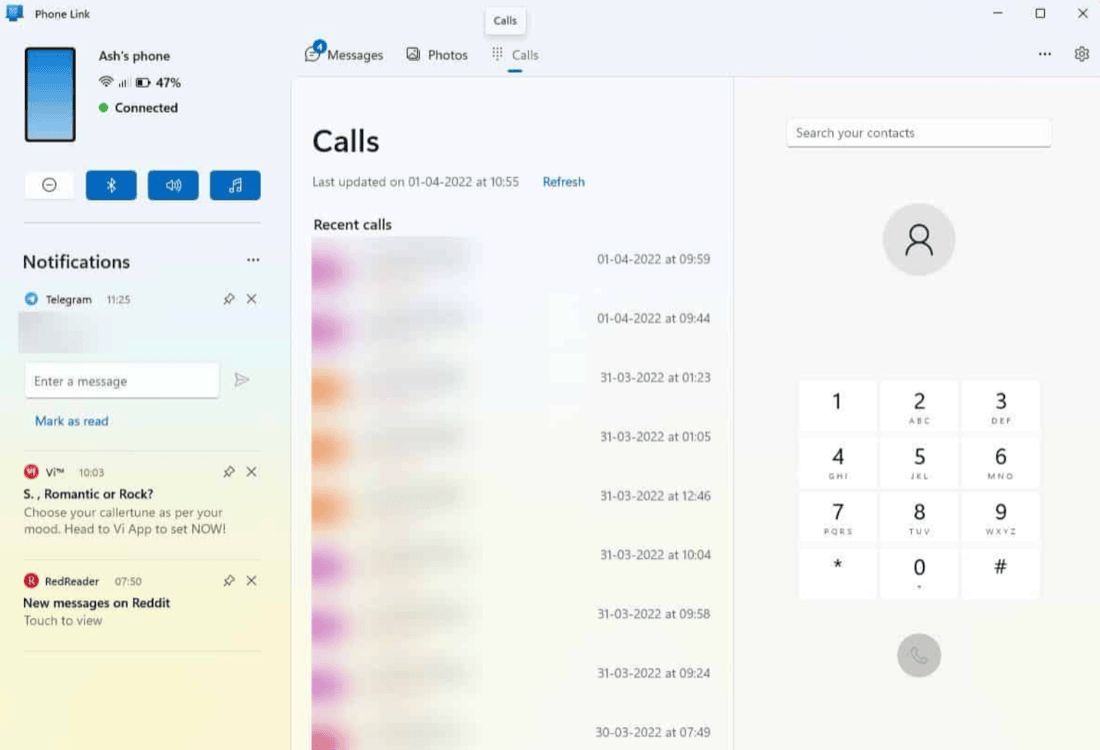
Phone Link, Google Messages and LocalSend each cover one job
Four lighter tools each take one of AirDroid's remaining jobs.
- If you installed AirDroid to read and send texts from a Windows PC, Phone Link already does that. Microsoft's own app handles messages, calls and notifications, and the Windows half is already installed.
- Google Messages in a browser reads and sends Android texts from any computer with nothing installed. You pair by scanning a code from the phone, and it covers messages only.
- If you installed AirDroid to move files between an Android phone and a computer, LocalSend does it with no account. It runs on both ends and sends only over your own network.
- If you installed AirDroid to get photos onto a computer, Camera to Clipboard does that with none of the permissions. No account, no notification access, no screen mirroring.
One caution before switching to Phone Link. Its photo panel is Android only, and it fails in a few well known ways, which the Phone Link photos guide covers.

Every AirDroid alternative covers one job AirDroid bundles in
Side by side the pattern is clear. AirDroid trades breadth for an account and a relay, and every alternative trades it back for privacy.
| Tool | How much of AirDroid it covers | Account needed to use it | Whether your data leaves your network | What it is best for |
|---|---|---|---|---|
| AirDroid | All six jobs | An AirDroid account on both ends | Only in remote mode | Reaching a phone you left somewhere else |
| Camera to Clipboard | Phone photos only | No account at all | No, stays on your Wi-Fi | Phone photos going into documents daily |
| Phone Link | Messages, calls, notifications | A Microsoft account | Some goes via Microsoft | Android texts on a Windows PC |
| Google Messages in a browser | Text messages only | The phone's Google account | Yes, via Google's servers | Texting from a computer that is not yours |
| LocalSend | File transfer both ways | No account at all | No, stays on your Wi-Fi | Sending any file between your own devices |
| scrcpy | Screen mirroring and control | No account at all | No, stays on your Wi-Fi | Driving an Android phone sitting on your desk |
Common questions about using AirDroid
Is AirDroid safe to use?
AirDroid is a commercial product from a real company, so the risk is the access you switch on, not the app itself. Notification, message and screen access hands much of your phone to whatever computer holds your session. In remote mode your files also pass through AirDroid's servers. On one Wi-Fi, with those features off, far less is exposed.
Is AirDroid free?
There is a free tier that covers everyday use, with paid tiers above it. The free tier caps how much data you can move each month in remote mode, which carries files through AirDroid's servers. Transfers on the same Wi-Fi do not use those servers. Check AirDroid's pricing page for the current allowance, not a number from an article.
How do I use AirDroid to transfer files to my computer?
Install AirDroid on the Android phone and create an account. Sign in to that same account on the computer, in the desktop app or a browser. Pick the phone, open the file panel, and move files either way. Keep both devices on the same Wi-Fi and the transfer stays local.
What can I use instead of AirDroid just to get photos onto my computer?
Camera to Clipboard sends a phone photo straight to the computer's clipboard over your local Wi-Fi. You press Ctrl + V instead of hunting for a downloaded file. It needs no account, no notification access and no screen mirroring.