
You copied something on the iPhone, walked to the Mac, pressed Cmd + V, and got the Mac's old clipboard. Universal Clipboard says nothing when it fails. There is no error, no warning and no status screen. It has about seven requirements, and this page checks them in the order that finds the problem fastest.
The quick answer: sign the iPhone and the Mac into the same Apple Account. Then turn Bluetooth and Wi-Fi and Handoff on at both ends. Copy again and paste within a minute, because the copy expires. If nothing pastes, sign out of the Apple Account and back in. If you only wanted a photo on the computer, send it directly. Free for iPhone Free for Mac Free for Android Free for Windows

Check that the iPhone and the Mac use one Apple Account
Start here. This single cause accounts for more failures than the rest put together.
- The iPhone and the Mac need the same Apple Account. A work account on one and a personal one on the other will never share a clipboard. Apple used to call this an Apple ID.
- The iPhone's Apple Account is at the top of Settings. Tap your name and read the address under it. Do not trust your memory.
- The Mac's Apple Account is at the top of System Settings. Compare it against the iPhone character for character. Two accounts belonging to one person are still two accounts.

Two accounts can look like one after Family Sharing or a repair
Two situations leave the accounts different when you are sure they are the same.
- Family Sharing does not merge two Apple Accounts into one. Sharing purchases and storage is a separate arrangement. Continuity still wants one matching account, so two family members cannot share a clipboard.
- A restore or a repair can quietly sign one device out. The phone still works and the Mac still works. Only the features that need both ends on one account break.


Camera to Clipboard copies a phone photo to a Mac or a Windows PC
If what you want is a phone photo on the computer in front of you, one way skips this whole problem.
- Camera to Clipboard sends a phone photo to a computer's clipboard. Pick or take the photo on the phone and press send, then paste with Cmd + V or Ctrl + V. No file is saved first.
- Camera to Clipboard needs no Apple Account, Handoff or Bluetooth. The two apps pair once by scanning a QR code. From then on the phone and the computer know each other.
- Camera to Clipboard reaches a Windows PC too. Universal Clipboard cannot do that at all. The same single tap works whichever computer is on the other end. It sends from an Android phone as well.

Camera to Clipboard shows you the transfer and uploads nothing
Two things separate it from a feature that fails in silence.
- Camera to Clipboard never fails silently. You choose the photo, you watch it go, and the desktop app logs what arrived. A transfer that did not happen is obvious straight away.
- Camera to Clipboard sends the photo over your own Wi-Fi. The photo is never uploaded and no server holds a copy. The two apps use the internet only to find each other, and a phone hotspot works too.
Setting it up takes about a minute from scratch.
- Install Camera to Clipboard on the phone and the desktop app on the Mac or PC.
- Pair once by scanning a QR code, about ten seconds.
- Take or pick a photo on the phone and send it.
- Press Cmd + V on a Mac, or Ctrl + V on a PC.
Free to download and try on both ends. The free version adds a small watermark and caps photos at 1920px. Pro removes both.

Turn Bluetooth and Wi-Fi on at both the iPhone and the Mac
Two radios are involved and they do different jobs.
- Bluetooth is how the iPhone and the Mac notice each other. Neither device can share a clipboard with something it cannot see. The real switch is in Settings on the phone and in System Settings on the Mac.
- Wi-Fi carries the copied content itself. Bluetooth handles the introduction and Wi-Fi handles the delivery. With Wi-Fi off they find each other and then cannot pass anything across.
- The iPhone and the Mac do not need the same Wi-Fi network. Apple asks only that Wi-Fi is on at both ends. Continuity links the two devices directly rather than going through a router.
- Aeroplane mode turns off both radios at once. You can switch Wi-Fi and Bluetooth back on individually while it stays on. Rule it out first, because it explains the failure completely.

Turn Wi-Fi on in Settings rather than in Control Centre
The Control Centre buttons are not the switches people think they are.
- The Wi-Fi button in Control Centre only leaves the current network. It does not turn the radio off, so it is not what stopped your clipboard. The switch that does is in Settings.
- The Bluetooth button in Control Centre leaves Handoff running. Apple lists Continuity features as an exception to that button. It disconnects your accessories and nothing else.

Keep the iPhone within about 10 metres of the Mac
Distance alone is enough to stop a copy crossing, and nothing on screen mentions it.
- Universal Clipboard needs the iPhone and the Mac near each other. That is Apple's own requirement, and Bluetooth reaches about 10 metres. Copying in one room and pasting in another can fail on distance alone.
- Walls and floors cut the usable Bluetooth range down. The 10 metre figure assumes open air. A single wall between the iPhone and the Mac shortens it.

Turn Handoff on separately on the iPhone and the Mac
Handoff is a separate switch from Bluetooth and Wi-Fi, and it exists on both devices.
- On an iPhone, turn Handoff on at Settings > General > AirPlay & Continuity. An iPad uses the same path.
- Handoff has not been discontinued, only the screen holding it was renamed. Older guides still call that screen AirPlay & Handoff. Type Handoff into the search box at the top of Settings.
- On a Mac, turn Handoff on at System Settings > General > AirDrop & Continuity. The switch reads "Allow Handoff between this Mac and your iCloud devices". That screen was renamed too, from AirDrop & Handoff.
- Handoff on the phone alone is not enough. Both ends have to allow it. Check the phone and the computer separately, even if you set them up at the same time.

Turn Handoff off and on again after an iOS or macOS update
Apple turns Handoff on by default, so a switch that is now off was switched off by something.
- A big iOS or macOS update can leave Handoff switched off. If your clipboard died on update day, look there first. Settings sometimes come back changed, and Handoff is one nobody checks twice.
- Turning Handoff off and on again revives a setup that looks correct. Leave a few seconds between off and on, and do both devices.

Copy again and paste within a minute, because the copy expires
The same copy works or fails depending only on how long you took to reach the keyboard.
- A copied item stays available for only a couple of minutes. Apple says only that the content stays available briefly. After that the Mac pastes whatever was on its own clipboard before.
- Copying, then walking to the Mac, is the classic failure. Nothing is wrong with the setup at all. The copy simply expired while you were walking.
- Copy again with the Mac already in front of you. Then paste within a few seconds. If the quick version works and the slow one does not, timing was the whole problem.
- Copying anything else replaces what was waiting. Copy a photo on the phone, then copy a URL on the Mac out of habit, and the photo is gone.

Test Universal Clipboard with one word before blaming a photo
If short text crosses and a photo never does, stop checking settings.
- A few words of text cross almost instantly. The content is tiny, so the transfer is over before your hand reaches the keyboard. Testing with text makes the feature look reliable.
- Copy a single word first as a test. If the word crosses and a photo does not, your Apple Account, Bluetooth, Wi-Fi and Handoff are all fine. What you have is a size problem.

A photo is megabytes, so it takes seconds and text does not
Once the word test passes, the rest of this is about size rather than settings.
- A full-resolution photo is several megabytes and takes seconds to cross. Paste during those seconds and you get nothing. Neither screen tells you a transfer is still running.
- Large files fail far more often than a line of text. The bigger the item, the longer the link has to hold, and the more chances it has to drop.
- Wait a few seconds before pressing Cmd + V on a photo. That gives a large item time to arrive. It is a workaround rather than a fix, but it turns some failures into successes.

Restart the iPhone and the Mac and turn Bluetooth off and on first
Work down these in order. The cheap ones succeed often enough to be worth trying first.
- Restart both the iPhone and the Mac before anything else. A stale connection survives every switch you can flip, but not a restart. It costs two minutes.
- Turn Bluetooth off and on again at both ends. That rebuilds the link the two devices use to find each other. Leave a few seconds between off and on, then test with a short piece of text.
- Keep the Apple Account sign-out until last. It is the most effective fix on this page and by some way the most annoying. Try every free check before it.

Try signing back into the Apple Account to revive Universal Clipboard
This is the reliable last resort, and it needs a little preparation.
- Sign out of the Apple Account on the Mac, then back in. It rebuilds the trust between your devices from scratch. That clears the cases where every setting already looks right.
- Read the sign-out prompts rather than tapping through them. Signing out asks whether to keep a copy of your data on that device. Keeping a copy is the safe answer when you are unsure.
- Have your password and a second Apple device ready. Signing back in sends a verification code to another device you own. Do not start this on the only one you have with you.
- Sign out on the iPhone only if the Mac alone did not fix it. Change one device at a time, or you will not know which end was at fault.
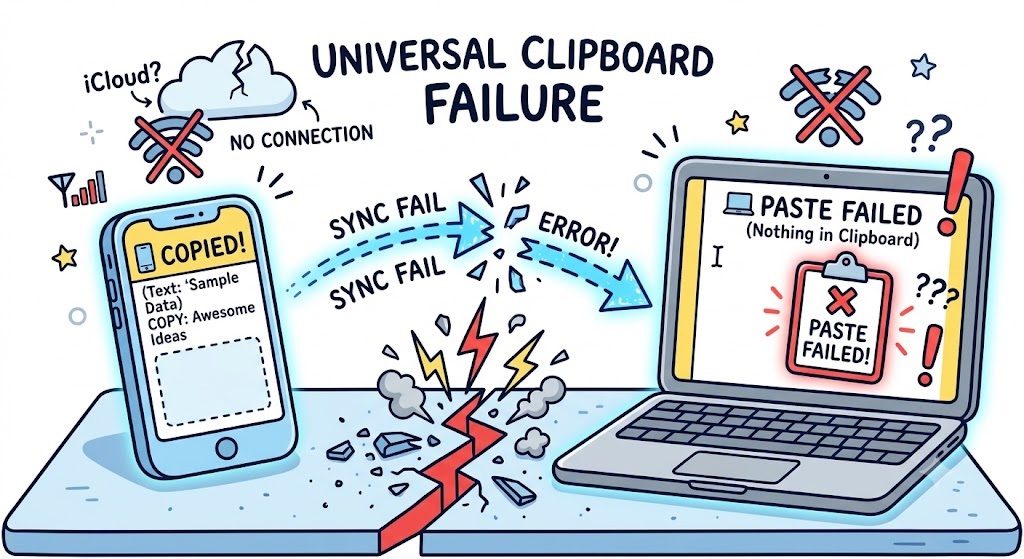
Universal Clipboard fails silently and gives you nothing to check
This is a design decision rather than a bug. Apple built it to be invisible when it works.
- Copying on the iPhone gives you no sign it was shared. There is no banner, no badge and no sound. A copy that never crossed looks exactly like one that did.
- A failed paste is not an error, just the Mac's old clipboard. The symptom is the wrong content appearing rather than nothing at all. That sends people hunting for a fault in the wrong app.
- Neither device reports a status you can read. There is no log and no indicator anywhere. Every cause on this page has to be ruled out by re-checking the setting itself.
People have been reporting exactly this for years on Apple's own support forums and on r/applehelp. The same story repeats: working one day, silently dead the next.

Paste a photo into Mail or Pages before deciding the transfer failed
Two of these silent failures are not failures at all.
- Pasting a photo into a text-only field gives you nothing. The transfer may have worked perfectly. Try again in something you know takes images, such as Mail or Pages.
- A slow transfer and a broken one look identical. That is the real cost of the silence. Even after you have fixed it, you never know whether it worked until you paste.

A mismatched Apple Account breaks Universal Clipboard most often
The causes are not equally likely and they do not cost the same to fix. Sorting by how long the fix takes puts the quick wins at the top.
| Cause | How often it is the answer | How long the fix takes | How hard the fix is | What you see when it is this |
|---|---|---|---|---|
| Two different Apple Accounts | Very common | A few minutes | Easy | Nothing pastes at all, text included |
| Handoff off on one device | Very common | Seconds | Trivial | Both radios on and still nothing crosses |
| Too long between copy and paste | Very common | Seconds | Trivial | Works when you copy and paste right away |
| Bluetooth off or out of range | Common | Seconds | Trivial | Works at the desk, fails in the next room |
| Wi-Fi switched off in Settings | Common | Seconds | Trivial | Devices see each other, nothing arrives |
| Photo or file too large to survive | Common | No real fix | Cannot be fixed | A word crosses, a photo never does |
| Stale Continuity connection | Uncommon | Several minutes | Moderate | Every setting is right and it still fails |

Run this checklist when Universal Clipboard still will not paste
This gathers everything above into the order that finds the fault fastest. Stop at whichever step gets your clipboard moving.
- Open Settings on the iPhone and System Settings on the Mac, and compare the Apple Account address at the top of each.
- Turn Bluetooth on at both ends, and turn Wi-Fi on in Settings rather than trusting Control Centre.
- Bring the iPhone and the Mac into the same room, within a few metres of each other.
- Turn Handoff on for the iPhone, at Settings > General > AirPlay & Continuity.
- Turn Handoff on for the Mac, at System Settings > General > AirDrop & Continuity.
- Copy one short word on the iPhone and paste it on the Mac within a few seconds.
- If the word crosses but a photo does not, copy the photo and wait several seconds before pasting.
- Restart both devices, then turn Handoff off and on again on each.
- Sign out of the Apple Account on the Mac and sign back in.
- If you only wanted a photo on the computer rather than a working Continuity setup, send it directly and move on.
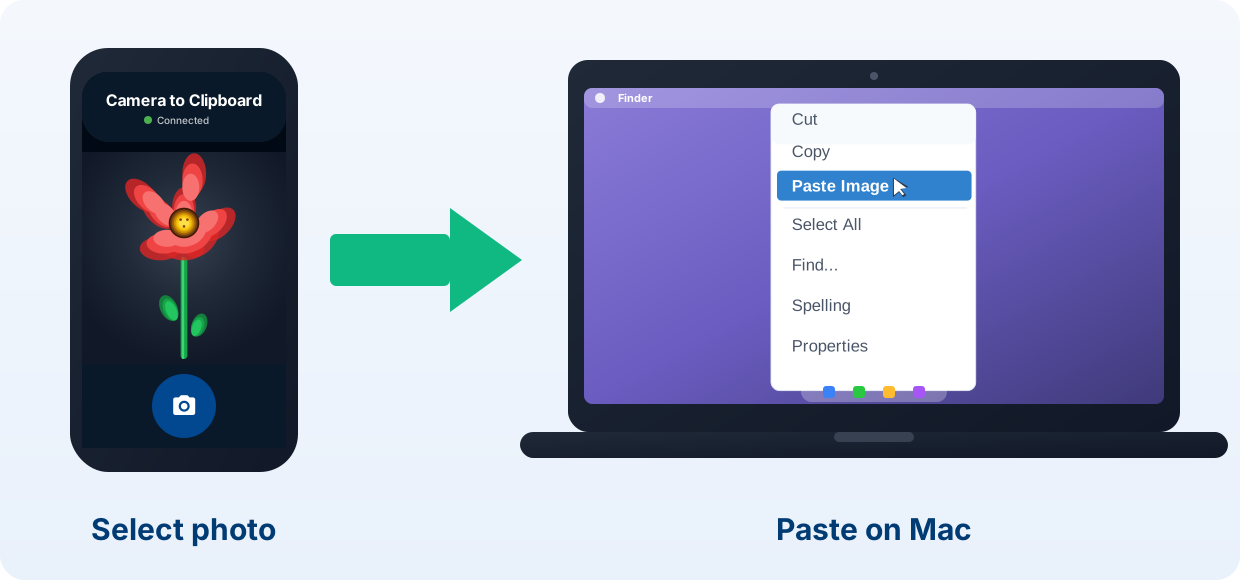
Use Universal Clipboard for text and Camera to Clipboard for photos
The two are not really competing, because they are good at different things.
- Use Universal Clipboard for a line of text or a link. Between an iPhone and a Mac on one Apple Account it is free, already installed and effectively instant.
- Use Camera to Clipboard for a photo when Universal Clipboard has died. It does not use Handoff, an Apple Account or Bluetooth, so not one of the causes on this page can break it.
- Only Camera to Clipboard can reach a Windows PC. Universal Clipboard cannot, so on Windows there is nothing built in to fall back on. Our AirDrop for Windows guide covers the wider gap.

Pick AirDrop for a saved file and the clipboard for a paste
Where the photo needs to end up decides which of the two you want.
- Use AirDrop when you want the photo saved as a file on the Mac. It lands in Downloads and stays there, which the iPhone to Mac guide goes through in full.
- A working clipboard is what puts a photo into Word or an email. Which apps accept a pasted image and which insist on a file is covered in the guide to pasting photos into documents.
Common questions about Universal Clipboard not working
Why is Universal Clipboard not working between my iPhone and Mac?
In most cases the two devices are not on the same Apple Account, or Handoff is off on one of them. Check the account on both devices, then turn Handoff off and on again on each. Bluetooth and Wi-Fi must be on too, and the devices must be within about 10 metres.
How long does a Universal Clipboard copy last before it expires?
Apple says only that the copied content stays available briefly, and in practice that is a couple of minutes. Copying on the iPhone, walking to the Mac and pasting a few minutes later often pastes nothing. Copy again immediately before you paste.
Why does text copy across but a photo does not?
A few words move almost instantly, while a photo is several megabytes and takes seconds. Nothing on either screen says a transfer is still running, so pasting early looks like a failure. If a word crosses and a photo does not, your setup is correct and size is the problem.
Can Universal Clipboard copy from an iPhone to a Windows PC?
No. Universal Clipboard is an Apple-only feature and no setting lets a Windows PC take part. Camera to Clipboard does the same job from an iPhone or an Android phone. It reaches a Windows PC or a Mac over your local Wi-Fi.