
Almost every guide about moving photos to a computer stops at the wrong place. It stops at a file, sitting in a folder. That is rarely what anyone wanted. They wanted the picture inside a document, an email or a message. This guide is about that last step, and about skipping the file altogether.
The quick answer: get the photo onto your computer's clipboard, then press Ctrl + V where you want it. That works in Word, Outlook, Gmail, Google Docs, Slack and Teams. Camera to Clipboard puts a phone photo straight onto that clipboard, so there is no file to save or find. Free for iPhone Free for Mac Free for Android Free for Windows

Emailing a photo to yourself costs four separate actions
Think about what the usual way actually costs you. You are writing a report and you need a photo of the thing you are describing.
- Getting a phone photo into a Word document usually starts with emailing the photo to yourself. You wait for it to send, switch to the computer, and wait again for it to arrive.
- The emailed phone photo then has to be downloaded, and it lands in Downloads as something like IMG_4471. That is one file among forty with equally unhelpful names.
- Finding that one phone photo again in a full Downloads folder is the step that costs real time. You sort by date, guess, open the wrong one, and try the next.
- Putting the phone photo into the Word document then means opening Insert and browsing back to Downloads. You pick the file and wait for the dialog. That is the fourth separate action for one picture.
Four actions and a wait, for something that should be one keystroke.

Emailing yourself a photo leaves three copies to clean up
The picture is in the document now, but three copies of it are still sitting around.
- The downloaded phone photo stays in your Downloads folder after the document is finished. Nothing removes it, so it is still there next month.
- The email you sent yourself keeps its own copy of the phone photo in the sent folder. That copy counts against your mailbox size as well.
- The cloud drive you used to move the phone photo keeps a third copy. You have to go back and delete each one by hand.
That is the problem worth solving, and it is not the same as transferring photos.
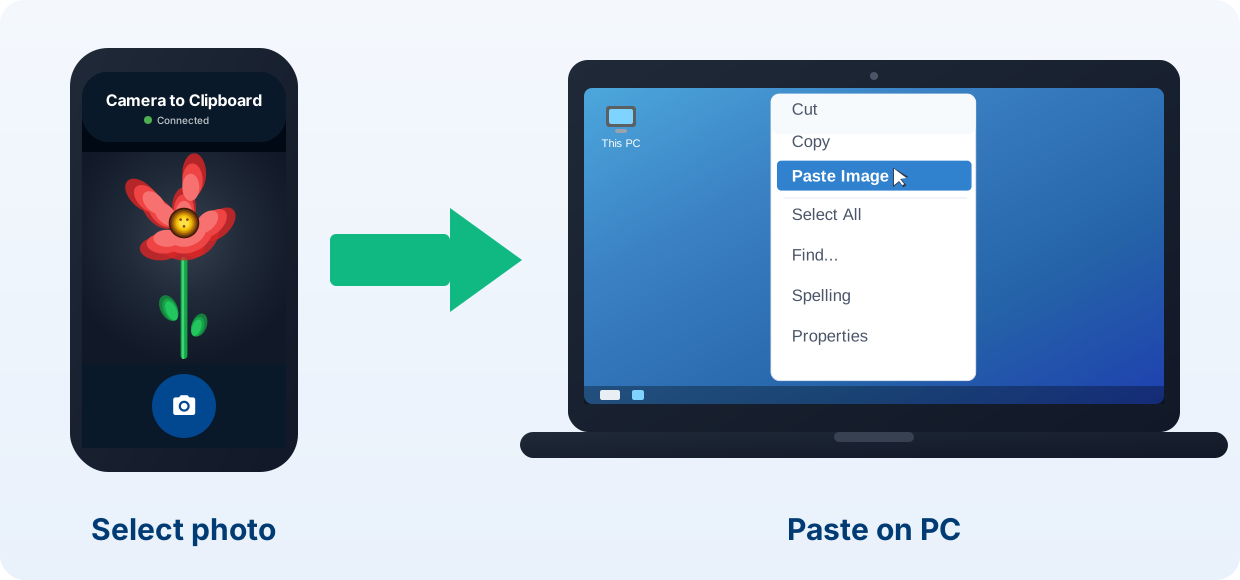
Camera to Clipboard puts a phone photo straight on the clipboard
Emailing a photo to yourself creates a file because the photo travels as one. Put the picture straight onto the computer's clipboard instead and those steps disappear. That is what Camera to Clipboard does.
- Camera to Clipboard puts a photo you take on the phone onto the computer's clipboard. Switch to your document and press Ctrl + V.
- Sending a phone photo into a document with Camera to Clipboard creates no file at any point. There is nothing to save and nothing left in Downloads.
- Camera to Clipboard delivers the phone photo at full resolution on Pro, not as a shrunken copy. The image never passes through a messaging app on the way.

Pair the two apps once and the photo crosses your own Wi-Fi
Two things are worth knowing before you set it up.
- Camera to Clipboard sends the phone photo to the computer without uploading it to any cloud service. The photo crosses your own network, and the two apps use the internet only to find each other.
- Camera to Clipboard's Library mode saves the phone photo as a real file instead of pasting it. Use that when you do want a picture on disk.
Setting it up takes four steps.
- Install Camera to Clipboard on your phone and the desktop app on your computer.
- Pair them once with a QR code.
- Take or pick a photo on the phone and send it.
- Click where you want it and press Ctrl + V.
Free to download and try on iPhone, Android, Windows and Mac. The free version adds a small watermark and caps photos at 1920px. Pro removes both.

Press Ctrl + V to drop the photo into Word, Outlook, Gmail or Slack
Once an image is on the computer's clipboard, one keystroke puts it into a document or an email.
- Ctrl + V drops whatever photo is on the clipboard into Word, Outlook, Gmail or Slack at your cursor. The same keystroke works in Google Docs, Teams, PowerPoint and OneNote. On a Mac it is Cmd + V.
- A phone photo pasted into a Word document or an email never becomes a file on your disk. There is nothing to name, find or delete afterwards.
- Ctrl + V is the same keystroke in Word, in Outlook and in a chat message. Insert is not, because it sits in a different menu in every application.

Press Ctrl + V in Word for speed and use Insert to keep the file
Word takes a phone photo either way, and the two are not really competing.
- Pressing Ctrl + V is the fast way to get a phone photo into a Word document. Click where you want the image first, and Word places it at the cursor.
- Inserting a saved phone photo from Word's Insert menu is the slower, deliberate way. In Word for Windows use Insert > Pictures > This Device, and Word for Mac offers Picture from File in the same menu. Choose it when the same image goes into several documents.
- A phone photo pasted into a Word document becomes part of that document, not a link to a file. Send the file to someone else and the image travels with it.

Fix the layout and compress a pasted photo after it is in Word
Three Word habits are worth having once the image is in the document.
- Fix the layout of a phone photo after you have pasted it into Word, not before. Word starts a pasted picture as In Line with Text. In Word for Windows, click the image and use the Layout Options button beside it to pick a wrapped position.
- Compress the pasted phone photos when the Word document becomes too large to email. Select a picture, then use Picture Format > Compress Pictures to drop the resolution once the layout is settled. That beats starting from a low-quality image.
- Word's Paste Special lets you choose the format of the pasted phone photo by hand. In Word for Windows, select the arrow under Paste on the Home tab and choose Paste Special. Then pick a picture format such as PNG.

Paste into the body to embed the photo, attach it to send a file
An email gives you two ways to carry a phone photo, and they behave differently at the other end.
- Pasting a phone photo into the body of an email embeds the picture in the message itself. The recipient sees it in place while reading, with nothing to open.
- Attaching a phone photo to an email sends a separate file the recipient has to open. That suits someone who needs the original to edit, print or file.
- Outlook, Gmail and Apple Mail all take a phone photo pasted straight into the message body. Click in the body first, then paste. The message has to be in HTML or Rich Text, because plain text cannot show a picture in the body.

Attach the photo instead when the email is too big or arrives broken
Two things stop an embedded photo reaching the other end.
- Several phone photos embedded in one email push the message past the provider's size limit. Gmail and Outlook.com both cap a message at 25 MB. Mail is re-encoded in transit and grows by about a third. That ceiling arrives at roughly 18 MB of actual photos.
- A pasted photo can arrive broken when Outlook sends the message as Rich Text rather than HTML. Outlook then packs the picture into a special attachment format. A recipient whose mail system cannot read it sees a Winmail.dat file instead of the picture.
In both cases, attaching the file is the reliable fallback.

Paste the photo into Slack or Teams rather than uploading a file
Chat apps accept a dragged file happily enough. That makes it easy to miss that a pasted photo reads better in the conversation. Four things separate them.
- A phone photo pasted into the Slack or Teams message box appears as a preview in the conversation. Everyone sees the picture while scrolling, rather than a file card to click open.
- A phone photo pasted into Slack or Teams can carry its caption in the same message. Dragging a file in tends to separate the picture from the words beside it.
- Screenshots and phone photos paste into Slack and Teams identically once they are on the clipboard. That makes it one habit to learn rather than two.
- Pasting a phone photo into Slack or Teams leaves nothing behind in your Downloads folder. Over a working week that adds up more than it sounds.

Messaging yourself a photo re-compresses it, pasting does not
WhatsApp or email to yourself is the habit most people fall into. It quietly costs image quality before the photo reaches the document.
- A phone photo sent to yourself through a messaging app is re-encoded to save bandwidth. That is a deliberate design choice, and the discarded detail cannot be recovered.
- Every extra hop through a messaging app compresses the phone photo again. Send it to yourself, forward it on, and it has been re-compressed twice.
- Messaging-app compression does most damage to whiteboard text, receipts and serial numbers. Those are exactly the photos people paste into documents, and fine detail goes first.
- A phone photo sent straight to the computer's clipboard never passes through a messaging service. Nothing in that path re-encodes it.
| What you want | Paste from the clipboard | Save a file, then insert |
|---|---|---|
| Photo ends up in the document | ✔ | ✔ |
| No file left in Downloads | ✔ | File stays behind |
| No hunting for the right file | ✔ | Browse and identify it |
| Full resolution, no compression | ✔ on Pro | Depends how it was sent |
| No copy left in a sent folder | ✔ | Copy in email or cloud |
| Same action in every app | ✔ | Different menu each time |
| Photo crosses your own Wi-Fi, not a server | ✔ | Uploaded, then downloaded again |
| Keeps the original file for reuse | Use Library mode | ✔ |
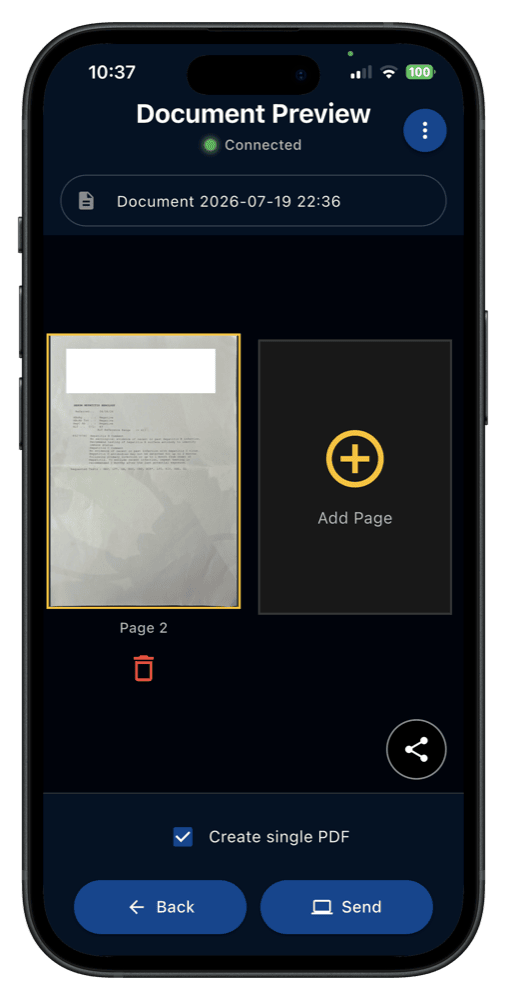
Photograph a receipt and paste it instead of walking to the scanner
Paper goes into a document or an email the same way a photo does. That is worth knowing the next time someone asks you for a receipt.
- A phone camera is the scanner you already own for getting a receipt into a document. Photograph the page and paste it straight into the report or the email.
- Camera to Clipboard's document mode straightens and crops the photographed page. A page shot at an angle arrives looking like a scan rather than a snapshot.
- Photographing one page and pasting it beats walking over to the office scanner. There is no queue at the machine and no scanned-file folder to find.
- Full detail matters more on a photographed receipt than on any other picture you paste. The whole point is that someone can read the numbers. More in the document scanning guide.
Common questions about pasting photos into documents
How do I put a photo from my phone into a Word document?
The quickest way is to get the photo onto your computer's clipboard and press Ctrl + V inside Word. It lands at the cursor with no file involved. The alternative is to save the photo first, then use Insert > Pictures > This Device in Word for Windows.
Why do photos I email myself look worse than the original?
Most messaging and email apps re-encode images to keep attachments small, which discards detail permanently. A direct transfer to the clipboard does not pass through any messaging service, so nothing re-encodes it on the way.
Can I paste a photo straight into Outlook or Gmail?
Yes. Click in the body of the message and press Ctrl + V. The image is embedded so the recipient sees it in place rather than opening an attachment. If they need the original file to edit or print, attach it instead.