
Almost everyone tries Bluetooth first, and it never works. The reason is not a setting you missed. Apple has never built that capability into the iPhone. This guide covers the five cable-free methods that do move a photo to a Windows PC.
The quick answer: Bluetooth cannot do it, on any iPhone, in any iOS version. Every method that works uses Wi-Fi instead. Camera to Clipboard is the fastest, dropping the photo into your PC clipboard in seconds. iCloud Photos, PairDrop in a browser and email work too.
Free for iPhone Free for Mac Free for Android Free for Windows
An iPhone can never send a photo to a Windows PC over Bluetooth
Settle this before you spend twenty minutes in the Settings app.
- An iPhone cannot send a photo over Bluetooth because iOS leaves out the file-transfer part of the standard. Apple ships only some Bluetooth capabilities, to you and to every app alike. There is no Send via Bluetooth option in the Photos share sheet.
- Pairing an iPhone to a Windows PC over Bluetooth gets you audio and tethering, never a photo. Windows lists the iPhone and pairs with it happily. The headset and internet sharing profiles are the ones Apple supports.
- Windows waits forever on Receive a file via Bluetooth when the photo is coming from an iPhone. The PC side of that dialog works fine. Nothing on the iPhone can ever start the send.

AirDrop uses Wi-Fi, which is why the Bluetooth myth survives
Two things keep the Bluetooth idea alive, and neither one helps here.
- AirDrop carries the picture over Wi-Fi and uses Bluetooth only to spot the other device. That is why people believe an iPhone can send photos over Bluetooth.
- AirDrop only ever talks to other Apple hardware, never to a Windows PC. The receiving end has to be an iPhone, an iPad or a Mac.
- Guides about sending photos to a PC over Bluetooth are written for Android, where it works. A Samsung or a Pixel really can push a file to Windows that way. None of it carries over to an iPhone.
So the real question is which Wi-Fi method suits the job.

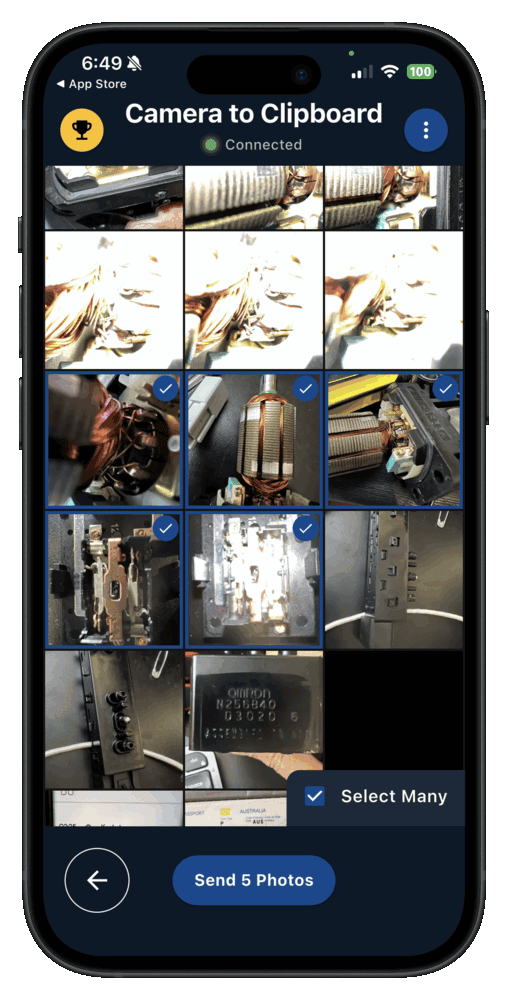
Camera to Clipboard puts an iPhone photo on your PC clipboard
Camera to Clipboard skips the file and hands you something to paste.
- Camera to Clipboard puts an iPhone photo on the Windows clipboard in seconds. Take a picture, or pick one from your library.
- An iPhone photo sent with Camera to Clipboard pastes with Ctrl + V. It drops into an email, a chat or a document, with no file to go and find.
- Camera to Clipboard sends the iPhone photo at full resolution as a JPEG. Windows opens it straight away, with no HEIC file to convert first.
- Camera to Clipboard moves a whole batch of iPhone photos, and a video too. The video arrives as a file, with its path on the clipboard.
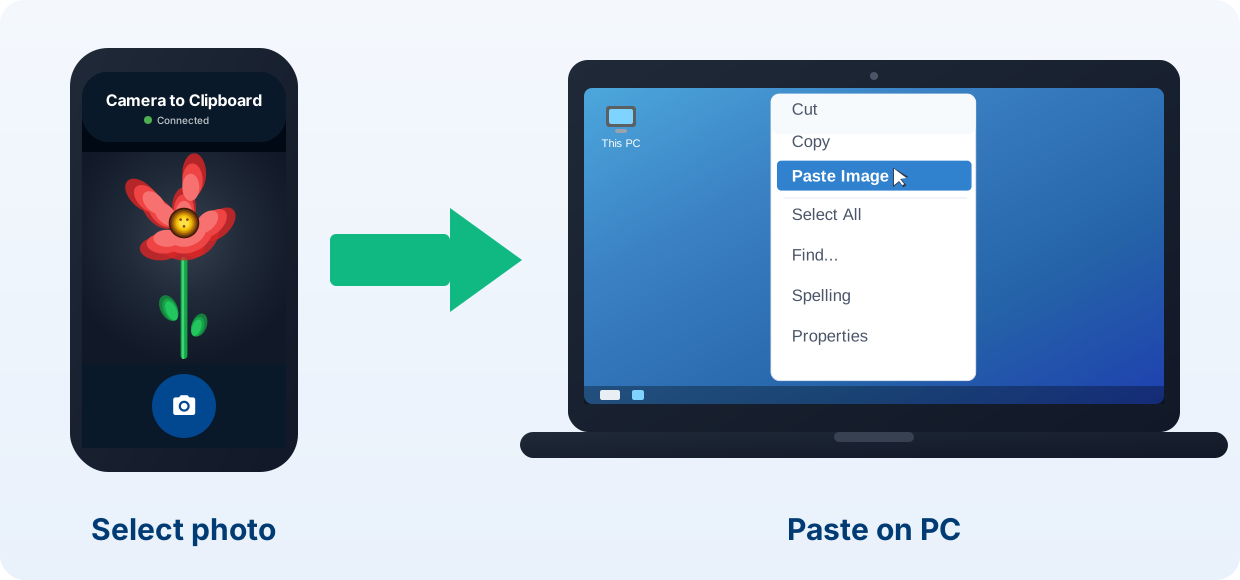
Camera to Clipboard keeps the iPhone photo on your own Wi-Fi
The network side is where this differs most from a cloud sync.
- Camera to Clipboard carries the iPhone photo straight across your own Wi-Fi. Nothing is uploaded to a cloud server, and no storage plan is used.
- Camera to Clipboard uses the internet only to let the two apps find each other. The photo itself never leaves your network.
- Camera to Clipboard still works when the PC is online through your iPhone's hotspot. The phone's mobile data connects both apps, and the picture crosses the hotspot network.

Set up Camera to Clipboard on an iPhone and a PC in four steps
Pairing happens once, and it takes about ten seconds.
- Install Camera to Clipboard on the iPhone and the desktop app on the PC.
- Pair them once by scanning a QR code.
- On the iPhone, take a photo or pick one from your library.
- Press Ctrl + V on the PC to paste it.
Free to download and try on both the iPhone and Windows. The free version adds a small watermark and caps photos at 1920px. Pro removes both.
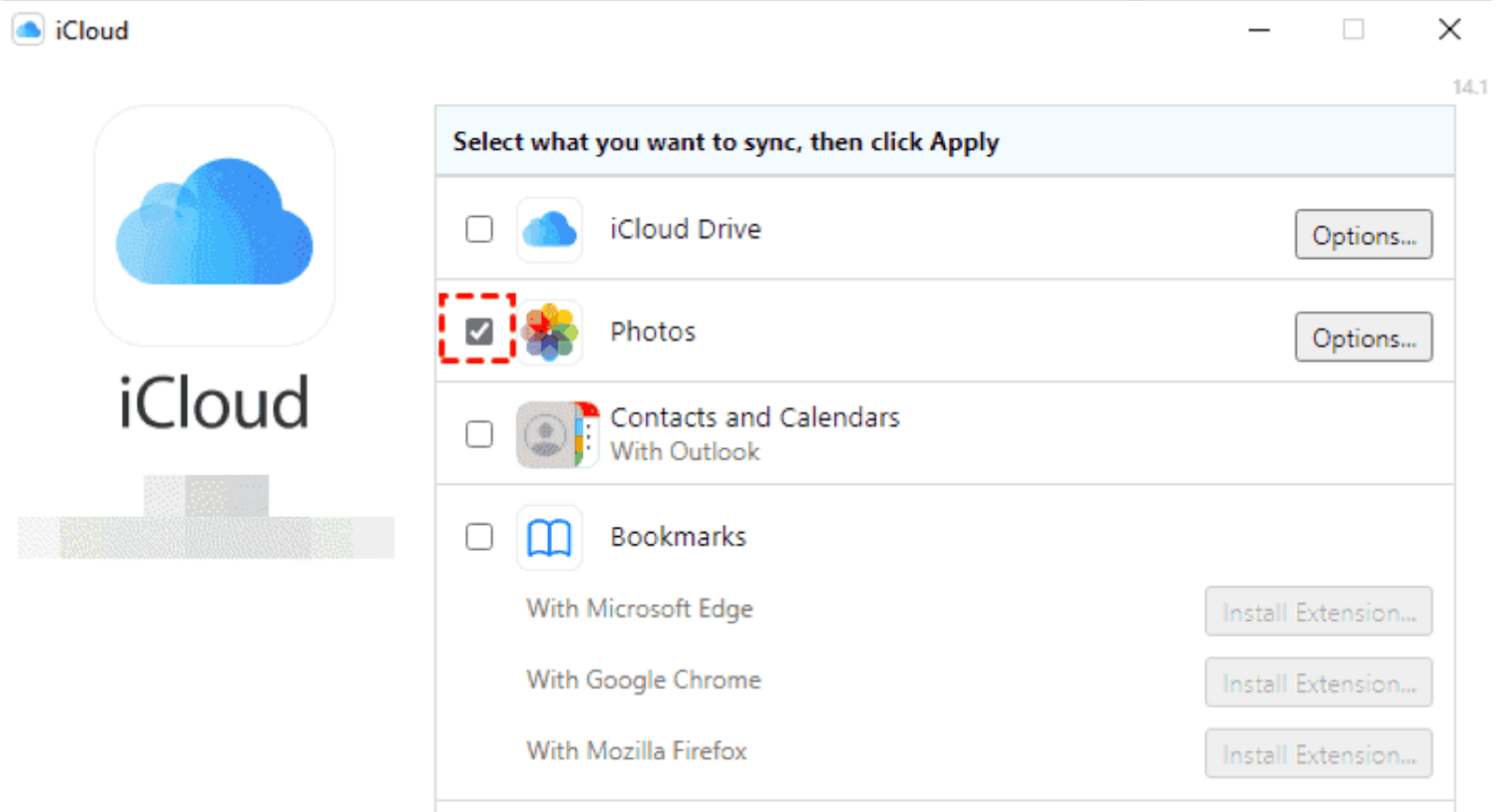
iCloud Photos mirrors a whole iPhone camera roll onto a PC
Turn on Settings > [your name] > iCloud > Photos, then install iCloud for Windows and sign in.
- iCloud Photos keeps a whole iPhone camera roll mirrored in a folder on the PC. New pictures arrive on their own while both devices are online.
- iCloud Photos stays free only until the iPhone camera roll outgrows the 5 GB Apple gives you. A couple of thousand photos and a few videos will pass it. After that the sync needs a paid iCloud+ plan.
- You can also download an iPhone photo from iCloud.com in a browser. Open iCloud.com and sign in. That is the way in on a PC you cannot install software on.

iCloud Photos is the slowest way to get one iPhone photo onto a PC
The round trip through Apple's servers is the design, and it costs you time.
- iCloud Photos uploads every iPhone photo to Apple and downloads it again on the PC. For a mirrored library that is exactly right. For one picture you need in the next minute it is the slowest option here.
- A photo you just took can take several minutes to reach the PC through iCloud. There is no error to notice, so you sit refreshing the folder.
- iCloud Photos needs working internet at both ends before it moves anything. A hotel captive portal, or a hotspot with no data left, stalls the sync.
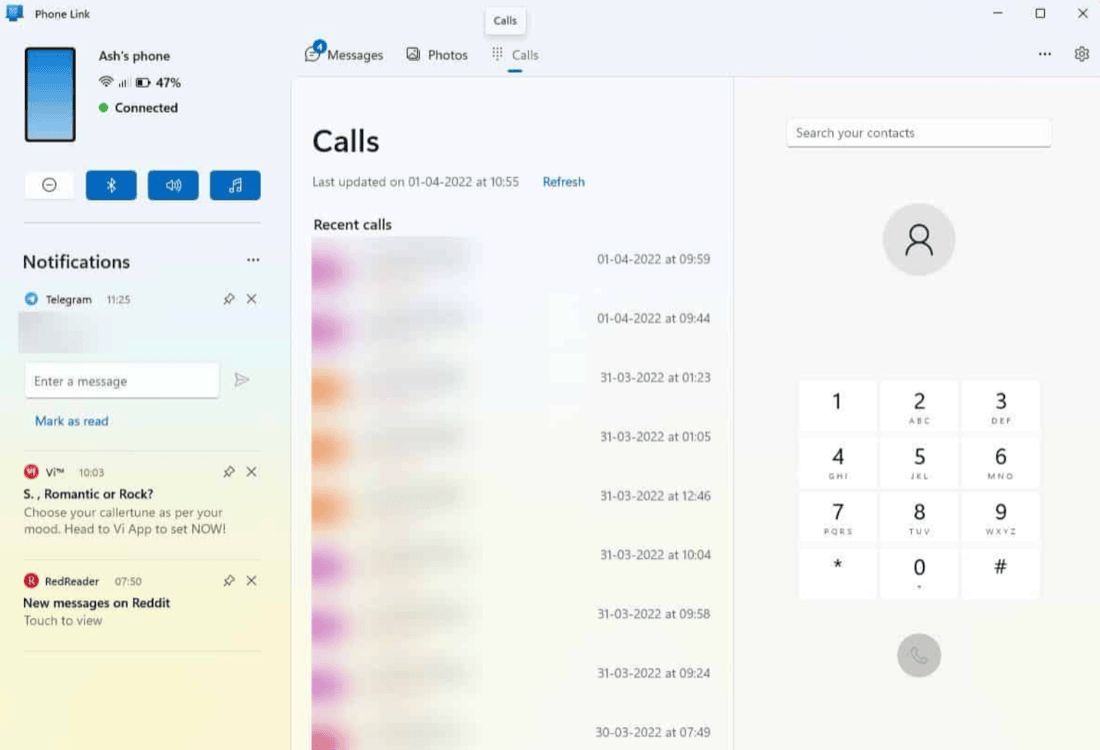
Phone Link takes a file from an iPhone but shows no photo library
Most advice saying Windows has this built in is describing the Android version.
- Phone Link can receive a file from a linked iPhone running iOS 16 or later. You send it from the iPhone share sheet, and File Explorer's Share command does the same job from the PC side.
- Phone Link has no iPhone photo library panel, so the PC cannot browse the camera roll. That panel is Android only, and it is the screenshot nearly every article about Phone Link uses.
- Phone Link cannot browse an iPhone's file system the way it browses an Android phone's. Apple keeps that closed, so a picture has to be pushed from the iPhone rather than pulled from the PC.

PairDrop moves iPhone photos in a browser with nothing to install
These are web pages rather than apps, opened on both devices at once.
- PairDrop moves an iPhone photo to a PC in a browser tab, with nothing installed. That suits a computer that is not yours.
- Use PairDrop rather than Snapdrop, because Snapdrop now sends your files through LimeWire's servers. LimeWire bought Snapdrop, and PairDrop is the community fork of the code from before that sale.
- PairDrop leaves the iPhone photo in the PC's Downloads folder rather than on the clipboard. You still have to find the file and attach it.
- PairDrop needs both tabs open on one network, and plenty of networks block it. Corporate and public Wi-Fi often keep devices from seeing each other.
Email and WhatsApp always work but shrink the iPhone photo
Sending the picture to yourself never quite fails, and it costs the most.
- Sending an iPhone photo through WhatsApp re-compresses it and the lost detail never comes back. What lands on the PC is visibly softer than what you took.
- Emailing an iPhone photo to yourself is a double round trip. You upload it from the phone, then download it again on the PC.
- Gmail and Outlook.com both cap a message at 25 MB, which a few iPhone photos pass. One short iPhone video goes past the limit on its own.

Cloud backup apps leave a copy of your iPhone photo on a server
Letting an app back up the camera roll changes where the picture ends up.
- Google Photos, OneDrive and Dropbox back up an iPhone camera roll for the PC to download. Each one uploads the picture first, so you wait twice.
- Email, chat and cloud apps leave a copy of your iPhone photo on someone else's servers. A picture you wanted to paste once now sits in a sent folder or an account.
- Email or a chat app is still the shortest way onto a PC that is locked down. If the photo is going to another person anyway, the compression stops mattering.

Direct Wi-Fi transfer is the fastest cable-free method of the five
Here are the five cable-free methods side by side, with Bluetooth for completeness.
| Method | Speed | Setup | Image quality | Works with no internet | Privacy |
|---|---|---|---|---|---|
| Camera to Clipboard | Seconds, pastes straight in | One app each end, paired once | Full resolution on Pro | Needs internet to connect, the photo stays on your Wi-Fi | Never uploaded |
| iCloud Photos | Minutes, upload then sync down | Install and sign in | Full resolution | No, needs both ends online | Stored on Apple's servers |
| PairDrop in a browser | Fast, then find the download | Nothing to install | Full resolution | Needs its server to connect, then same network only | Device to device |
| Email or WhatsApp | A minute or two | Already installed | Compressed by most chat apps | No | Copy left in sent items |
| Google Photos or OneDrive | Minutes, backup then download | Install and sign in | Full size on paid tiers | No | Stored in your cloud account |
| Bluetooth | Not possible from an iPhone | Not possible | Not possible | Not possible | Not possible |

Use Camera to Clipboard for one photo and iCloud for a full mirror
The choice comes down to how many photos you are moving.
- Camera to Clipboard is the fastest cable-free way to get an iPhone photo onto a PC when you are about to use it. It ends in a paste, not a file to go and find.
- iCloud Photos is the best cable-free way to keep a whole iPhone camera roll mirrored on a PC. OneDrive does the same job on Microsoft 365.
- PairDrop in a browser is the best way to move an iPhone photo onto a PC that is not yours. Nothing is installed on the borrowed machine.
- Camera to Clipboard and PairDrop hand the photo straight between the two devices, with no cloud account in the middle. Both still use the internet only to introduce the two devices to each other.
Common questions about moving iPhone photos without a cable
Can you transfer photos from an iPhone to a PC via Bluetooth?
No. iOS does not expose the Bluetooth profiles that move files, so there is no Send via Bluetooth option in the Photos app. Windows will wait forever on Receive a file. Every working cable-free method uses Wi-Fi instead, including AirDrop.
How do I transfer photos from an iPhone to a laptop without a USB cable?
Use a direct transfer over your local Wi-Fi. Camera to Clipboard puts the photo straight into your laptop's clipboard in seconds. iCloud Photos, PairDrop in a browser and email also work without a cable, but each adds an upload or a wait.
Can I move photos from my iPhone to my PC with no internet connection?
Not with Camera to Clipboard, which uses the internet only to introduce the two devices. The photo itself then crosses your own Wi-Fi and is never uploaded. A phone hotspot works too, because its mobile data connects both apps. iCloud and email need a working connection for the photo itself.