
Scanning a paper page with your phone is the easy part. Every iPhone and Android phone turns a page into a clean PDF in seconds. Getting that scan onto your computer is the annoying part. Camera to Clipboard does both in one step.
The quick answer: Camera to Clipboard captures the document with your phone and puts it straight in your computer's clipboard. Paste it with Ctrl + V, or Cmd + V on a Mac. No cable, no cloud upload, no file to hunt down. The built-in phone scanners are further down.
Free for iPhone Free for Mac Free for Android Free for Windows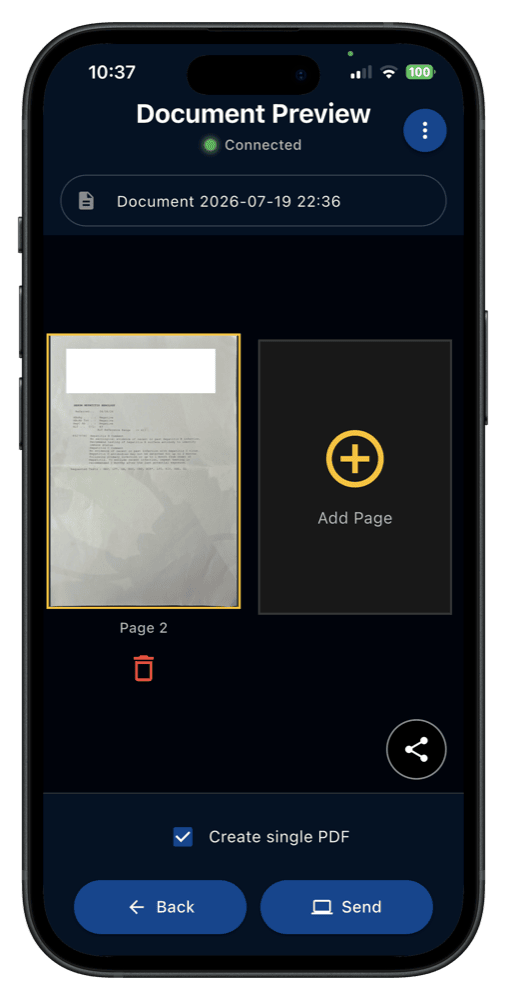
Camera to Clipboard puts a phone scan on the computer's clipboard
Camera to Clipboard has a document scan mode built for this job.
- The document scan mode in Camera to Clipboard finds the edges of the page for you. Point the phone at the paper and capture it. The crop is automatic.
- A page scanned with Camera to Clipboard appears in your computer's clipboard at once. Paste it into an email, a web form, a chat or a document.
- A scan sent by Camera to Clipboard crosses your own Wi-Fi and is never uploaded. The two apps use the internet only to find each other. Your phone's hotspot works too.
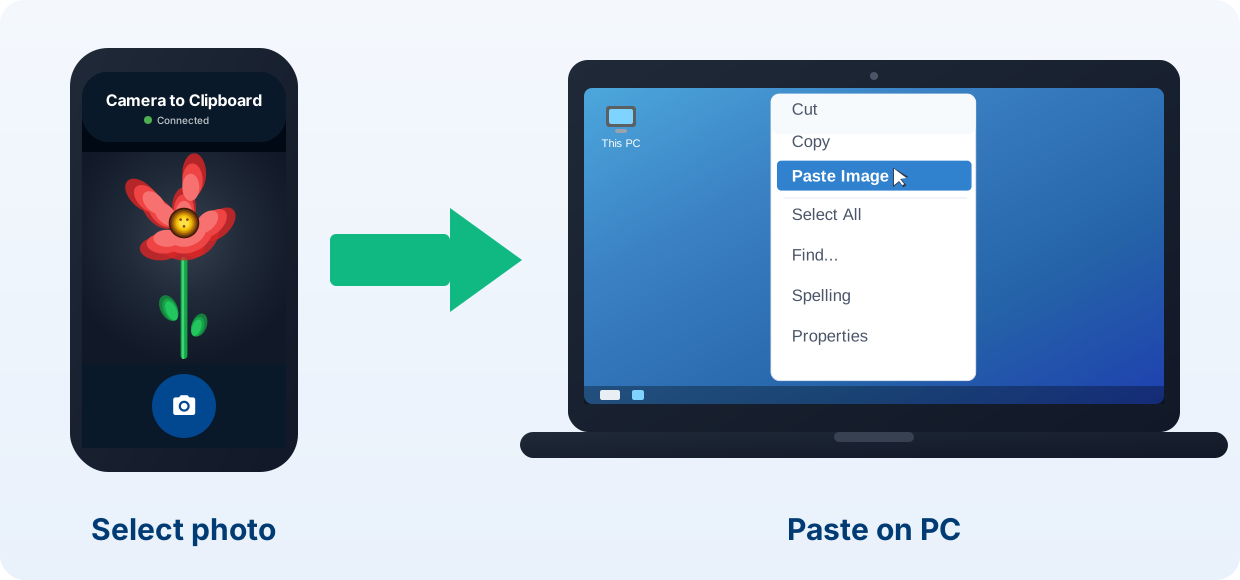
Scan a document from your phone to your computer in four steps
Pairing the phone and the computer takes one QR code scan, about ten seconds. After that it is four steps every time.
- Open the document scan mode in Camera to Clipboard on your phone.
- Line up the page and capture it. The app finds the edges.
- The scan lands on your computer's clipboard straight away.
- Press Ctrl + V, or Cmd + V on a Mac, to paste it.
Free to download and try on iPhone, Android and your computer. The free version adds a small watermark and caps photos at 1920px. Pro removes both.
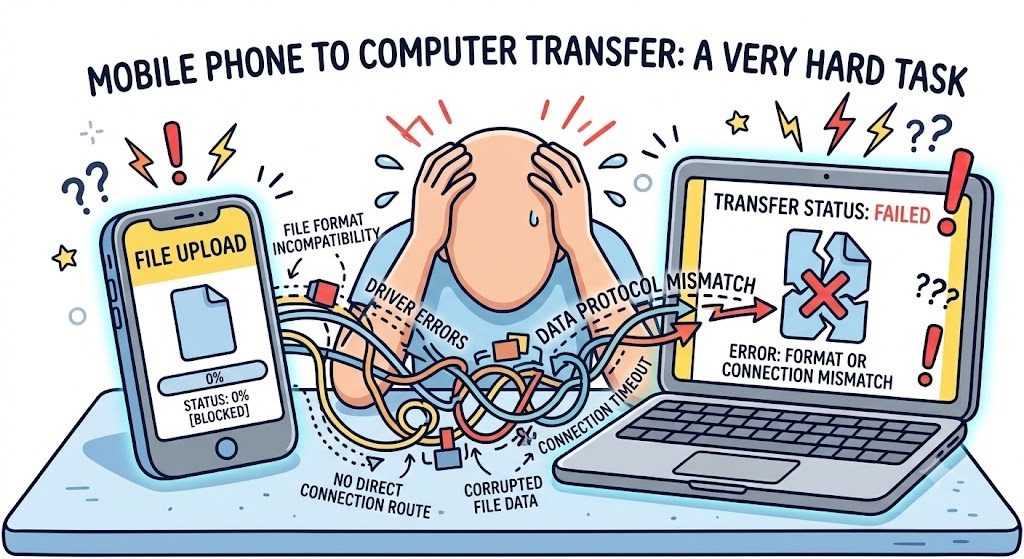
The phone's built-in scanners stop at the phone, not the computer
The scanners already on your phone make a genuinely good scan. They just leave the transfer to you.
- The iPhone and Android built-in scanners hand you a PDF and stop there. Getting that PDF onto the computer is a separate job, and it is the slow one.
- A scan you need on the computer this minute does not want to be a file. It wants to be on the clipboard, ready to paste into whatever is open.
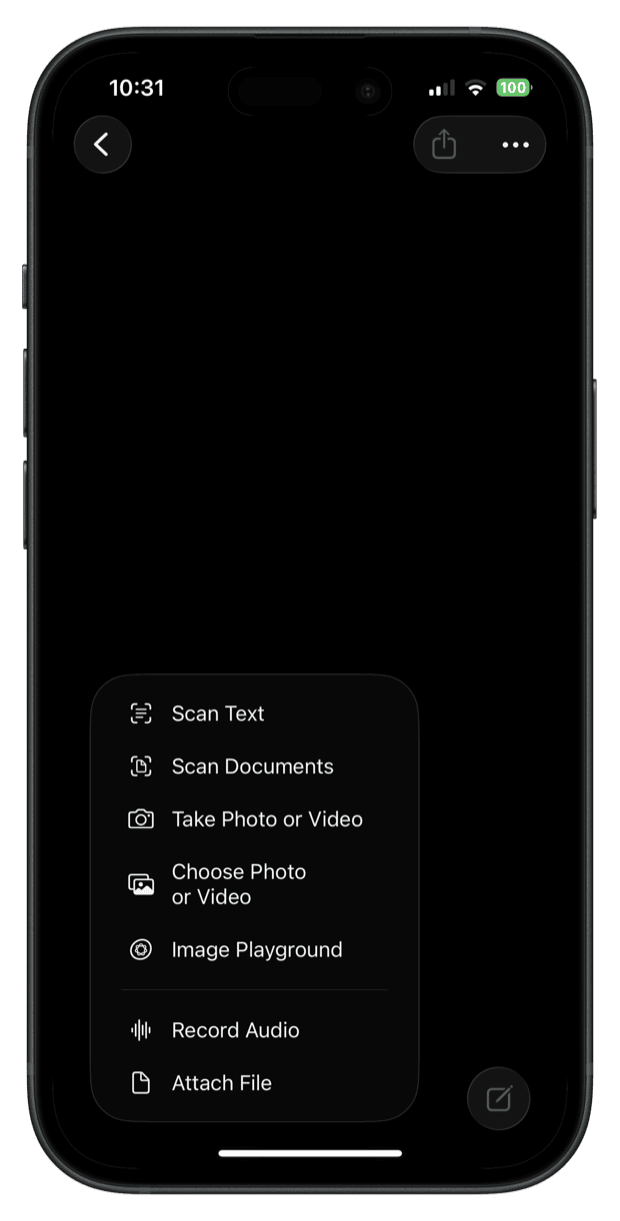
Scan a document on an iPhone with the Notes or Files app
Every iPhone has a scanner built into Notes, and a second one in Files.
- Open Notes, start a new note, and tap the camera button in the toolbar.
- Choose Scan Documents, point the phone at the page, and let it capture.
- Tap Save. The scan is stored as a PDF in the note.
The Files app scans the same way from its three-dot menu. Either way, the PDF sits on the iPhone. You still have to email it, AirDrop it to a Mac, or push it through iCloud.

Scan a document on Android with the Google Drive app
On Android the scanner lives in the Google Drive app.
- Open Google Drive, tap the + button, and choose Scan.
- Capture the page and adjust the crop if you need to.
- Save it as a PDF to Drive.
Many phones, including Samsung models, also have a scan shortcut in the camera or Notes app. The scan is good, but it now lives in your cloud drive. To use it on the computer, open Drive in a browser and download the file.

Moving a phone scan to the computer is the slow, fiddly step
Whichever scanner you use, the last mile is the same problem.
- Emailing a scan to yourself adds a send and then a fetch at the other end. You are waiting on two mail servers before you can open the page.
- A cloud drive has to finish uploading the scan before it shows up on the computer. That wait can lag or stall on a weak connection.
- Every scan that travels as a file leaves you something to open, rename and delete. None of it puts the page where you want it, which is the clipboard.

Email and chat compress a scan until the small print goes soft
One quality trap catches people out when a scan travels as a file.
- A scanned page sent as an image through email or chat is usually compressed on the way. Small print is the first thing to blur, and legibility is the whole point of a scan.
- A scan that arrives fuzzy has to be captured and sent all over again. You find out only after the person at the other end tries to read it.

Camera to Clipboard beats scanning and then sending a file
The built-in scanners are fine for filing a PDF away for later. For a scan you need on the computer right now, they make you send a file and wait.
- Camera to Clipboard scans the page and lands it on the computer in one move. There is nothing left to do once the shutter fires.
- Getting a phone scan onto the computer with Camera to Clipboard needs no cable. The page crosses your own Wi-Fi, so there is no adapter or dock to find.
- Camera to Clipboard sends the scan without uploading it to anyone's server. There is no upload and then a download to sit through, and no cloud storage used up.

A scan from Camera to Clipboard lands ready to paste at full size
Two more things matter once the page reaches the computer.
- A page scanned with Camera to Clipboard lands on the clipboard, not in a folder. Press Ctrl + V and it is already in the email, form or chat you were filling in.
- Camera to Clipboard delivers the scanned page at full resolution, with no compression on Pro. Small print reads on screen as clearly as it did on paper.
| What you want to do | Camera to Clipboard | Notes / Drive scan + send |
|---|---|---|
| Scan and land on the computer in one step | ✔ | Scan, then send separately |
| No cable needed | ✔ | ✔ |
| Nothing uploaded to a cloud | ✔ | Emails or uploads the file |
| Lands ready to paste | ✔ | Saves a file first |
| Full resolution, no compression | ✔ on Pro | Email and chat compress it |
| No account needed | ✔ | Needs iCloud or a Google account |
| Works over a phone hotspot | ✔ | Cloud sync uploads before you can download |
| Free to try | ✔ | ✔ |

Use Camera to Clipboard to paste a scan, Notes or Drive to archive
Both approaches make a clean scan, so the choice is what happens next.
- Camera to Clipboard is the best way to get a scanned page onto the computer when you need it right now. Capture the page and paste it straight into the email, form or chat that is waiting.
- The iPhone Notes scanner and the Google Drive scan are the best way to file a multi-page PDF for later. Both save the document to the cloud, where it stays on every device you sign in on.
Common questions
How do I scan a document from my phone to my computer?
Scan with the phone, then get the result onto the computer. Camera to Clipboard does both at once. Open its document scan mode and capture the page. It lands in your computer's clipboard, ready to paste. The iPhone Notes and Android Google Drive scanners scan just as well. You then have to email, AirDrop or sync the file across yourself.
How do I get a scanned document from my iPhone to my PC?
After scanning in Notes or Files you can email it to yourself, share it over iCloud, or upload it to a cloud drive. Each of those adds an upload and then a download, and can compress the image. With Camera to Clipboard the scan skips the file and appears in the PC clipboard in seconds.
What is the fastest way to scan a paper document onto a computer?
Scan and land it in one step. Camera to Clipboard captures the page on your phone and drops it into the computer clipboard over your own Wi-Fi. There is no cable and nothing is uploaded to a cloud. Paste it into an email, a form or a chat right away.