
Two different Apple features are both called Continuity Camera. One turns an iPhone into the camera your Mac uses on a video call. The other opens the iPhone camera inside a Mac document and drops the shot straight in. This page separates the two, then fixes each one.
The quick answer: put the Mac and the iPhone on the same Apple Account, with Bluetooth and Wi-Fi on at both ends. For webcam use, lock the phone and stand it still in landscape. Neither feature can send a photo you already took. Free for iPhone Free for Mac Free for Android Free for Windows

Continuity Camera is two Apple features sharing one name
Most arguments about whether Continuity Camera works start with two people describing different things.
- Continuity Camera in its webcam sense makes the iPhone the camera a Mac uses on a call. The Mac lists the phone beside its own camera.
- Continuity Camera in its insert sense puts a fresh shot into the Mac document you are working in. You pick Take Photo on the Mac, then shoot on the phone.
- The two senses of Continuity Camera arrived four years apart, which is why guides contradict each other. Inserting came with macOS Mojave in 2018, the webcam with macOS Ventura in 2022.

Webcam use needs a locked iPhone and insert use needs an awake one
Which of the two you mean decides the fix, because they ask for opposite things.
- Using an iPhone as a Mac webcam needs the phone locked and untouched in a stand. macOS will not offer a phone that is being handled or carried about.
- Importing a photo into a Mac document needs the iPhone awake and in your hand. You frame the shot on the phone and press the shutter yourself.
- Neither sense of Continuity Camera can send a photo that is already in your camera roll. Both take a fresh picture, and neither offers a picker.


Camera to Clipboard sends a photo you already took to a Mac
If you wanted a picture off your phone rather than a webcam, this is shorter.
- Camera to Clipboard sends a photo already sitting in your camera roll, which Continuity Camera cannot do. Pick one shot or a batch, send, and they are on the computer.
- A photo sent with Camera to Clipboard lands on the Mac clipboard rather than in a folder. Press Cmd + V where you are working. No file is left to tidy up.
- Camera to Clipboard pastes into any Mac app that accepts an image. The clipboard is older and far more widely supported than any Apple menu item.
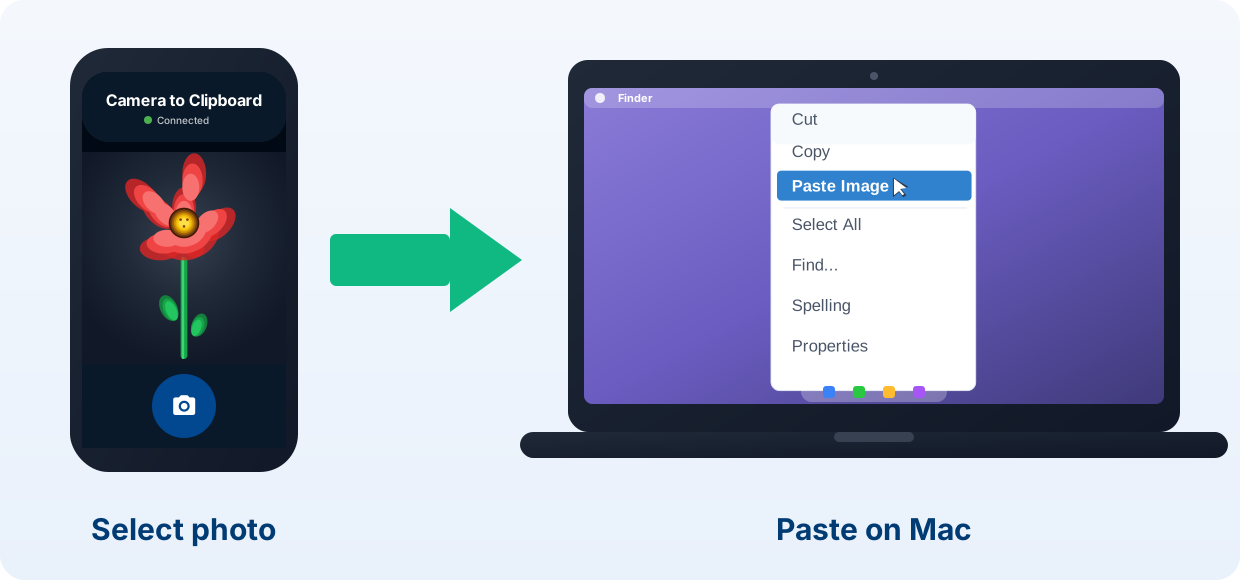
Send a phone photo to a Mac or a Windows PC over your own Wi-Fi
Three things change once the transfer is not an Apple feature.
- Camera to Clipboard runs from an iPhone or an Android phone, to a Mac or a Windows PC. Continuity Camera never covered a phone and a computer from different companies.
- A photo sent with Camera to Clipboard crosses your own Wi-Fi and is never uploaded to a cloud. The two apps use the internet only to find each other, and a hotspot works too.
- A video sent from the phone with Camera to Clipboard is saved on the computer as a file. Its file path goes on the clipboard.
- Install Camera to Clipboard on the phone and the desktop app on the Mac.
- Pair once by scanning a QR code, about ten seconds.
- Take a fresh photo on the phone, or pick one from the camera roll, and send it.
- Press Cmd + V on the Mac.
Free to download and try on both ends. The free version adds a small watermark and caps photos at 1920px. Pro removes both.

Set up the iPhone as a Mac webcam in four steps
The webcam sense is what most people mean today, and it takes four steps.
- Sign the Mac and the iPhone into the same Apple Account, with two-factor authentication on.
- Turn Bluetooth and Wi-Fi on for both, and keep the phone near the Mac.
- Stand the iPhone still and locked, in landscape, with its rear cameras facing you.
- Open the video app on the Mac and pick the iPhone from its camera menu.

An iPhone webcam beats the camera built into any Mac
You get a better picture, plus three effects the Mac's own camera cannot produce.
- An iPhone used as a Mac webcam gives a sharper picture than the camera in the lid. Its rear camera system is several generations ahead, and the gap widens in a dim room.
- Centre Stage keeps you in frame while you move around during a Mac video call. The iPhone pans inside its wide lens, so you can walk to a whiteboard and stay in shot.
- Studio Light brightens your face and dims the room while the iPhone is the Mac's camera. It earns its place when the only window sits behind your head.
- Desk View adds a second overhead picture of the desk during a Mac video call. It needs an iPhone 11 or later, and Apple excludes the iPhone SE and the iPhone 16e.
All three switch on in the Mac's Control Centre, in a Video section that appears while an app is using the camera.

Import from iPhone drops a new photo into an open Mac document
This is the older sense of Continuity Camera, and it runs in four steps.
- Put the cursor where the picture should go, in an app such as Notes, Mail or Pages.
- Right-click there, or open the app's File menu, and choose Import from iPhone or iPad.
- Choose Take Photo, and the camera opens on the unlocked iPhone.
- Take the shot and tap Use Photo. It appears on the Mac a moment later.

Scan a page or a sketch into a Mac document from the iPhone
The same menu holds two more choices, and there are other ways to scan a document to a computer.
- Scan Documents on the Mac's Import from iPhone menu crops and straightens a page for you. The iPhone finds the edges and flattens the angle, so the Mac gets a clean scan.
- Import from iPhone works in the Finder as well as inside a document. Right-click the desktop or a folder, and the shot is saved straight into it.
- Add Sketch on the Import from iPhone menu lands a drawing in the Mac document. It is genuinely useful with an Apple Pencil on an iPad, less so with a fingertip.

Put the Mac and the iPhone on one Apple Account to connect
Three conditions have to be true for either feature, and they cause most failures.
- Continuity Camera needs the Mac and the iPhone on the same Apple Account, with two-factor authentication on. A Mac on one account and a phone on another never see the feature.
- Continuity Camera needs Bluetooth and Wi-Fi on at both ends, even though the video never crosses Bluetooth. Bluetooth is how the two find each other, and Wi-Fi carries the picture.
- Continuity Camera needs the iPhone within about 10 metres of the Mac, which is 30 feet. A phone charging in the hallway never appears in the Mac's camera list.

Turn Personal Hotspot off and check both operating systems
Three more requirements decide whether the feature is there at all.
- Continuity Camera stops when the iPhone shares its cellular connection or the Mac shares its internet. Apple lists this as a condition, so turn Personal Hotspot off first.
- Using an iPhone as a Mac webcam needs macOS Ventura 13, iOS 16 and an iPhone XR or later. An older Mac has no iPhone camera option to find.
- Importing a photo into a Mac document needs only macOS Mojave 10.14 and iOS 12. That half of Continuity Camera reaches far older machines.

Lock the iPhone and stand it up before the Mac will list it
The commonest complaint is that the iPhone never appears in the Mac's camera list.
- A Mac video app that never lists the iPhone is usually looking at an unlocked phone. Lock it, and it appears in the camera menu a second or two later.
- macOS only offers an iPhone that is stable, in landscape, with its rear cameras facing you. Anything blocking those lenses counts, so check the case and the stand.
- An iPhone lying flat on the desk is never offered to the Mac as a camera. Prop it up or clip it to the lid so the lenses point out at you.

Turn the iPhone's own Continuity Camera switch off and on again
The phone carries a switch that removes it from every Mac, and it is easy to miss.
- The iPhone has a Continuity Camera switch that is on by default and turns the feature off completely. It lives in Settings > General > AirPlay & Continuity on the phone.
- Turning the iPhone's Continuity Camera switch off and back on makes the phone announce itself again. That clears the case where everything looks right and the Mac still lists nothing.
- A Mac has no Continuity Camera switch anywhere in System Settings, so searching for one wastes time. All the Mac does is pick which camera an app uses.

Try a cable, then a Mac app update, then a restart
If the phone still does not appear, work down these three in order.
- Connecting the iPhone to the Mac by cable makes it appear when nothing wireless will. That one test separates a network problem from an account problem in seconds.
- An older Mac video app lists only the Mac's own camera, however well the iPhone is set up. Update the app before you start blaming the phone.
- Restarting the Mac and the iPhone clears a stale pairing that keeps the camera option hidden. Do it last, because every check above is quicker.

A greyed out Import from iPhone means the Mac lost the phone
The insert sense fails differently, and how it fails tells you a lot.
- An Import from iPhone menu that is greyed out means the app supports it and cannot reach your phone. That rules the app out and points at the two devices.
- An Import from iPhone menu that is missing altogether means the Mac app never adopted the feature. Try the same thing in Notes or TextEdit to see a working one.
- A Mac and an iPhone on different Apple Accounts always grey out Import from iPhone. Check both devices, because a work Mac often carries a second account.

Wake the iPhone and cycle Bluetooth to revive Import from iPhone
Three fixes bring a greyed out menu item back, in the order worth trying.
- Waking and unlocking the iPhone is the quickest way to revive a greyed out Import from iPhone. The camera has to open on the phone, the opposite of what webcam use wants.
- Turning Bluetooth off and on again on the iPhone often restores Import from iPhone. Finding the phone runs over Bluetooth, and that part quietly stops after a long sleep.
- An iPhone in Airplane Mode, or with Wi-Fi off, cannot answer a Mac's Import from iPhone request. Bluetooth finds the phone, but the picture comes back over Wi-Fi.

Keep your hands off the iPhone to stop a Mac call dropping
The third failure costs you in front of other people, because it happens mid call.
- Picking the iPhone up during a video call ends its use as the Mac's camera at once. The Mac falls back to its own camera mid sentence.
- An incoming call on the iPhone takes it away from the Mac in the middle of a video call. Put the phone into a Focus before a call that matters.
- The iPhone shows a Disconnect button while it is acting as the Mac's camera. Tapping it drops the phone out of the Mac's camera list until you pick it again.

Charge the iPhone and use a cable for a long Mac video call
Two more things end a call that has already been working.
- A long video call flattens an iPhone that is acting as the Mac's webcam. Keep it on a charger, or plug it into the Mac while it films.
- A busy Wi-Fi network drops a wireless Continuity Camera feed in the middle of a call. The picture freezes first and the camera disappears second, so a stutter is the warning.
- A cable between the iPhone and the Mac stops almost every mid call drop. It takes the network out of the picture and keeps the battery topped up.
Continuity Camera cannot send a photo you already took
Every fix above assumes Continuity Camera is the right tool. Often it never was.
- Continuity Camera always takes a new picture and cannot send one from the camera roll. Take Photo opens the shutter. There is no picker and no recents strip.
- Continuity Camera works only between Apple devices, so a Windows PC or an Android phone is out. There is no Windows version, the same wall AirDrop runs into.
- Using an iPhone as a Mac webcam costs you the phone for the length of the call. It sits locked in a stand, so reading a message drops the video.
- A Mac app that never adopted Import from iPhone leaves you saving a file and dragging it in. Plenty of browsers, design tools and note apps carry no such menu.

Apple's Continuity features all need a Mac at the other end
Continuity Camera is easy to confuse with Apple's other features, so here is each one.
| Feature | Sends a photo already on the phone | Where the photo ends up | Works with a Windows PC | Works from an Android phone | Frees up the phone while it runs |
|---|---|---|---|---|---|
| Continuity Camera as a webcam | No, it only films live | Nowhere, there is no file | No | No | No, locked in a stand |
| Continuity Camera Import from iPhone | No, it shoots a new one | In the open Mac document | No | No | Only while you shoot |
| AirDrop | Yes, any photo or batch | In the Mac Downloads folder | No | No | Yes |
| Universal Clipboard | Yes, when it works at all | On the Mac clipboard | No | No | Yes |
| Camera to Clipboard | Yes, one or a batch | On the computer clipboard | Yes | Yes | Yes |

Use Continuity Camera to shoot and Camera to Clipboard to send
All of these work, so the choice is one question. Does the picture exist yet?
- Continuity Camera is the right tool for a brand new photo inside an open Mac document. Right-click, shoot on the phone, and it is in place.
- An iPhone webcam is the right tool for a video call where the picture quality matters. A phone in a stand beats the camera in a Mac lid.
- Camera to Clipboard is the right tool for a photo already on the phone that you want to paste. It reaches Windows and Android too, whatever the age of the shot.
- AirDrop and a USB cable are the right tools for archiving rather than pasting. AirDrop drops a batch into Downloads, and a cable pulls a whole camera roll into Photos.
Common questions about Continuity Camera on a Mac
What is Continuity Camera on a Mac?
Continuity Camera is two Apple features sharing one name. In the first, the iPhone becomes the camera your Mac uses on a video call. In the second, you pick Take Photo or Scan Documents inside a Mac app, and the shot lands in the document. Both need the same Apple Account on each device, with Bluetooth and Wi-Fi on.
Why is Continuity Camera not working on my Mac?
Work through the requirements in order. Both devices need the same Apple Account with two-factor authentication, Bluetooth and Wi-Fi on, and a gap of under 10 metres. For webcam use the iPhone must also be locked and stationary, in landscape, with its rear cameras facing you. If that is all true, connect the two with a cable.
Why is Import from iPhone greyed out on my Mac?
A greyed out menu item means the Mac app does support the feature and cannot reach your phone. Wake and unlock the iPhone, check Bluetooth and Wi-Fi at both ends, and confirm the same Apple Account. If the item is missing rather than greyed out, that Mac app never supported Continuity Camera.
Can Continuity Camera send a photo that is already on my iPhone?
No. Continuity Camera always takes a new picture, and nothing in it offers your camera roll. To send a photo you already took, use AirDrop to save it as a file on the Mac. Camera to Clipboard puts it straight on the computer's clipboard, ready to paste.