
You join a call and your face is not where you left it. The Mac has quietly switched to the iPhone on your desk. You are broadcasting the ceiling, your own ear, or a coffee cup. Continuity Camera did that on purpose. Four ways stop it, and they differ in how long the fix lasts.
The quick answer: pick the Mac's own camera in the app you are calling from, usually FaceTime HD Camera. That fixes the call you are on. To stop it in every app, turn off Settings > General > AirPlay & Continuity > Continuity Camera on the iPhone. Free for iPhone Free for Mac Free for Android Free for Windows

Switch to the Mac camera inside Zoom, FaceTime or Teams
Start here, because it takes one click and changes nothing on the phone.
- The camera list inside a Mac video app is the fastest way to take a call off the iPhone camera. The Mac's own camera is usually listed as FaceTime HD Camera. It takes effect straight away.
- FaceTime on a Mac keeps its camera list in the Video menu at the top of the screen. A tick marks the one in use.
- Zoom on a Mac keeps its camera list behind the small arrow next to Stop Video. Open it, choose Select a Camera, and pick the Mac.
- Microsoft Teams and Google Meet keep the camera list in their own settings instead. Look under device or video settings during the call.

Set the camera again in every other Mac video app
One fix does not carry across, which is why it feels like it did not stick.
- Each Mac app remembers its own camera choice, so fixing Zoom does nothing for FaceTime. A different app grabs the phone the next morning.
- Some Mac video apps have no camera list at all, so only the iPhone switch stops those. Smaller apps take whichever camera the system offers, and the system offers the iPhone.
The permanent fix is the Continuity Camera switch on the iPhone, further down this page.
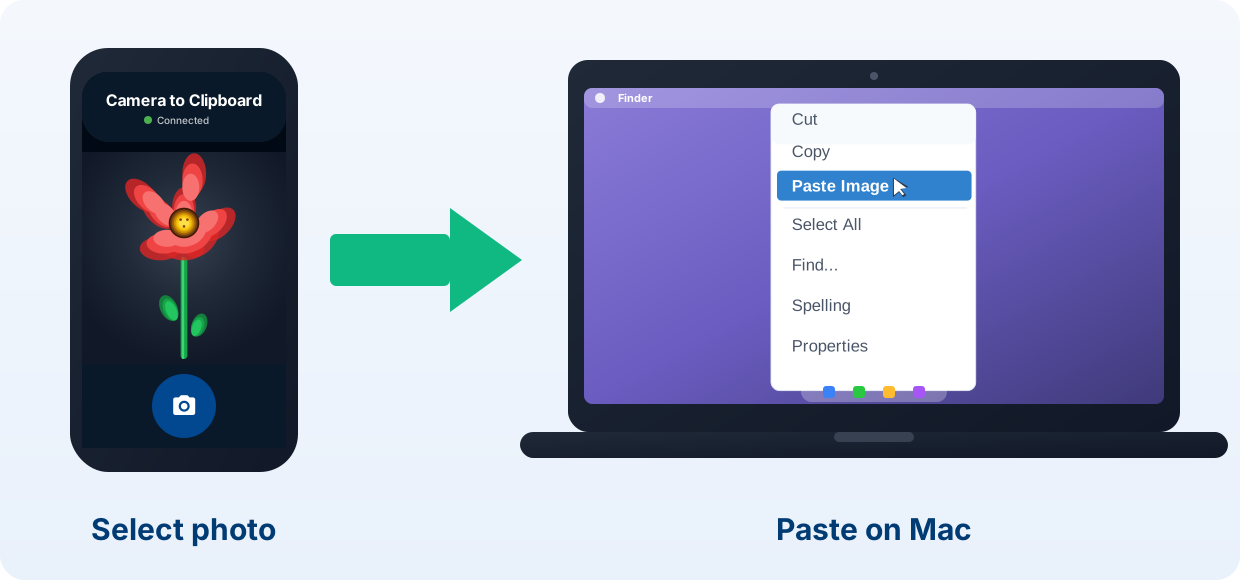
Camera to Clipboard puts a phone photo on the Mac clipboard
Switching the webcam off does not help with the other reason a phone sits by a Mac.
- Camera to Clipboard sends a photo from the phone straight to the Mac clipboard, ready for Cmd + V. No file lands in Downloads first.
- Camera to Clipboard never takes over the Mac's camera, because a photo moves only when you tap send. It cannot appear in the middle of a call.
- Camera to Clipboard sends the photo across your own Wi-Fi, and nothing is uploaded to a cloud. The two apps use the internet only to find each other, and a hotspot works too.


Send a photo from any phone to a Mac or a Windows PC
Three things change once the transfer is not an Apple feature.
- Camera to Clipboard works between an iPhone and a Windows PC, and between an Android phone and a Mac. Continuity of every kind stops at the edge of Apple's own devices.
- Camera to Clipboard moves one photo or a whole batch, freshly taken or picked from the camera roll. Scanned documents go the same way.
- A video sent with Camera to Clipboard is saved on the Mac as a file, with its path on the clipboard. The clip is never re-encoded.
- Install Camera to Clipboard on the phone and the desktop app on the Mac.
- Pair them once by scanning a QR code, about ten seconds.
- Take or pick a photo on the phone and send it.
- Press Cmd + V on the Mac.
Free to download and try on both ends. The free version adds a small watermark and caps photos at 1920px. Pro removes both.

Turn Continuity Camera off on the iPhone, not on the Mac
This is the permanent fix, and it lives on the phone. Four taps:
- On the iPhone, open Settings.
- Tap General.
- Tap AirPlay & Continuity.
- Turn Continuity Camera off.
- Turning off Continuity Camera on the iPhone stops the phone offering itself as a webcam to every Mac. It drops out of the camera list everywhere until you switch it back on.
- There is no Continuity Camera switch anywhere in macOS System Settings, so searching the Mac finds nothing. All macOS gives you is a choice between the cameras it can see.
- An iPhone acting as a Mac webcam supplies the microphone as well, and the same switch takes both away. That explains a call where your voice sounded distant too.

Keep AirDrop and Handoff with Continuity Camera switched off
The iPhone switch is the narrow one, and that is the point of using it.
- Turning off Continuity Camera leaves AirDrop, Handoff and Universal Clipboard working exactly as before. It costs you nothing else.
- Older iOS releases keep the Continuity Camera switch under a differently named entry in General. Look for the entry that also holds Handoff.
- Turning Continuity Camera back on takes the same four taps, so switching it off is not permanent. An iPhone rear camera beats most laptop webcams when you want it.

Unlock the iPhone or tap Disconnect to free the Mac camera
Sometimes the call has started and you do not want to open settings on either device.
- Picking up the iPhone and unlocking it hands the Mac back to its built-in camera at once. A Mac only borrows a phone that is sitting idle.
- An iPhone being used as a Mac webcam shows a Disconnect button on its own screen. Tapping it drops the phone out for the rest of the call.
- Carrying the iPhone more than about 10 metres from the Mac takes it out of the camera list. The two devices find each other over Bluetooth and Wi-Fi.

Use the iPhone switch when the phone camera keeps coming back
Every fix above lasts one call, which surprises people the following morning.
- Unlocking the phone, tapping Disconnect and walking away each release the Mac camera for one call only. None of them change a setting.
- Unplugging the iPhone from the Mac does not stop Continuity Camera while Wi-Fi and Bluetooth are on. The feature works over a cable or wirelessly, so the cable is one way in of two.
- An iPhone left still and idle on the desk offers itself to the Mac again tomorrow. Only the switch on the phone stops that.

Turn Handoff off to stop every Continuity feature at once
This is the blunt instrument, and people reach for it too early.
- Handoff is switched off on a Mac under System Settings > General > AirDrop & Handoff. The control reads Allow Handoff between this Mac and your iCloud devices.
- The iPhone has its own Handoff switch in the same General menu that holds Continuity Camera. Turning either one off is enough.
- Turning Handoff off stops Universal Clipboard, so text copied on the iPhone no longer pastes on the Mac. Universal Clipboard has no separate switch of its own.

Weigh what Handoff takes with it before you switch it off
Handoff carries more than the camera, and one of those things is missed within a day.
- Turning Handoff off also ends picking up a Safari page or a half written Mail draft on the other device. Continuing a task across devices is the original point of Handoff.
- AirDrop keeps working with Handoff switched off, because AirDrop has a separate setting in the same pane. Most people expect to lose it and hesitate for that reason.
- Turning Handoff off is worth it only if you want every Continuity feature gone, not just the camera. For the camera alone, use the switch on the iPhone.

Check which of the two Continuity Cameras you want to stop
Apple gave one name to two different features, so half the advice online misses the problem.
- Continuity Camera as a webcam lets a Mac use a nearby iPhone as its camera and microphone on its own initiative. It is almost certainly what brought you here.
- Continuity Camera as Import from iPhone puts a photo, a scan or a sketch into a Mac document. You pick it from a menu and shoot on the phone.
- Only the webcam half of Continuity Camera has a switch, and that switch is on the iPhone. The Import from iPhone half needs none.

Only an iPhone on your own Apple Account takes over a Mac camera
Four conditions have to be true before a Mac can borrow the phone at all.
- A Mac can only borrow an iPhone signed in to the same Apple Account, so a colleague's phone never takes your webcam. Two-factor authentication has to be on as well.
- Continuity Camera needs the iPhone within about 10 metres of the Mac, with Wi-Fi and Bluetooth on at both ends. A phone charging in the hallway never appears.
- A Mac only borrows an iPhone that is locked, stationary and in landscape, with its rear lenses unobstructed. A phone in your pocket is never the one.
- Using an iPhone as a Mac webcam needs macOS Ventura 13, iOS 16 and an iPhone XR or later. An older Mac never offers the option.

Leave Import from iPhone alone, because it never starts itself
If the Continuity Camera worrying you is the one that opens from a Mac document, there is nothing to switch off.
- Import from iPhone sits in the File menu and the right click menu of Mac apps such as Notes, Mail and Pages. It offers Take Photo, Scan Documents and Add Sketch.
- Import from iPhone cannot interrupt a call or a recording, because only your own menu click starts it. That is why Apple gives it no switch.
- Scan Documents on the Import from iPhone menu drops a straightened PDF into the Mac document. We compare it with the alternatives in the document scanning guide.
- Import from iPhone needs only macOS Mojave 10.14 and iOS 12, far older than webcam use. That half of the feature reaches much older machines.

The iPhone switch is the only fix that outlasts the current call
Four ways stop a Mac using the iPhone as its camera, and they differ in how long they last.
| Way to stop it | How long the fix lasts | How fast it is to do | What else it switches off | Where you change it |
|---|---|---|---|---|
| Camera list inside the video app | That one app, until you change it back | One click, mid call | Nothing else | On the Mac, inside the app |
| Continuity Camera switch on the iPhone | Every app and every Mac, until switched back | Four taps on the phone | Nothing else, Handoff survives | On the iPhone, in Settings |
| Unlock the iPhone or tap Disconnect | This call only | Seconds, no menus at all | Nothing else | On the iPhone screen |
| Handoff switched off | Every app and every Mac, until switched back | One switch in System Settings | Universal Clipboard and app handoff | On the Mac, in System Settings |

Switch cameras in the app now, or flip the iPhone switch for good
Which fix you want depends on whether a call is running right now.
- Switch cameras in the video app when a call has already started on the iPhone camera. One click, and nothing else on either device changes.
- The Continuity Camera switch on the iPhone is the right fix if a Mac grabs the phone week after week. No app then needs configuring at all.
- Turning Handoff off is the right choice only if you want the whole Continuity family gone. Universal Clipboard goes with it.
- Leaving Continuity Camera on and setting each video app to the built-in camera keeps the better lens available. You then choose when the phone is used.
If what you wanted was a photo rather than a webcam, Camera to Clipboard puts it on the Mac clipboard. It never touches the camera your call is using.
Common questions about turning off Continuity Camera on a Mac
How do I stop my Mac using my iPhone as a webcam?
Open the camera list in the app you are calling from and choose the Mac's built-in camera. FaceTime keeps that list in its Video menu, and Zoom behind the arrow next to Stop Video. To stop it in every app, turn Continuity Camera off on the iPhone under Settings > General > AirPlay & Continuity.
Where is the Continuity Camera setting on a Mac?
There is not one. macOS has no Continuity Camera switch in System Settings, which is why searching the Mac comes up empty. All the Mac lets you do is pick which camera an app uses. The switch that stops the iPhone offering itself is on the iPhone, under Settings > General > AirPlay & Continuity.
Does turning off Continuity Camera also stop Universal Clipboard?
No. The Continuity Camera switch on the iPhone affects the camera and microphone only, so AirDrop, Handoff and Universal Clipboard all keep working. Universal Clipboard stops only if you turn Handoff off, which is a separate and much broader switch.
Why does my Mac keep switching back to the iPhone camera?
Moving the phone away, unlocking it or tapping Disconnect releases the camera for that call only, and changes no setting. The next time the iPhone sits still and idle near the Mac, it offers itself again. Only turning off Continuity Camera on the iPhone stops that for good.