
Android and macOS were never built to work together. There is no AirDrop between them and no shared clipboard. Camera to Clipboard sends the photo over your own Wi-Fi instead, and the built-in routes are here too.
The quick answer: Camera to Clipboard puts an Android photo on your Mac clipboard over your own Wi-Fi. Paste it with Cmd + V. Nothing is uploaded and there is no cable. Google Photos and a USB route are further down.
Free for iPhone Free for Mac Free for Android Free for Windows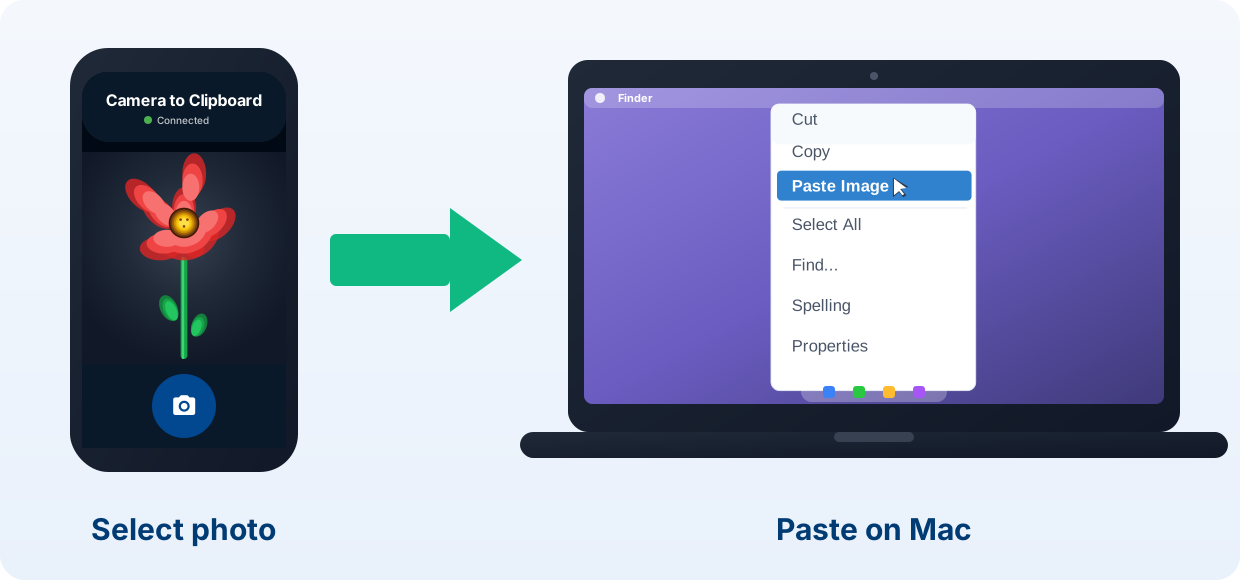
Camera to Clipboard puts an Android photo on your Mac clipboard
Here is what the app does when the Mac is the screen you need.
- Camera to Clipboard puts an Android photo on the Mac clipboard in seconds. Take a photo or pick one from your gallery. It arrives before you put the phone down.
- An Android photo sent with Camera to Clipboard pastes with Cmd + V. It drops into an email, a chat, a Pages document or an image editor. No file lands in a folder.
- Camera to Clipboard works from any Android phone, old or new. Samsung Galaxy, Google Pixel and OnePlus all send the same way. There is no supported model list.

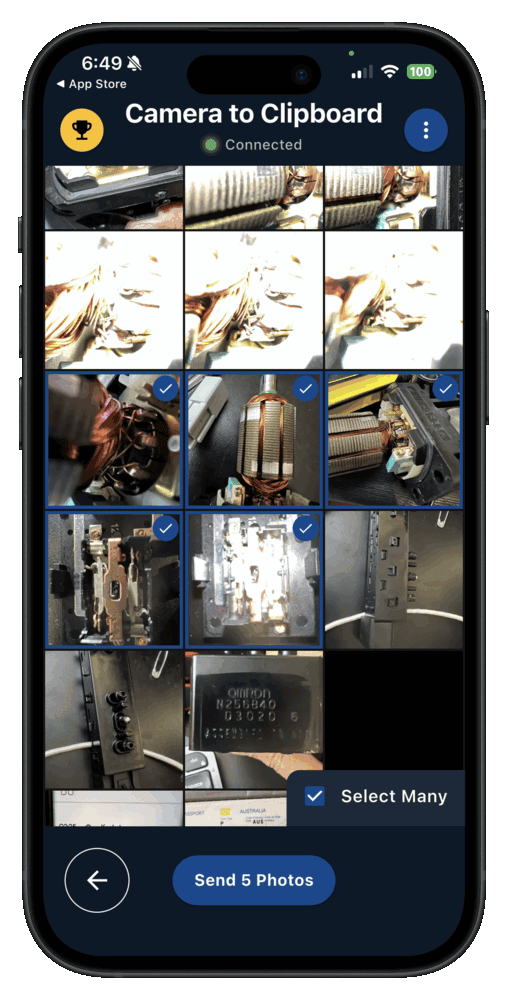
Set up Camera to Clipboard on Android and your Mac in four steps
Pairing happens once, and it takes about ten seconds.
- Install Camera to Clipboard on your Android phone and the Mac app on your Mac.
- Pair them once by scanning a QR code.
- On the phone, take a photo or pick one from your gallery.
- Press Cmd + V on the Mac to paste it.
Free to download and try on both Android and the Mac. The free version adds a small watermark and caps photos at 1920px. Pro removes both.
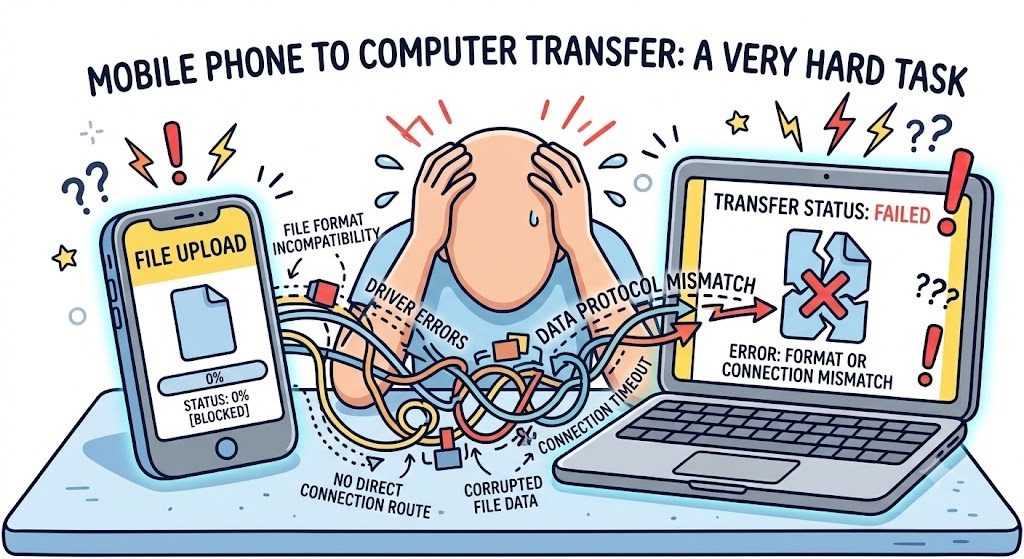
Apple and Google built no direct link between Android and a Mac
Start with the reason this job is harder than it should be.
- There is no AirDrop between an Android phone and a Mac. Apple keeps AirDrop for its own devices. Google has one narrow exception, further down.
- A Mac gives an Android phone no Finder view and no shared clipboard. Plugging the phone in shows nothing on its own. macOS cannot read the phone's storage.
- Google has retired its own Mac tool for this job, Android File Transfer. That leaves a wireless app or the cloud as the realistic routes.

Skip Android File Transfer because Google has retired it
The old standard answer for this job stopped being an answer.
- Google pulled Android File Transfer from its own site in 2024. The android.com/filetransfer address now lands on Google's Quick Share page for Windows. No Mac download is offered, and nothing replaced it.
- Old copies of Android File Transfer break on current macOS. The app went years without a real update. It drops the connection mid-copy, or never sees the phone at all.
- Android File Transfer never moved a single file larger than 4 GB. That caps a long 4K video, which is often the thing you most want off the phone.

Use OpenMTP if you still want a USB cable route to your Mac
One free tool does the cable job Android File Transfer used to do.
- OpenMTP is a free open source Mac app that reads an Android phone over USB. It shows the phone's storage beside a Mac folder. There is no 4 GB file limit.
- An Android phone shows nothing over USB until you set it to File Transfer. Unlock the phone, pull down the notification shade, then set USB use to File Transfer, also called MTP.
- Your Android photos sit in the phone's DCIM folder, inside Camera. Drag that folder to the Mac to copy a whole camera roll in one go.
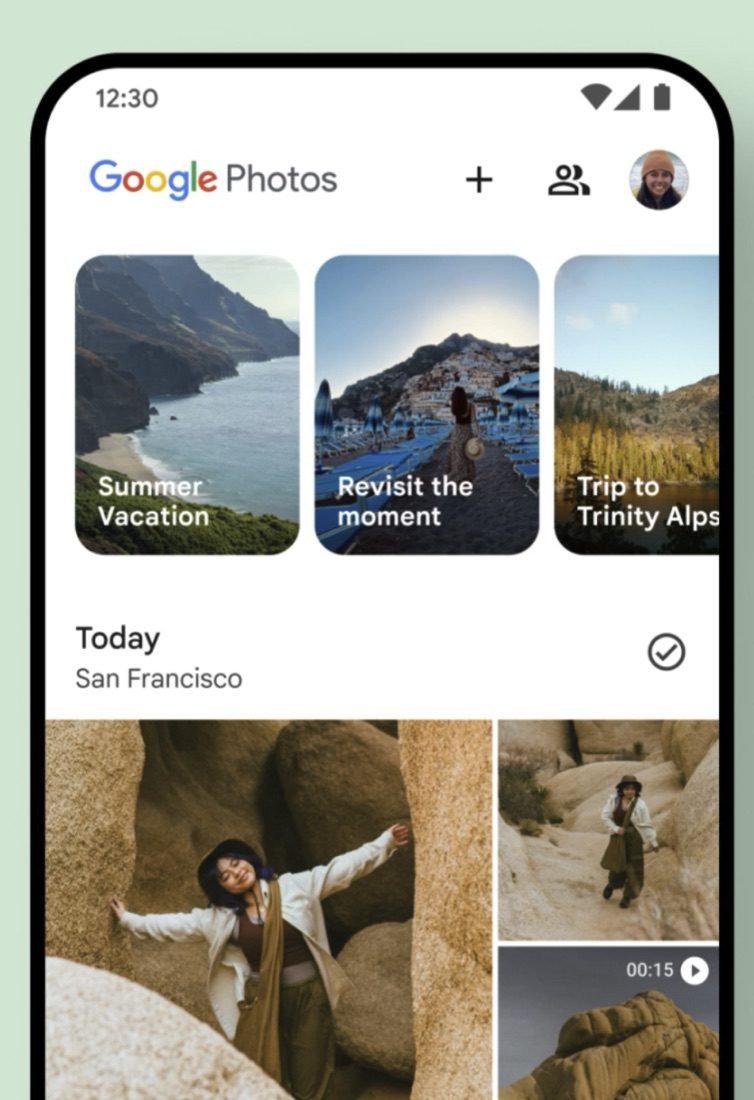
Back up the Android camera roll to Google Photos for the Mac
This is the route most Android and Mac owners quietly settle on.
- Google Photos backs up an Android camera roll on its own, with no cable. Turn backup on once in the app and it keeps running.
- Getting an Android photo onto the Mac then means a browser trip to photos.google.com. Sign in, pick the photo you want, then download it.
- Google Photos costs you an upload, a download and some Google storage. It doubles as a backup, so plenty of people accept that trade.

Quick Share reaches a Mac from a short list of recent Android phones
Android's own sharing feature can now hand a file to an Apple device.
- Quick Share has been able to send a file to an Apple device since November 2025. It hands the file to AirDrop, so an iPhone, an iPad or a Mac can receive it.
- Quick Share only reaches a Mac from a short list of recent Android phones. That means the Pixel 8a and newer, the Galaxy S24 and newer, and a handful of 2026 flagships.
- A Mac stays invisible to Quick Share until its AirDrop is set to Everyone. Open AirDrop in the Finder sidebar and set the visibility there.
- An older Android phone cannot reach a Mac with Quick Share at all. Google ships a Quick Share desktop app for Windows only, and none for macOS.

Email and chat shrink Android photos, a Wi-Fi transfer does not
Watch the picture quality, because two common routes quietly reduce it.
- Sending an Android photo by email or a chat app compresses it. The Mac gets a smaller, softer copy of the picture.
- A direct Wi-Fi transfer carries the Android photo at full resolution. Camera to Clipboard puts those original pixels on the clipboard. A USB copy keeps the original too.

Camera to Clipboard beats the built-in Android to Mac methods
Set against the built-in routes, three things change.
- Sending an Android photo to a Mac with Camera to Clipboard needs no cable. There is nothing to plug in and no USB utility to keep alive.
- An Android photo sent with Camera to Clipboard lands on the Mac clipboard, ready for Cmd + V. You are not left digging through a folder for the file.
- Camera to Clipboard sends the Android photo straight to the Mac and never uploads it. There is no upload then download wait, and no Google storage used up.

Camera to Clipboard also sends a video and works on a hotspot
Two more things matter once you are away from your home Wi-Fi.
- Camera to Clipboard still moves Android photos to a Mac joined to the phone's hotspot. The hotspot's mobile data lets the two apps find each other. The photo itself stays on that local network.
- Camera to Clipboard sends a video from an Android phone to a Mac as well as a photo. The clip crosses your own Wi-Fi and is saved as a file. Its file path goes on the clipboard, so Cmd + V pastes the file.
| What you want to do | Camera to Clipboard | USB cable (OpenMTP) | Google Photos |
|---|---|---|---|
| Get an Android photo onto a Mac | ✔ | ✔ | ✔ |
| No cable needed | ✔ | USB cable required | ✔ |
| Nothing uploaded to the cloud | ✔ | ✔ | Uploads to Google |
| Photo lands ready to paste | ✔ | Saves a file first | Download first |
| Full resolution, no compression | ✔ on Pro | ✔ | ✔ |
| Works over a phone hotspot | ✔ | USB only | Sends the photo to a server first |
| Set up in under a minute | ✔ | Install plus cable fiddling | Upload and download wait |
| Free to download and try | ✔ | ✔ | ✔ |

Use Camera to Clipboard for a few Android photos and USB for a batch
The choice comes down to how many photos you are moving.
- Camera to Clipboard is the best way to use an Android photo on the Mac right now. Pick it on the phone, then paste it into whatever you are working in.
- A USB cable and OpenMTP are the best way to copy a whole Android camera roll to a Mac. Cable speed wins once the batch runs to hundreds of photos.
- Google Photos is the best way to keep the Android camera roll within reach of the Mac. Everything backs up on its own, and you fetch what you need in a browser.
Common questions
Is there an AirDrop for Android to Mac?
Not a built-in one. Since November 2025 a short list of recent Android phones can Quick Share to a Mac through AirDrop. On any other Android phone, Camera to Clipboard sends the photo straight to the Mac clipboard.
Why won't Android File Transfer connect to my Mac?
Google has retired it, and old copies drop the connection on current macOS. Use OpenMTP for a cable route, or send the photo wirelessly with Camera to Clipboard.
Can I transfer Android photos to a Mac without a cable?
Yes. Camera to Clipboard lands the photo on your Mac clipboard in seconds, over your own Wi-Fi. Google Photos also works, after an upload and then a download.