
A failed import on a Mac tells you almost nothing. The Photos app lists the iPhone and offers no items. Or it counts forever. Or it brings in a fraction of the camera roll. There are only a handful of real causes. This page works through them in the order that finds the fault fastest.
The quick answer: unlock the iPhone and tap Trust This Computer. Enter the passcode, and keep the phone unlocked for the whole import. That alone fixes most cases. If not, check Optimise iPhone Storage and an import screen hiding photos it already has. If you only want the photos, send them over Wi-Fi instead. Free for iPhone Free for Mac Free for Android Free for Windows

Unlock the iPhone and tap Trust before the Mac will see photos
Rule this cause out properly before you change a cable or restart anything.
- A locked iPhone hands a Mac no photos, so unlock the phone before you plug in. It still charges and still appears in the Photos sidebar. That is why an import finds the device and returns nothing.
- The Trust This Computer prompt appears only on the iPhone screen, and it times out. Plug in while the screen is off and it comes and goes unseen. Unplug, unlock, plug back in and watch the phone.
- Tapping Trust is not the last step, because the iPhone then asks for your passcode. Walk away at that screen and the Mac is never granted permission.

Keep the iPhone awake and trusted until the Mac import ends
Three more problems stop a Mac import partway through or before it starts.
- An iPhone that locks itself mid-import stalls the Mac with no useful message. Set Settings > Display & Brightness > Auto-Lock to Never first. Leave the screen on until the copying ends.
- Tapping Don't Trust once stops the Trust prompt ever returning on that Mac. Every later import fails until you reset the phone's privacy settings. Use Settings > General > Transfer or Reset iPhone > Reset > Reset Location & Privacy. Then reconnect.
- Some Macs ask permission to allow a connected accessory, and a dismissed prompt leaves the iPhone unreadable. The permission covers data only, so the phone keeps charging and nothing says the photos are blocked.
If the phone is unlocked, trusted and still importing nothing, the cable is the next suspect.
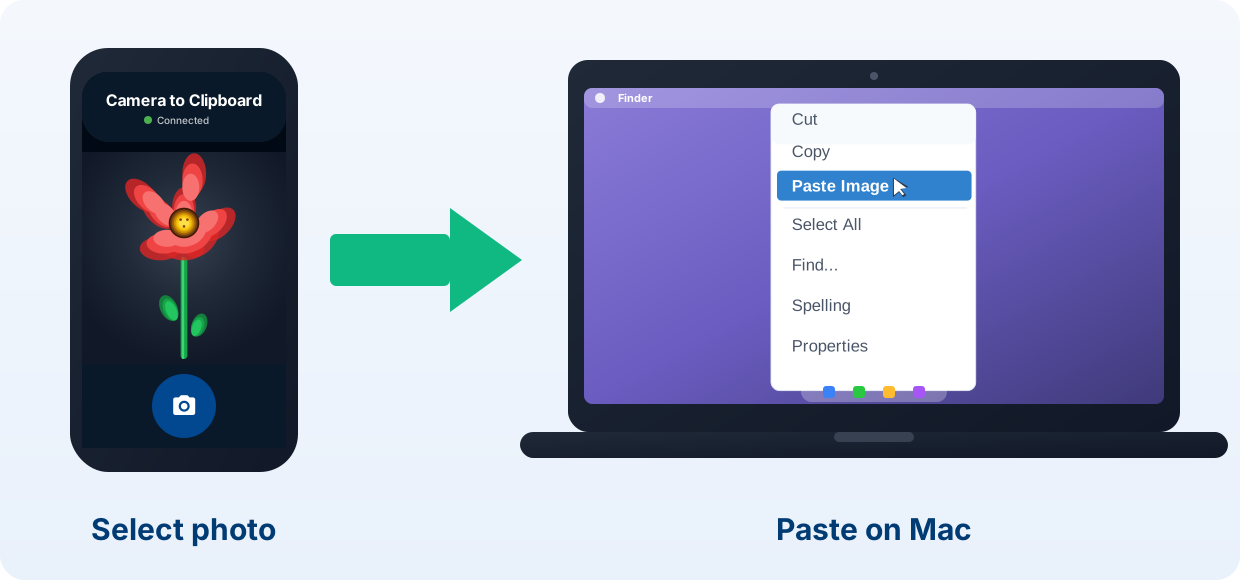
Camera to Clipboard sends iPhone photos to a Mac with no import
Fixing the import is worth it to archive a whole camera roll. For a few photos in an email, there is a shorter way.
- Sending an iPhone photo to a Mac with Camera to Clipboard needs no cable. No Trust prompt and no port can fail. It travels over your local network instead, which removes every cause on this page at once.
- A photo sent from an iPhone with Camera to Clipboard lands on the Mac clipboard, not in a folder. Press Cmd + V and it is in your document, with nothing to find afterwards.
- An iPhone photo sent with Camera to Clipboard reaches the Mac at full resolution. Picking a photo asks the phone for the original, so Optimise iPhone Storage cannot shrink it.

Send a batch of iPhone photos to a Mac with nothing uploaded
Three more things change once the cable is out of the picture.
- Camera to Clipboard sends the iPhone photo straight to the Mac, with nothing uploaded to any cloud. A full iCloud account cannot block it. The two apps use the internet only to find each other, so a phone hotspot works too.
- Camera to Clipboard moves one iPhone photo or a whole batch to a Mac in a single go. Select several from the camera roll or take a fresh shot. Scanned documents travel the same way.
- A video sent from an iPhone with Camera to Clipboard is saved on the Mac as a file. Its path goes on the clipboard. The clip crosses your own Wi-Fi exactly as a photo does.

Swap the cable, because a charge-only cable carries no photos
A cable that cannot carry one photo behaves like a good one in every other way.
- Plenty of cheap cables have no data wires inside, so no Mac import can pull photos through one. They are built for charging, and nothing on the outside tells you which kind you hold.
- An iPhone on a charge-only cable charges but never shows the Trust prompt on a Mac. No error appears anywhere. It reads as the Mac ignoring a phone that is plainly plugged in.
- Testing with the cable that came with the iPhone rules the cable out in seconds. Any lead you know has carried files will do. Try that before you change a single setting.

Plug the iPhone straight into the Mac and check its port for lint
If a known-good cable changes nothing, look at what the cable is plugged into.
- Plugging the iPhone into a port on the Mac itself fixes imports that a hub or a dock quietly breaks. Each of those adds a layer that can drop the data connection while still passing power.
- A dirty or worn socket on the iPhone blocks a Mac import exactly as a charge-only cable does. Pocket lint compacted into the bottom of the port is a common cause. Look in with a light.

Check the iPhone Photos settings for Optimise iPhone Storage
This is the cause nobody guesses, because the import runs and reports success.
- Optimise iPhone Storage keeps only small previews on the phone, so a Mac import copies previews instead of photos. The full-size originals stay in iCloud to save space on the device.
- A cable import to a Mac can only copy files that are physically on the iPhone. Anything parked in iCloud is left behind, which is why the sizes or the count look wrong.
- Settings > Photos on the iPhone shows in one look whether Optimise Storage broke the import. If Optimise iPhone Storage is selected rather than Download and Keep Originals, you have your answer.

Download the full-size iPhone photos to fix a partial import
Getting the originals back takes one of two routes.
- Switching the iPhone to Download and Keep Originals restores the full photos but takes hours. The phone re-downloads every original, so leave it on Wi-Fi and power until it settles.
- An iPhone with less free space than its iCloud library needs can never hold every original. Download and Keep Originals works only while there is room, and the phone quietly goes back to optimising.
- Downloading your full-size photos from iCloud.com skips the phone and the Mac import altogether. Sign in at iCloud.com on the Mac and take them straight from there.

An empty Mac import screen usually means the photos arrived already
A Mac can show the iPhone, offer nothing, and be behaving exactly as designed.
- The Mac Photos import screen shows only items it has not seen, so a second import looks empty. The library records every photo it has taken off that phone and filters those out.
- The number on the Mac import screen counts items missing from the library, not photos on the iPhone. A phone holding eight thousand pictures can honestly offer zero new ones.
- iCloud Photos switched on for both the iPhone and the Mac marks every photo as already imported. The sync has delivered them, so the import has nothing left to do. This is the most common reason a Mac lists nothing.

Scroll down the Mac import screen to bring a photo in again
You can still bring a second copy in, two ways.
- iPhone photos the Mac has imported before are still listed further down the import screen. Scroll past the new items, select what you want, and import it again deliberately.
- Importing into a different Photos library on the Mac makes the same iPhone photos count as new. Hold Option as you open Photos to pick or create one. A fresh library has no import history.

Try Image Capture when the Mac Photos app imports nothing
macOS ships a second importer, and it bypasses the Photos library completely.
- Image Capture is already in the Applications folder of every Mac and imports without touching the Photos library. Pick the phone in its sidebar and choose any plain folder to import into.
- Image Capture can delete the photos from the iPhone after importing, but it often does not. Check the copies landed on the Mac, then delete them on the phone yourself.
- The macOS Finder shows a connected iPhone but never its photo folders. Windows can browse the DCIM folder in File Explorer, as the Windows version of this guide covers. macOS has no equivalent.

Use Image Capture to tell a Mac fault from an iPhone fault
What Image Capture shows names the culprit, which makes it the fastest test here.
- If Image Capture lists the iPhone's photos and the Photos app does not, the cable and the trust are fine. The fault is in the Photos app or its library, so no hardware needs replacing.
- If Image Capture shows the iPhone but no photos, the phone is locked or its originals are in iCloud. Both apps read the same files off the device, so an empty list points back at the phone.
- If Image Capture does not list the iPhone at all, the Mac has no data connection to it. That puts the cable, the port and the accessory permission back at the top of the list.

Wait before you call a slow Mac import frozen
Two of these imports are not stuck at all, so give them a few minutes.
- A Mac import that looks frozen at the start is usually still counting the iPhone's library. It reads every item before it shows you anything, which takes minutes on a huge camera roll.
- A single large video in the camera roll makes a Mac import look stuck on one item. A multi-gigabyte clip copies at cable speed while the counter sits still.

Replug the iPhone and restart both devices to clear a stall
If it is still going nowhere, work down these three in order.
- Unplugging and replugging the iPhone with the screen unlocked restarts a stalled Mac import. It triggers the whole handshake between the phone and the Mac again.
- Restarting both the Mac and the iPhone clears a stale device entry that keeps the import failing. That entry survives replugging but not a reboot.
- Only one Mac app can read a connected iPhone at a time, so close Image Capture while Photos imports. Leave both open and whichever gets there second shows an empty device.
AirDrop keeps working through all of this. Use it to get the photos you need onto the Mac now.

Check the iPhone lock screen first when a Mac import fails
Here is every cause side by side, so you can rule out the quick ones first.
| Cause | How often it is the answer | How long the fix takes | How hard the fix is | What you see on screen |
|---|---|---|---|---|
| iPhone locked or not trusted | Very often | Seconds | Trivial | Mac lists the iPhone but offers no photos |
| iCloud Optimise Storage | Very often | Hours to re-download originals | Moderate | Import succeeds, photos are missing or tiny |
| Photos already in the Mac library | Often | Seconds | Trivial | Zero new items, phone plainly full of photos |
| Charge-only cable | Often | Seconds, if you have another | Trivial | Phone charges, no Trust prompt ever appears |
| iPhone auto-locking mid-import | Sometimes | Seconds | Trivial | Import stops partway with no error shown |
| Stale device entry on the Mac | Sometimes | Minutes | Easy | Replugging changes nothing, a reboot fixes it |
| Accessory permission on the Mac | Rarely | Seconds | Trivial | Mac asked to allow the accessory, prompt missed |
| Dirty or damaged iPhone port | Rarely | Minutes | Moderate | Cable must be held at an angle to charge |

Work down this checklist when the iPhone import to a Mac fails
This is everything above in the order that finds the fault fastest. Stop at whichever step gets your photos moving.
- Unlock the iPhone and set Auto-Lock to Never.
- Unplug, replug, and watch the phone for the Trust prompt and the passcode screen.
- Allow the accessory if the Mac asks about it.
- Swap to a cable you know has carried data.
- Move to a port on the Mac itself rather than a hub or a dock.
- Open Image Capture and see whether it lists the photos. If it does, import from there.
- Scroll to the bottom of the Photos import screen to check for already imported items.
- Check Settings > Photos on the iPhone for Optimise iPhone Storage.
- Restart the Mac and the iPhone, then reconnect.
- If you only wanted the photos, send them over Wi-Fi instead.
Common questions about photos not importing from iPhone to Mac
Why are my photos not importing from my iPhone to my Mac?
Most often the iPhone is locked or not trusted. Unlock it and tap Trust This Computer. Enter the passcode, and leave it unlocked for the whole import. The next two suspects are Optimise iPhone Storage and a charge-only cable that carries power but no data.
Why does my Mac see my iPhone but show no new photos to import?
The import screen lists only items the Mac library has not seen. A phone full of photos can honestly offer zero new ones. That happens most when iCloud Photos is on for both devices. Scroll down the import screen and bring a second copy in from the already imported items.
Does the Mac Finder show iPhone photos the way Windows File Explorer does?
No. The Finder shows a connected iPhone for backups and syncing, but it never opens the phone's photo folders. Use Image Capture instead. It is already in your Applications folder and copies the photos into any folder you pick.
How do I get photos off my iPhone when the Mac import keeps failing?
Try Image Capture first. It imports without touching the Photos library and works when the Photos app will not. To use the photos rather than archive them, send them over your own Wi-Fi instead. Camera to Clipboard puts one photo or a batch straight on your Mac clipboard. There is no cable and no Trust prompt.