
A failed iPhone import gives you almost nothing to go on. Windows finds no new photos, sits on "Preparing" forever, or shows the iPhone with an empty folder. There are about eight real causes, and some are far more likely than others. This page checks them in the order that finds the fault fastest.
The quick answer: unlock the iPhone, tap Trust This Computer, and keep it unlocked for the whole import. That fixes most cases. If not, check for a charge-only cable and Optimise iPhone Storage. If you only need the photos, skip the import and send them over Wi-Fi instead. Free for iPhone Free for Mac Free for Android Free for Windows

Unlock the iPhone and tap Trust This Computer to fix most imports
Rule this cause out properly before you change a cable or a driver.
- A locked iPhone gives Windows no photos, so unlock the phone before you plug in the cable. A locked phone still charges and still shows on the PC. That is why an import can find the device and return nothing.
- The Trust This Computer prompt shows only on the iPhone screen, and it times out. If the screen was off when you plugged in, the prompt came and went unseen. Unplug, unlock, plug back in and watch the phone.

Keep the iPhone awake and trusted until the Windows import ends
Three more problems stop an import partway or before it starts.
- An iPhone that locks itself during a Windows import stalls the transfer with no useful message. Set Settings > Display & Brightness > Auto-Lock to Never before you start.
- Tapping Don't Trust on the iPhone blocks the Windows import, and the prompt does not come back on its own. Reset the iPhone's Location and Privacy to be asked again, as the next point explains.
- Resetting Location & Privacy on the iPhone clears every saved Trust choice, so the iPhone asks to trust the PC again. Go to Settings > General > Transfer or Reset iPhone > Reset > Reset Location & Privacy. It also resets your app location and privacy permissions.
If the phone is unlocked, trusted and still importing nothing, the cable is the next suspect.
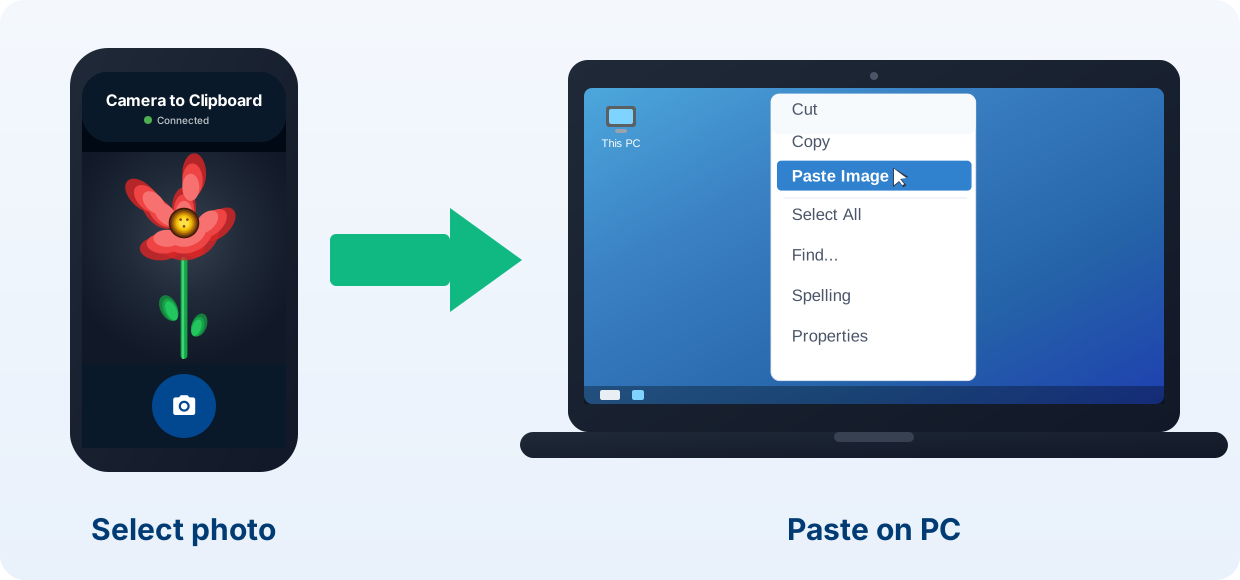
Camera to Clipboard sends iPhone photos to Windows with no import
Fixing the import is worth it to archive a whole library. For a few photos in an email, there is a shorter way.
- Sending an iPhone photo to Windows with Camera to Clipboard needs no cable, so no Trust dialog or driver can fail. The photo goes straight to the PC over your local network. That skips every cause on this page.
- A photo sent from the iPhone with Camera to Clipboard lands on the Windows clipboard, not in a folder. Press Ctrl + V to paste it into your document.
- Camera to Clipboard delivers the iPhone photo to Windows as a JPEG by default, so HEIC never gets in the way. Windows opens it with or without the HEIF extensions.

Camera to Clipboard sends a batch of iPhone photos without the cloud
Camera to Clipboard also skips the cloud and handles more than one photo.
- Camera to Clipboard sends the iPhone photo straight to the PC, with nothing uploaded to a cloud service. The two apps use the internet only to find each other. The photo then goes straight across your own Wi-Fi or the phone's hotspot.
- Camera to Clipboard moves one iPhone photo or a whole batch to Windows in one go. Pick several from your camera roll, or take a fresh shot. Videos work the same way.

Swap the cable, because a charge-only cable carries no iPhone photos
This is the second cause to rule out, and the hardest to see.
- Many cheap cables have no data wires, so no Windows import can pull iPhone photos through one. They are built for charging and look just like a data cable. The phone charges fine, which hides the problem.
- An iPhone on a charge-only cable charges but never shows the Trust prompt or appears in File Explorer. There is no error message. It looks as if Windows is ignoring the phone.
- Testing with the cable that came with the iPhone rules the cable out of a failed Windows import in seconds. Any cable that has carried files before works too. Do this before you touch drivers or settings.

Plug the iPhone straight into the PC and check its port for lint
The ports at either end can break the data link too.
- Plugging the iPhone into a USB port on the PC itself fixes imports that a hub or monitor port breaks. Hubs, docks, front-panel ports and monitor ports can drop the data link while still passing power.
- A dirty or worn Lightning or USB-C socket on the iPhone blocks photo data just like a charge-only cable. Pocket lint packed into the port is a common cause. Shine a light into it before assuming the worst.

Give Windows time on Preparing, then replug and restart both devices
Start here if the phone is unlocked, trusted and on a good cable, but the Photos app still imports nothing.
- The Windows Photos app sitting on Preparing is usually still counting the iPhone library, not frozen. It counts every item before it shows anything. On a library of tens of thousands, that takes minutes with no progress bar.
- Unplugging and replugging the unlocked iPhone restarts a stalled Windows import. It works better than it sounds, because it restarts the whole handshake between phone and PC.
- Restarting both the PC and the iPhone clears a stale device entry that keeps the Windows import failing. A stale entry survives a replug but not a restart. Do this before you touch drivers.
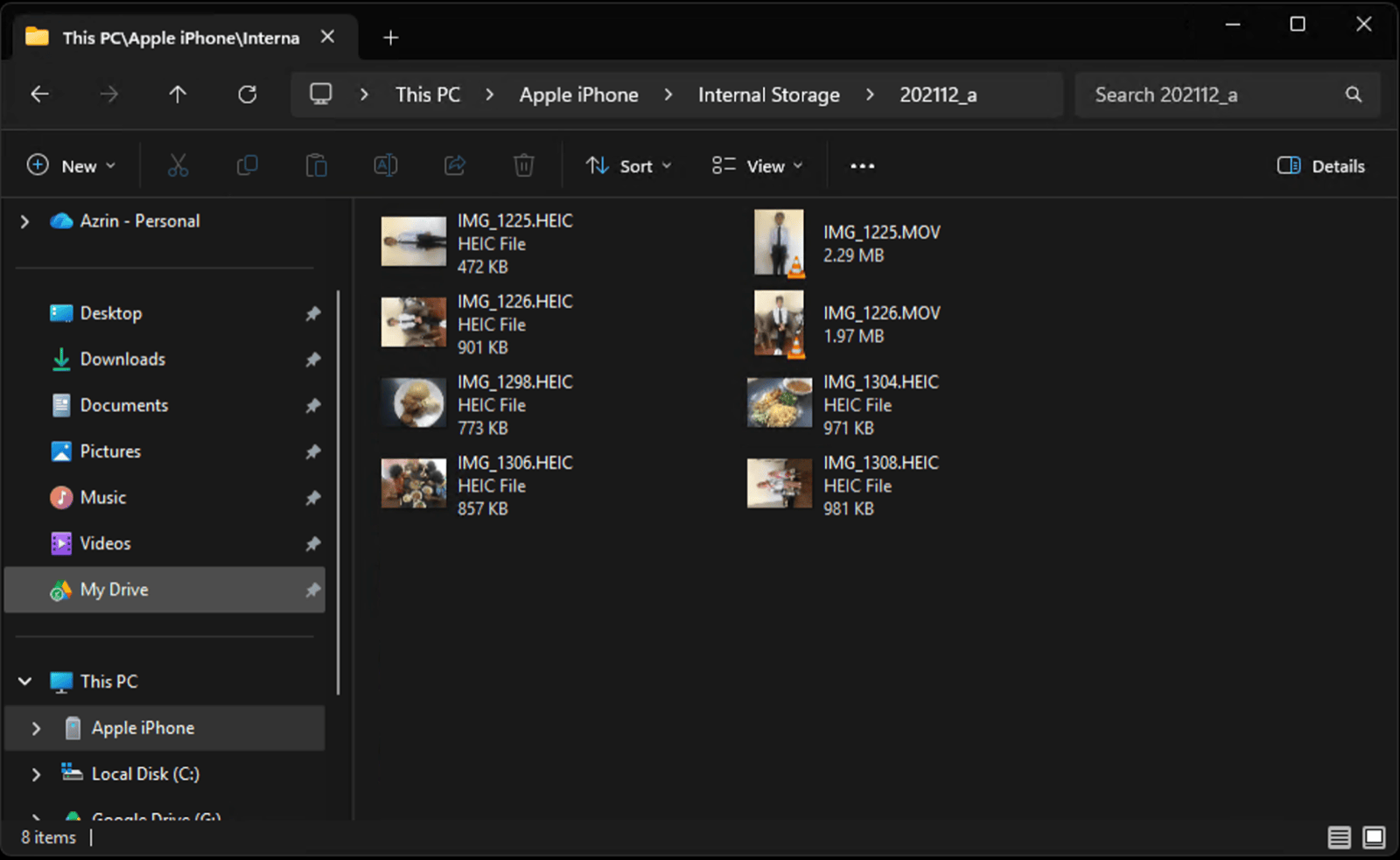
Check File Explorer and Device Manager to find what is failing
Two quick checks show whether the fault is the connection, the driver or the Photos app.
- If File Explorer can browse the iPhone's photos but the Windows Photos app cannot, the Photos app is at fault. The two reach the phone by different paths. So this one test separates a cable or trust problem from a software one.
- A warning triangle on the Apple device in Windows Device Manager means the driver is failing the import. Look under Portable Devices or Universal Serial Bus controllers for "Apple iPhone" or "Apple Mobile Device USB Driver". Right-click it and choose Update driver.

iCloud Optimise Storage leaves only small previews on the iPhone
People never guess this cause, because the import seems to work. It finishes, but half the library is missing or the files are tiny.
- Optimise iPhone Storage keeps only small previews on the phone, so a Windows import copies previews, not your photos. The full-size originals live in iCloud to save space on the device.
- A USB import to Windows copies only files that are on the iPhone, never ones stored in iCloud. The previews come across and the originals stay behind.
- Settings > Photos on the iPhone shows in one look whether Optimise Storage broke the Windows import. If Optimise iPhone Storage is picked instead of Download and Keep Originals, you have found the cause.

Download the full-size iPhone photos from iCloud to fix the import
There are two ways to get the full-size photos back.
- Switching the iPhone to Download and Keep Originals restores the full photos, but it takes hours and free space. The phone downloads every original again. Keep it on Wi-Fi and power until it finishes, then import.
- Downloading the originals from iCloud.com on the PC skips the iPhone and the Windows import altogether. Sign in at iCloud.com in a browser and take the full-size photos from there.

Photos that Windows will not open are HEIC, not a failed import
Sometimes the copy works and the trouble starts after, when nothing on the PC will show the photos.
- Files that land on the PC as .HEIC prove the iPhone import worked and only the Windows viewer failed. HEIC is the format the iPhone camera saves in. Older Windows installs cannot open it, but nothing was lost.
- Installing the HEIF extensions from the Microsoft Store lets Windows open the iPhone's HEIC photos. Our HEIC on Windows guide covers which one is free and which is not.

Set the iPhone to save or send JPEG so Windows opens every photo
Two iPhone settings stop HEIC files reaching the PC at all.
- Setting the iPhone camera format to Most Compatible makes every new photo a JPEG that Windows opens. Go to Settings > Camera > Formats. It does not change photos you have already taken.
- Setting Transfer to Mac or PC to Automatic converts existing iPhone photos to JPEG as they copy to Windows. Find it at Settings > Photos > Transfer to Mac or PC.

A locked iPhone breaks more Windows imports than any other cause
Sorting by "Time to fix" gives you the fastest things to rule out first.
| Cause | How common | Time to fix | Difficulty | The giveaway |
|---|---|---|---|---|
| Phone locked or not trusted | Very common | Seconds | Trivial | Phone is visible but shows no photos |
| Charge-only cable | Common | Seconds, if you have another | Trivial | Charges, but no Trust prompt ever appears |
| iCloud Optimise Storage | Common | Hours to re-download originals | Moderate | Import succeeds but photos are missing or tiny |
| HEIC files Windows cannot open | Common | A minute | Trivial | Files arrive fine, nothing will display them |
| Photos app stuck on Preparing | Occasional | Minutes | Easy | Explorer can browse the phone, Photos cannot |
| Apple Mobile Device driver | Uncommon | Minutes | Moderate | Warning triangle in Device Manager |
| Dirty or damaged port | Uncommon | Minutes | Moderate | Cable must be held at an angle to charge |

Run this checklist when the iPhone import to Windows still fails
This puts everything above in the order that finds the fault fastest. Stop at the step that gets your photos moving.
- Unlock the iPhone and set Auto-Lock to Never.
- Unplug, replug, and watch the phone for the Trust prompt.
- Swap to a cable you know has carried data before.
- Use a USB port on the PC itself, not a hub or a monitor.
- Restart the PC and the phone, then reconnect.
- Open File Explorer and look for Apple iPhone > Internal Storage > DCIM. If the photos are there, copy them from Explorer instead of the Photos app.
- Check Settings > Photos for Optimise iPhone Storage.
- Check Device Manager for a flagged Apple device.
- If you only need the photos, send them over Wi-Fi and move on.
Common questions about failed iPhone imports on Windows
Why are my iPhone photos not importing to my PC?
Usually the iPhone is locked or has not been trusted. Unlock it, tap Trust This Computer, and keep it unlocked during the import. Next, check for a charge-only cable, which carries power but no data. Then check iCloud Optimise Storage, which leaves only small previews on the phone.
Why does my iPhone show in File Explorer but the DCIM folder is empty?
An empty or half-empty DCIM folder almost always means the phone is locked. The other cause is Optimise Storage, which keeps the full-size originals in iCloud. Unlock the iPhone first. If photos are still missing, turn off Optimise iPhone Storage and let the originals download before you import.
How do I get photos off my iPhone when the import keeps failing?
Skip the import and send them over your local Wi-Fi instead. Camera to Clipboard sends one photo or a batch straight to your PC's clipboard, ready to paste. That avoids the cable, the Trust dialog, the driver and the HEIC format at once.