
You copied photos off an iPhone, the transfer worked, and Windows will not show you one of them. Nothing failed. The files are HEIC, and Windows often has no codec for them. Five fixes follow, and one stops the problem coming back.
The quick answer: double-click a HEIC photo first, because many Windows 11 PCs already open one. If not, install the free HEIF Image Extensions from the Microsoft Store. To stop new HEIC files arriving, set Settings > Camera > Formats to Most Compatible on the iPhone. Sending photos wirelessly as JPEG avoids the format entirely. Free for iPhone Free for Mac Free for Android Free for Windows

HEIC stores an iPhone photo in half the space a JPEG needs
HEIC is a deliberate trade Apple made, not a bug in your transfer.
- The iPhone shoots HEIC because it holds the same picture in about half the space of a JPEG. The quality you see is unchanged, and a big camera roll saves real storage.
- Apple made HEIC the default camera format in 2017, with iOS 11 on the iPhone 7 and later. That is why a folder copied off an iPhone is full of files Windows will not preview.
- A HEIC photo holds the same detail as the JPEG version of it, so the halving costs you nothing on screen. The saving comes from smarter compression, not from discarding picture quality.

Windows often has no HEVC codec, so a HEIC photo will not open
The reason Windows struggles is buried inside the file itself.
- HEIC squeezes an iPhone photo that small by storing it with HEVC, a video codec Windows does not always carry. Support is patchy because the codec is patented and licensing it costs money.
- HEVC licensing fees are why Microsoft splits HEIC support into two separate Store downloads. One is free and one is not. That split confuses almost everyone looking for a fix.
- A HEIC photo Windows refuses to open is not damaged, and the copy off the iPhone did not fail. Windows has no decoder for it, and reports that unhelpfully.


Camera to Clipboard hands Windows a JPEG instead of a HEIC file
Every other fix here deals with a HEIC file that already reached your PC.
- Camera to Clipboard converts the iPhone photo to a standard JPEG on the phone before it reaches Windows. What lands on the PC opens everywhere, with no extension installed.
- Camera to Clipboard sends a JPEG to Windows whatever the iPhone camera format is set to. You never switch the phone to Most Compatible, so the camera keeps its storage saving.
- A photo sent with Camera to Clipboard crosses your own Wi-Fi and is never uploaded to a server. The two apps use the internet only to find each other.

Paste one iPhone photo with Ctrl + V or send a batch as JPEG files
What arrives on the PC depends on whether you send one photo or several.
- A photo taken in Camera to Clipboard lands straight on the Windows clipboard, ready for Ctrl + V. Paste it into an email or a document. There is no file to convert.
- A batch of iPhone library photos arrives as JPEG files with their paths on the clipboard. A folder of HEIC shots becomes readable JPEGs in one send.
- Camera to Clipboard sends iPhone video to Windows as well as photos. The clip is saved as a file, and its path goes on the clipboard.
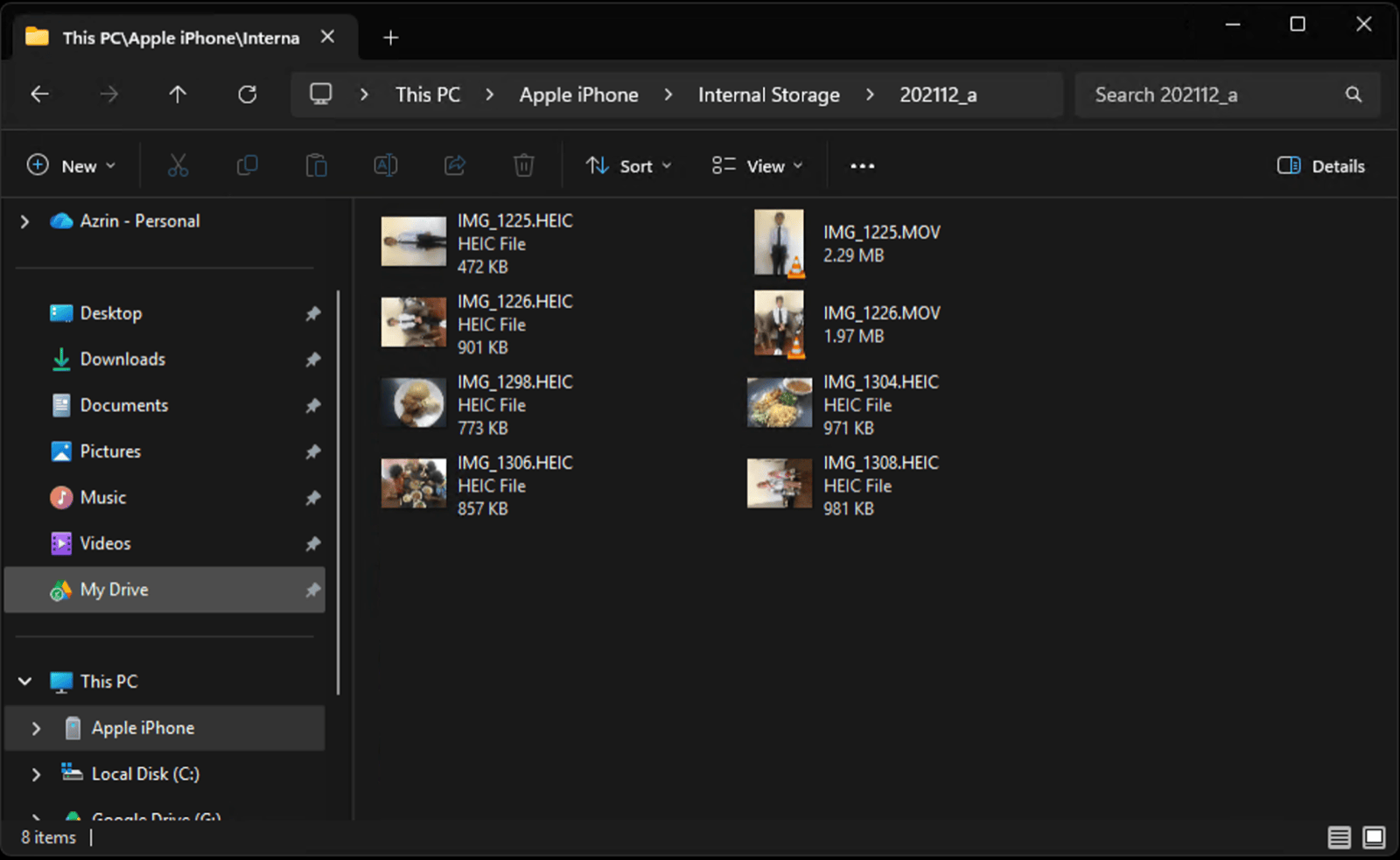
Double-click a HEIC photo before you install anything on Windows
The cheapest test is the one you can run right now.
- Windows 11 has been gaining HEIC support build by build, so your PC may open iPhone photos already. Whether it does varies by manufacturer, so double-click one and see.
- Blank HEIC thumbnails in File Explorer and a HEIC that will not open in Photos are the same missing decoder. One extension fixes both at once.
- Some Windows PCs arrive with the HEIC codec already licensed by the manufacturer. That is why one machine opens iPhone photos and the identical one beside it does not.

Install the free HEIF Image Extensions and open the HEIC photo again
The first download is free, and for many PCs it is the whole fix.
- HEIF Image Extensions is the free Microsoft Store download that teaches Windows to read the HEIC container. Install it, reopen the photo, and most iPhone pictures display straight away.
- HEIF Image Extensions and HEVC Video Extensions are two separate packages, and only the HEIF one is free. Installing the free package first costs you nothing to try.
- Test a HEIC photo after installing the free HEIF package, before you pay Microsoft for anything. If your iPhone photos open, you are finished.

Pay for HEVC Video Extensions only if HEIC photos still fail to open
The second download costs money, and not every PC needs it.
- HEVC Video Extensions costs about a dollar in the Microsoft Store and supplies the codec packed inside a HEIC photo. Some iPhone photos need it even with the free HEIF package installed.
- The free HEVC Video Extensions from Device Manufacturer package only works on a PC whose maker paid the licence. Microsoft no longer offers that listing to everyone, so most people pay the dollar.
- A Microsoft Store extension makes HEIC readable on that one Windows PC and nowhere else. Email the same photo to somebody and they hit the same wall.

Switch the iPhone camera to Most Compatible to stop new HEIC files
Change the format on the phone and Windows never sees another HEIC.
- Settings > Camera > Formats set to Most Compatible stops the iPhone producing HEIC photos at all. It records JPEG photos and H.264 video, which every version of Windows opens.
- Most Compatible changes only the iPhone photos taken after you switch it. Everything shot before stays HEIC, and still needs an extension or a conversion.
- Switching the iPhone to Most Compatible costs storage, because a JPEG is roughly twice the size of the same HEIC. The camera roll then grows about twice as fast.

Set Transfer to Mac or PC to Automatic for the HEIC photos you have
One iPhone setting fixes the library you have already shot.
- Settings > Photos > Transfer to Mac or PC set to Automatic converts HEIC photos to JPEG as they copy over a cable. Your existing library lands on Windows readable, with the camera format untouched.
- Transfer to Mac or PC set to Keep Originals hands Windows the raw HEIC file instead of a JPEG. Choose it for archiving, once the HEIF extension is installed, so nothing is re-encoded.
- Automatic costs a little quality on each photo, because the iPhone re-encodes the HEIC into a JPEG. The trade buys you files that open on any PC.

Convert a folder of HEIC photos on your own PC, not on a website
Converting is the answer when the photos must open where you cannot install anything.
- The Windows Photos app converts a HEIC photo to JPEG one file at a time. Open the HEIC, choose Save as, and pick JPEG.
- Microsoft Paint turns a single HEIC photo into a JPEG just as well as the Photos app. Open the file, choose Save as, pick JPEG. It is one file at a time either way.
- A batch converter running on your own PC is the sane way to turn a whole HEIC folder into JPEGs. Plenty of free Windows tools do it locally.
- Online HEIC converters hand your personal photos to a stranger's server before sending a JPEG back. For anything with documents, receipts or children in it, convert on your own PC.

Pick a HEIC fix by whether it must work on other PCs too
Sorting by "Works on other PCs" separates a fix for this machine from one that travels.
| Fix | Cost | Effort | Covers old photos | Covers new photos | Works on other PCs |
|---|---|---|---|---|---|
| HEIF Image Extensions | Free | One install | Yes | Yes | No, per PC |
| HEVC Video Extensions | About $1 | One install | Yes | Yes | No, per PC |
| iPhone set to Most Compatible | Free | One setting | No | Yes | Yes |
| Transfer to PC set to Automatic | Free | One setting | Yes, on USB transfer | Yes | Yes |
| Batch converting to JPG | Free | Per folder, every time | Yes | No | Yes |
| Camera to Clipboard | Free to try | One app each end | Yes | Yes | Yes |

Install the free extension, or switch the iPhone to JPEG for good
Which fix wins comes down to two questions about your photos.
- Install the free HEIF extension when you want an existing HEIC library readable on this Windows PC. Add the paid HEVC package only if some photos still refuse to open.
- Set the iPhone camera to Most Compatible when you never want another HEIC file on Windows. Every new photo opens anywhere, and the camera roll grows about twice as fast.
- Set Transfer to Mac or PC to Automatic to convert the HEIC library you already have. It fixes old photos on a cable import without running a converter yourself.
- Send iPhone photos to Windows as JPEG when you are about to use them rather than archive them. The picture arrives ready to paste, so HEIC never becomes your problem.
Common questions about HEIC photos on Windows
How do I open a HEIC file on Windows?
Try double-clicking it first, because many Windows 11 PCs already display HEIC. If that fails, install the free HEIF Image Extensions from the Microsoft Store. Some photos also need the paid HEVC Video Extensions, which costs about a dollar.
How do I stop my iPhone taking HEIC photos?
Go to Settings > Camera > Formats and choose Most Compatible. The iPhone then records JPEG photos and H.264 video, which every version of Windows opens. Photos already taken stay in HEIC.
Does converting HEIC to JPG lose quality?
Slightly, because JPEG is lossy too and the image is re-encoded once. At normal quality settings you will not see the difference on screen. The same photo as a JPEG is usually about twice the size.