
Windows 11 changed enough that older guides describe screens you will not find. The Photos app was rebuilt and HEIC support improved. Phone Link now pairs with an iPhone, but it still has no photo panel for one. Here is what works today, starting with the fastest.
The quick answer: the fastest route is a direct transfer over your own Wi-Fi. Camera to Clipboard drops the photo onto the Windows 11 clipboard in seconds, ready to paste. The Photos app import over USB and File Explorer both still work, and both are covered below. Phone Link has no iPhone photo panel. Free for iPhone Free for Mac Free for Android Free for Windows

Windows 11 changed three things that older iPhone guides get wrong
Three things moved, and between them they explain most of the confusion.
- Windows 11 rebuilt the Photos app and moved the button that imports iPhone photos. Guides written for the Windows 10 app describe a screen that is gone. The import itself is unchanged.
- Windows 11 opens the iPhone's HEIC photos more often than Windows 10 did, but not on every PC. Many machines show them with nothing extra installed. Which you get depends on your build.
- Phone Link pairs with an iPhone on Windows 11, but it has no photo panel for one. Calls, messages and contacts work. You cannot browse the iPhone camera roll from the PC.

File Explorer still works and iTunes was never needed for photos
Two older habits are safe to carry straight over from Windows 10.
- File Explorer is unchanged in Windows 11 and still copies hundreds of iPhone photos at once. It behaves identically on Windows 10 and Windows 11.
- iTunes plays no part in moving iPhone photos to Windows 11. Apple split it into separate apps, and photos never needed it. The no-iTunes guide covers that question.

Camera to Clipboard puts iPhone photos on the Windows 11 clipboard
Every built-in method ends with a file somewhere on your disk. If the photo is for an email or a document, finding it again is the slow part.
- An iPhone photo sent with Camera to Clipboard lands on the Windows 11 clipboard, ready to paste. Press Ctrl + V in whatever you are working in. There is no folder to open.
- Sending an iPhone photo to Windows 11 with Camera to Clipboard needs no cable, no Trust dialog and no driver. The transfer runs over your local network, so the whole category of USB faults disappears.
- Camera to Clipboard delivers the iPhone photo to Windows 11 as a standard JPEG, so HEIC never becomes a problem. Windows 11 opens it with or without the HEIF extension.

Camera to Clipboard sends a batch or a video and uploads nothing
Two more things are worth knowing before you set it up.
- Camera to Clipboard sends the photo straight from the iPhone to the Windows 11 PC, with nothing uploaded to a cloud. The two apps use the internet only to find each other. A phone hotspot works too, because its mobile data connects both apps.
- Camera to Clipboard moves one iPhone photo or a whole batch to Windows 11, freshly taken or picked from the camera roll. Videos and scanned documents travel the same way. A video is saved as a file on the PC, and its file path goes on the clipboard.


- Install Camera to Clipboard on the iPhone and the Windows app on the PC.
- Pair once by scanning a QR code, about ten seconds.
- Take or pick a photo on the iPhone and send it.
- Press Ctrl + V on the PC.
Free to download and try on both ends. The free version adds a small watermark and caps photos at 1920px. Pro removes both.

The Windows 11 Photos app imports over a cable from its top bar
This is the method Microsoft intends you to use, and it suits a whole batch after a trip.
- Unlock the iPhone and connect it with a cable that carries data.
- Tap Trust This Computer when the phone asks, and keep it unlocked.
- Open the Photos app, choose Import at the top of the window, then pick the iPhone.
- Select the photos you want, choose where they should go, and start the import.

The Photos app import looks frozen and never deletes an iPhone photo
A few things surprise people during the import, and none of them is a fault.
- The Windows 11 Photos app looks frozen while it reads the iPhone's whole library. On a large library it takes minutes with no progress bar. Give it time before assuming it hung.
- When the Photos app import finds no iPhone photos, the phone is almost always locked or not yet trusted. That one cause is behind most failed imports. The troubleshooting guide covers the rest.
- The Windows 11 Photos app import copies iPhone photos and leaves the originals on the phone. Nothing is deleted unless you delete it, so importing frees no space on the iPhone.

File Explorer is unchanged and still best for hundreds of photos
Windows 11 redesigned the Photos app but left File Explorer alone. It treats the iPhone as a camera and copies the files straight off it.
- File Explorer copies a large batch of iPhone photos to Windows 11 faster than the Photos app import does. Plain file copying beats the import pipeline past a few dozen items.
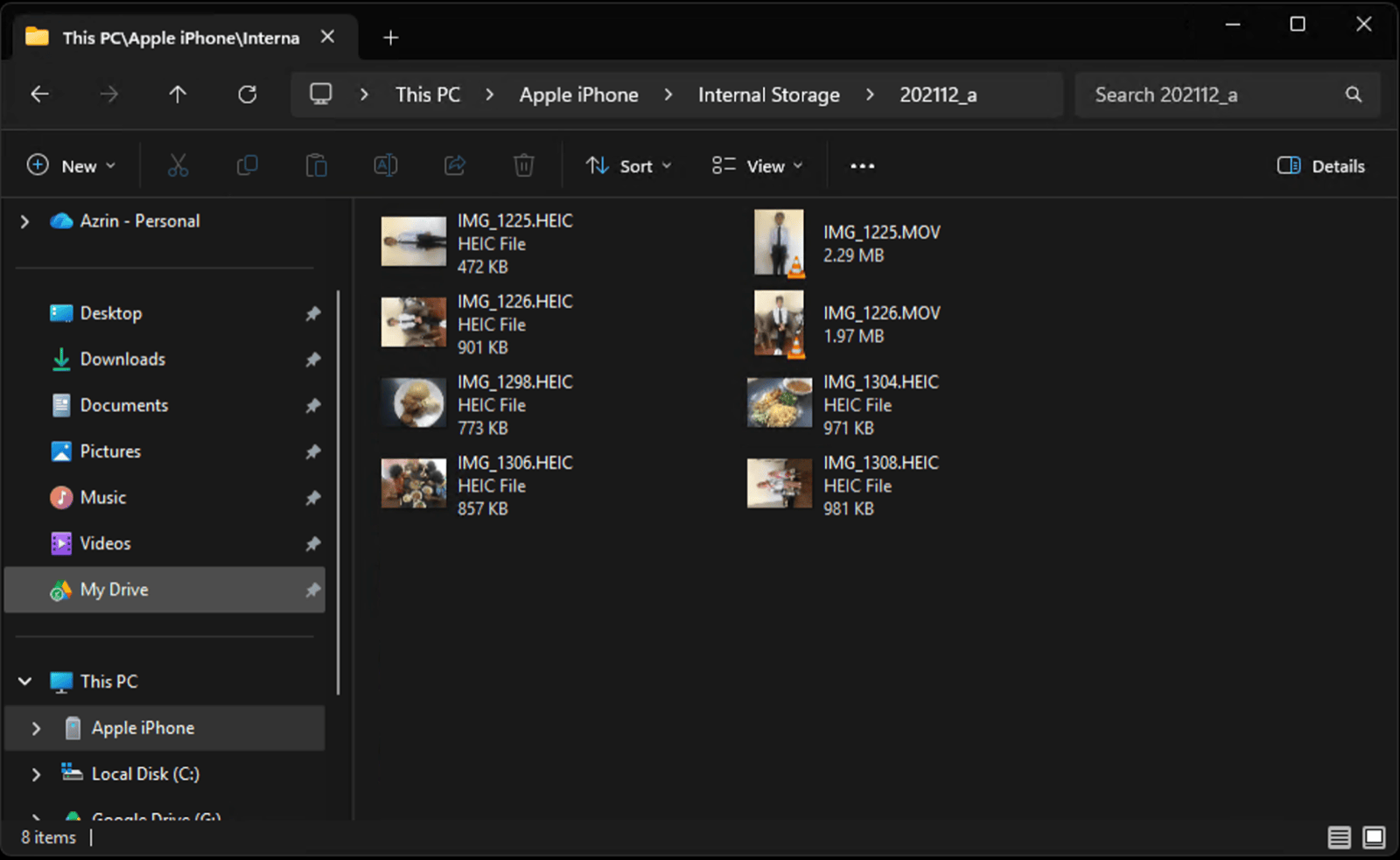
- In File Explorer the iPhone's photos sit under This PC > Apple iPhone > Internal Storage > DCIM, in dated folders. Select them and drag them into any folder on the PC.
- File Explorer copies the iPhone's files to Windows 11 exactly as the phone stored them. That includes .HEIC photos and .MOV videos, with no conversion.
- If File Explorer can browse the iPhone, the cable and the phone are both working. An import that fails while Explorer works is the Photos app's problem, not the connection's.
Phone Link cannot browse an iPhone camera roll from Windows 11
Phone Link is where most people are sent first, because it is Microsoft's own app and it does pair with an iPhone.
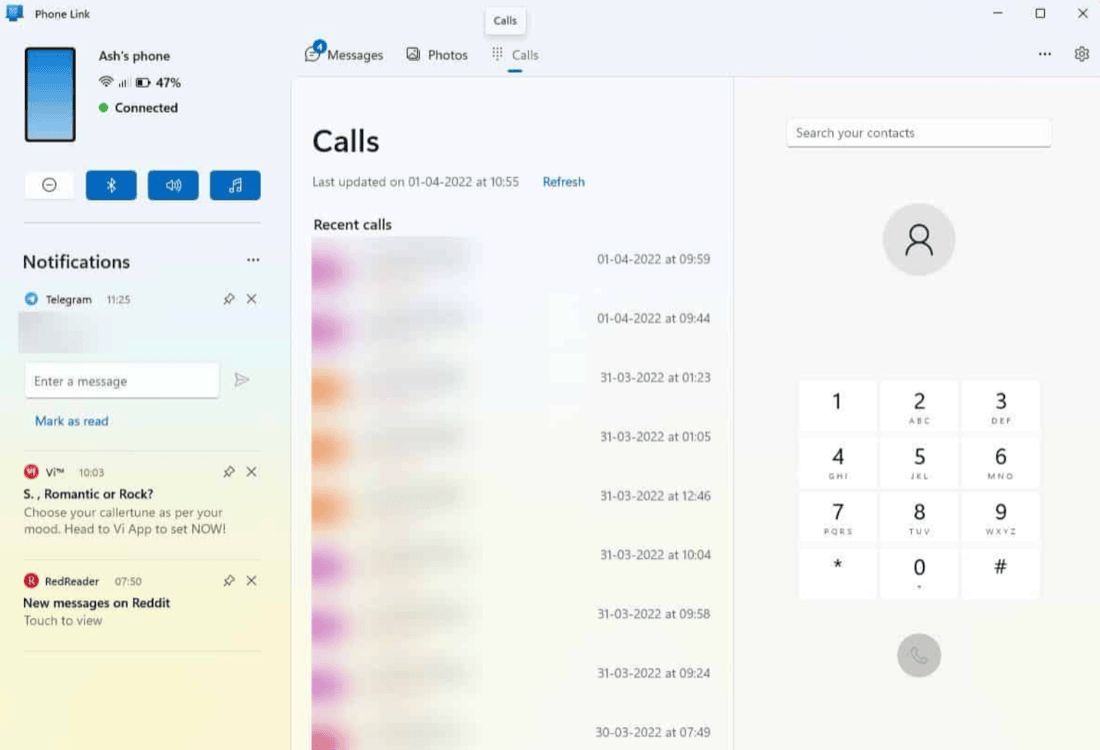
- The Phone Link panel that mirrors a camera roll onto the PC is an Android feature. On Android it shows recent pictures and lets you drag them onto the desktop. That is the screenshot in most articles.
- A linked iPhone gives Phone Link calls, messages and contacts, and no photo library. Pairing successfully does not add one.
- Answers online showing Windows 11 pulling iPhone photos out of Phone Link are describing Android. None of them say so, which is how people lose twenty minutes to it.

Send the photo from the iPhone share sheet to reach Phone Link
One direction does work, and it starts on the phone rather than on the PC.
- Phone Link can receive a file sent from an iPhone, on iOS 16 or later. Send it from the iPhone share sheet, or from File Explorer with the Share command. Microsoft's help page describes it.
- A photo sent to Windows 11 through Phone Link arrives as a file, not as a paste. You still open a folder and attach it wherever you need it.
- Phone Link file sharing suits the odd iPhone photo rather than a whole camera roll. The iPhone starts every transfer, so a large batch means repeating the share by hand.
iCloud for Windows syncs your whole library, not one quick photo
iCloud for Windows is Apple's own answer on a PC. It keeps an entire library in step rather than fetching one picture.
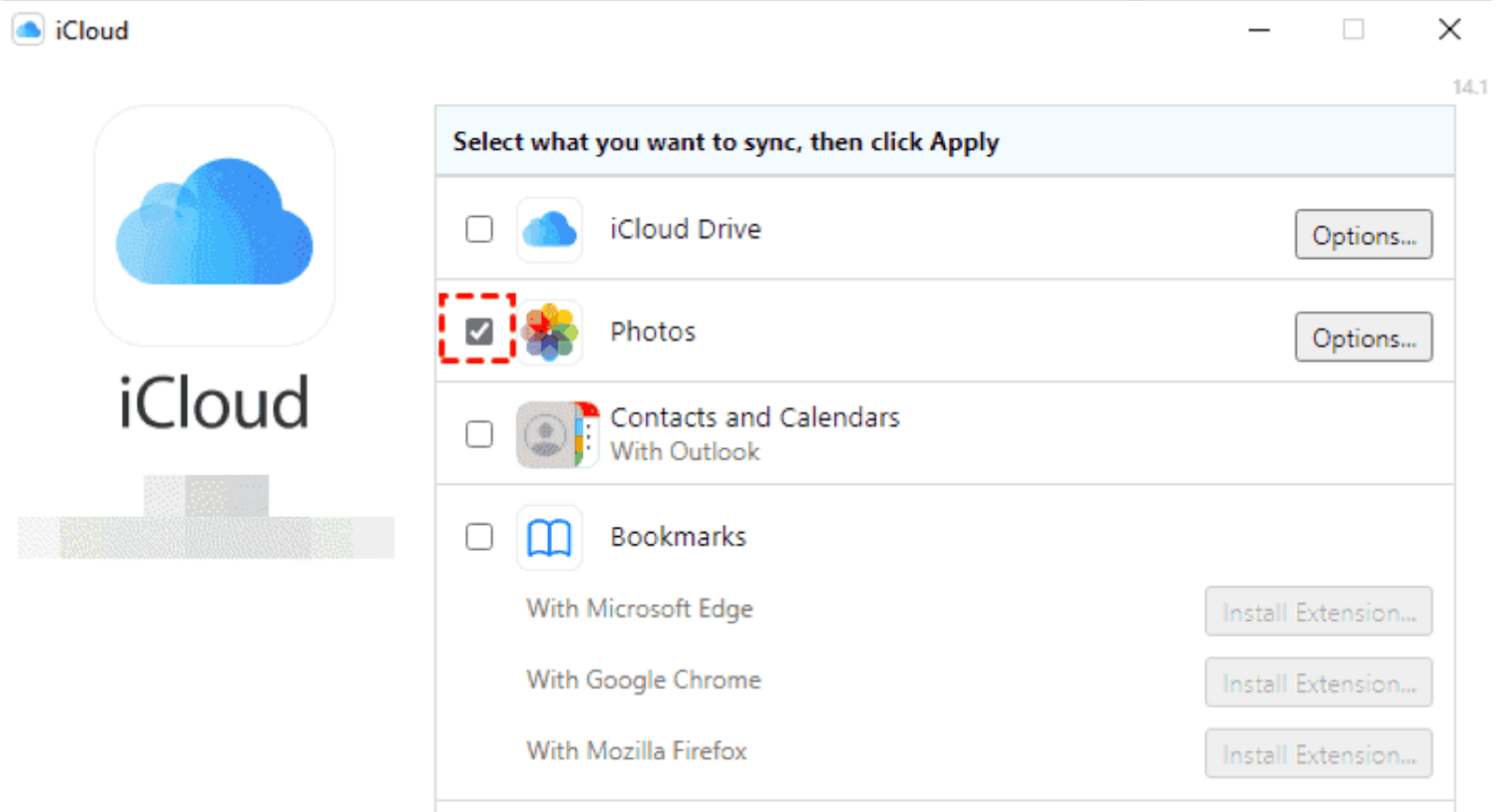
- iCloud for Windows installs from the Microsoft Store and syncs the iPhone library into a folder on the PC. Turn on Photos during setup, or nothing will sync at all.
- iCloud for Windows mirrors an entire iPhone library well but handles one urgent photo badly. Every photo goes up to Apple and back down again.
- A photo you took a minute ago can take several more to reach the PC through iCloud. That round trip is the price of an automatic sync.

iCloud gives you 5 GB free, and iCloud.com needs nothing installed
Three things decide whether iCloud is worth setting up at all.
- iCloud gives you 5 GB of free storage, which an iPhone camera roll passes quickly. After that you are on a paid plan.
- iCloud syncing stops unless both the iPhone and the Windows 11 PC are online. A hotspot with no data left, or a hotel network that wants a login, stops it dead.
- You can download individual iPhone photos from iCloud.com in a browser instead of installing iCloud for Windows. iCloud.com is useful on a PC where you cannot install software.
Many Windows 11 PCs open an iPhone HEIC photo with nothing installed
HEIC is the format an iPhone saves photos in, and it is the usual reason a photo copies across but will not open.
- Many Windows 11 PCs now open an iPhone's HEIC photos with nothing extra installed. Whether yours does depends on your build and how it was set up, so open one and see.
- When Windows 11 will not open an iPhone HEIC photo, the free HEIF Image Extensions package fixes it. It comes from the Microsoft Store. Some HEIC files also need the paid HEVC Video Extensions, because of the codec inside them.

Fix HEIC on the iPhone rather than on Windows 11
Three of the four ways to stop HEIC being a problem live on the phone.
- The free permanent fix for HEIC is the iPhone camera format setting, not anything on Windows 11. Set Settings > Camera > Formats to Most Compatible and every new photo is a JPEG.
- iPhone photos you have already taken can convert to JPEG automatically as they transfer to Windows 11. Set Settings > Photos > Transfer to Mac or PC to Automatic.
- Sending an iPhone photo to Windows 11 wirelessly avoids HEIC, because it arrives as a JPEG. The HEIC guide has the full detail.

Windows 10 works the same, apart from the Import button and HEIC
Everything above still applies on Windows 10, so you do not need a separate guide.
- The Windows 10 Photos app looks different from the Windows 11 one but imports iPhone photos the same way. The Import control sits in the top-right corner, and the option you want is From a connected device.
- Windows 10 is less likely than Windows 11 to open an iPhone's HEIC photos without an extension. Expect to install the HEIF extension, or to switch the iPhone to Most Compatible.
- File Explorer, iCloud for Windows and wireless transfer behave identically on Windows 10 and Windows 11. Nothing in those sections changes.

Wireless transfer is the fastest of the five Windows 11 methods
Sorting by "Needs a cable" puts the wireless methods first.
| Method | Speed | Good for bulk | Needs a cable | HEIC problem | Ends in |
|---|---|---|---|---|---|
| Camera to Clipboard | Seconds | Yes, select many at once | No | None, arrives as JPEG | A paste |
| Photos app import | A minute or two | Yes | Yes | Possible | A file |
| File Explorer | A minute or two | Best option | Yes | Yes, raw HEIC files | A file |
| iCloud for Windows | Minutes | Yes, automatically | No | Possible | A synced folder |
| Phone Link | Seconds per photo | No, you share them from the iPhone | No | Possible | A file |

Use Camera to Clipboard for one photo and a cable for thousands
The choice comes down to how many photos you are moving, and whether you need them in front of you now.
- Camera to Clipboard is the best way to get an iPhone photo onto Windows 11 when you are about to use it. The photo lands on the clipboard ready to paste, so there is no file to hunt for afterwards.
- File Explorer over a cable is the best way to archive a whole iPhone camera roll onto Windows 11. It copies in a single drag at cable speed, and nothing leaves your desk on the way.

Use iCloud or the Photos app import when a file suits you better
Three situations are better served by a file or an album than by a paste.
- iCloud for Windows is the best way to keep an entire iPhone library mirrored on a Windows 11 PC. Set it up once and new photos arrive on their own, as long as both devices stay online.
- The Windows 11 Photos app import is the best way to file iPhone photos into a dated album view. It adds them to the Windows photo library instead of leaving loose files in a folder.
- iCloud.com in a browser is the best way to get iPhone photos onto a Windows 11 PC that is not yours. You download individual photos without installing anything or leaving your account signed in.
Common questions about iPhone photos on Windows 11
Does Windows 11 open HEIC photos from an iPhone?
Many Windows 11 installs display them with nothing extra downloaded. Where they do not, the free HEIF Image Extensions package from the Microsoft Store adds support. Some HEIC files also need the paid HEVC Video Extensions, because of the codec inside. Setting the iPhone camera format to Most Compatible avoids the question entirely.
Can Phone Link transfer photos from an iPhone on Windows 11?
Not from the PC. Phone Link has no photo panel for a linked iPhone, so you cannot browse the camera roll from Windows 11. You can send a photo the other way, from the iPhone share sheet, on iOS 16 or later.
What is the fastest way to get an iPhone photo onto a Windows 11 PC?
A direct transfer over your local Wi-Fi. Camera to Clipboard puts the photo on the clipboard in seconds, so you can paste it straight into a document or an email. There is no cable, no import step and nothing uploaded.