
iTunes was never part of this. Copying photos off an iPhone has worked without it for as long as Windows has read cameras. This guide covers four routes that use no Apple app at all. One of them needs no account and no cable either.
The quick answer: plug the iPhone in, unlock it, and tap Trust. Then open This PC > Apple iPhone > Internal Storage > DCIM in File Explorer. Your photos are there, and no Apple app is involved. If you would rather skip the cable, Camera to Clipboard sends the photo to your PC's clipboard over your own Wi-Fi. No Apple ID, and nothing is uploaded.
Free for iPhone Free for Mac Free for Android Free for Windows
Windows has never needed iTunes to read an iPhone's photos
The belief is old and widespread, and it sends people to install software they do not need.
- iTunes on a Windows PC is for device backups and media syncing, not for copying photos off an iPhone. It backs up and restores the whole phone, and pushes music onto it. Neither job touches your camera roll.
- Windows reads an iPhone's photos the same way it reads any digital camera. The phone offers its photo folders over a standard protocol File Explorer already speaks. No Apple app sits in that path.
- The idea that iPhone photos need iTunes comes from a driver, not from photos. The driver is Apple's Mobile Device USB driver. Older Windows got it by installing iTunes. Current Windows installs it itself the first time you plug the phone in.

Apple split iTunes on Windows into three apps that do not move photos
Apple has split the old iTunes jobs across separate Windows apps. Here is where each one went.
- Apple Devices, Apple Music and Apple TV now do on Windows what iTunes used to do. Apple Devices handles backups, restores, updates and syncing. Apple Music and Apple TV hold the media libraries.
- iTunes still exists on Windows, and Apple now points to it for podcasts and audiobooks. It is no longer the standard tool for managing an iPhone on a PC.
- Apple's own photo import page tells Windows users to install the Apple Devices app. File Explorer still shows the iPhone's DCIM folder without it, which is the route this guide uses.
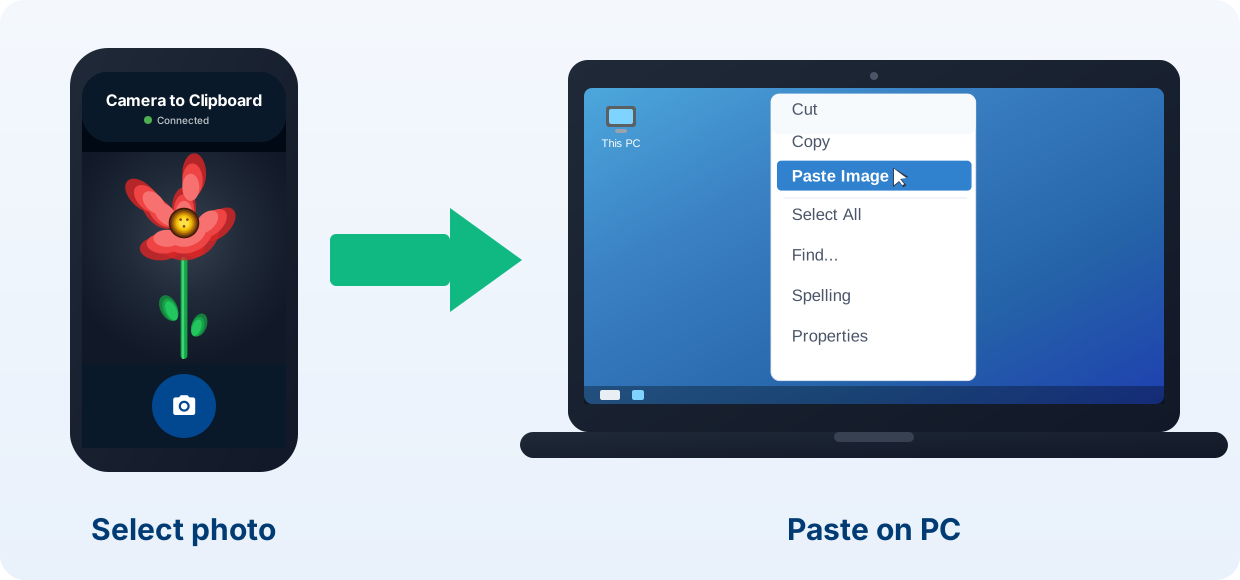
Camera to Clipboard sends iPhone photos to a PC with no Apple ID
If the photo is going straight into a document, a cable is more work than the job needs.
- Sending an iPhone photo with Camera to Clipboard creates no account of any kind. There is no Apple ID, no sign-up and no sign-in.
- An iPhone photo sent with Camera to Clipboard lands on the PC's clipboard, not in Downloads. Press Ctrl + V in your email or document. There is nothing to tidy up afterwards.
- Camera to Clipboard delivers the iPhone photo to the PC as a standard JPEG. HEIC never becomes a problem, because a JPEG opens on any Windows PC with nothing installed.

Camera to Clipboard keeps the iPhone photo on your own network
The network side is where this differs from every cloud route.
- An iPhone photo sent with Camera to Clipboard crosses your own Wi-Fi and is never uploaded. The two apps use the internet only to find each other. The phone's own hotspot works too.
- Camera to Clipboard sends one iPhone photo or a whole batch to the PC. Take a new shot, or select several from the camera roll and send them together.
- Camera to Clipboard sends an iPhone video to the PC as well as a photo. The clip is saved as a file, and its file path goes on the clipboard.
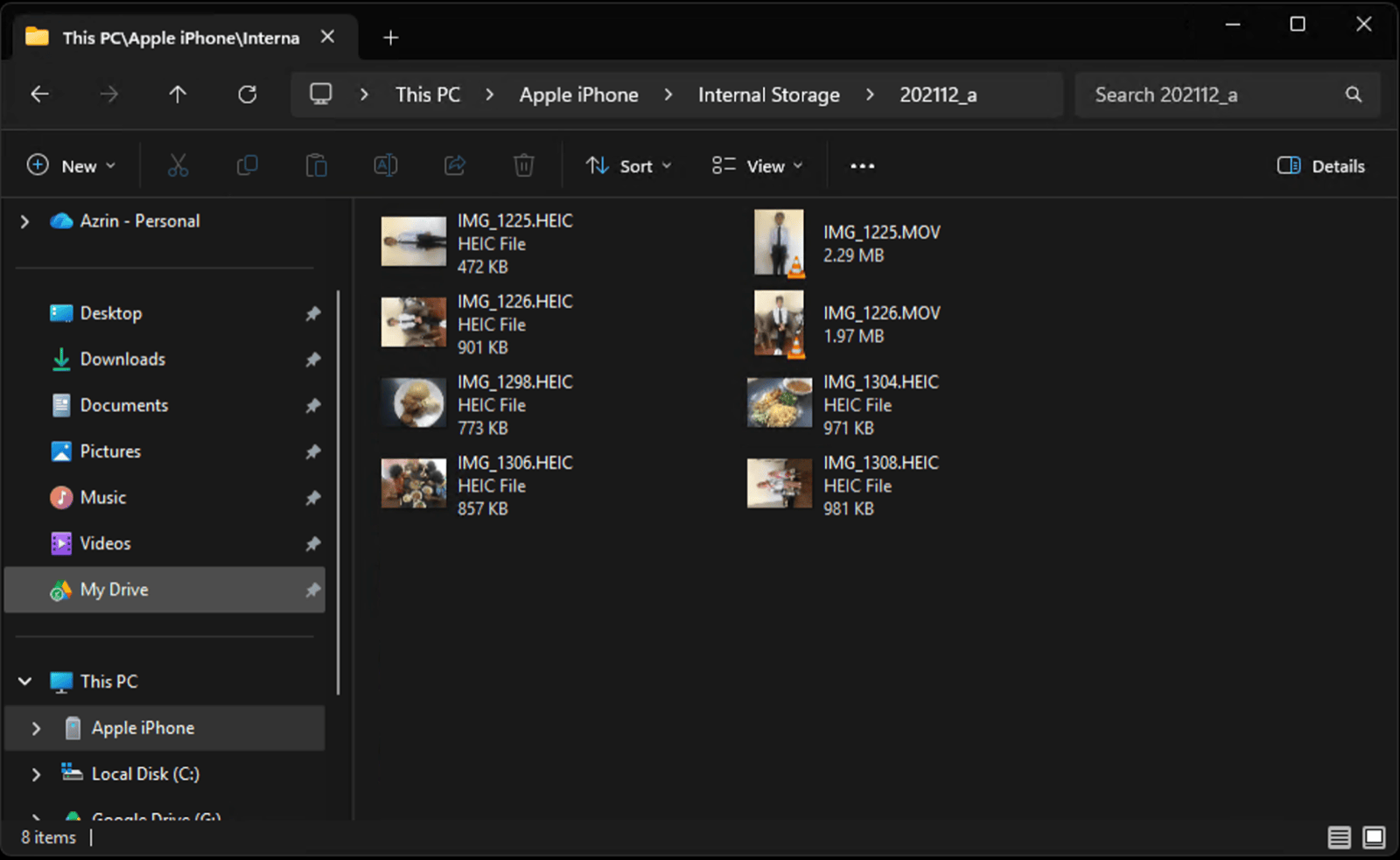
File Explorer copies iPhone photos over USB with nothing installed
This is the most direct route, and it uses nothing but Windows itself.
- Connect the iPhone with a cable that carries data, not a charge-only one.
- Unlock the phone and tap Trust This Computer. Keep it unlocked.
- Open File Explorer and go to This PC > Apple iPhone > Internal Storage > DCIM.
- Open the dated folders, select what you want, and drag it to the PC.

File Explorer hands you the iPhone's raw HEIC photos and MOV videos
A few things are worth knowing before you drag a whole camera roll across.
- File Explorer over USB is the fastest way to move a big batch of iPhone photos to a PC without iTunes. Plain file copying beats every import tool past a few dozen items.
- File Explorer gives you the iPhone's files exactly as the phone stored them. That means .HEIC photos and .MOV videos. Good for archiving, awkward for viewing, and the HEIC guide covers it.
- Dragging photos out of DCIM copies them and leaves the originals on the iPhone. Nothing is deleted, so this frees no space by itself. Check the copies, then delete them on the phone yourself.
- An iPhone that appears in File Explorer with empty DCIM folders is locked, or using iCloud Optimise Storage. The troubleshooting guide has the full list of causes.

Skipping iCloud costs automatic syncing, not photo quality
People avoiding iTunes usually want to avoid iCloud too. Here is the honest accounting.
- Moving iPhone photos to a PC without iCloud ends the automatic mirroring of the camera roll. Every transfer becomes something you decide to do.
- A photo taken on the iPhone will not appear on an iPad or a second computer without iCloud. Only the PC you send it to receives it.
- Moving iPhone photos to a PC without iCloud costs nothing in quality, speed or reliability. The direct routes are faster, because the picture never goes up to a server and back.
- Skipping iCloud avoids its 5 GB free storage ceiling entirely. The upsell to a paid plan stops being your problem.

PairDrop and emailing yourself also need no Apple software
Two more routes move a photo across with no Apple app, and both are worth knowing.
- PairDrop in a browser sends an iPhone photo to the PC with nothing installed. Open the same page on both devices on one network. It leaves a file in Downloads rather than a paste.
- Emailing or messaging an iPhone photo to yourself reaches any PC, but it shrinks the picture. Mail and chat apps re-compress the image, and a copy sits in your sent folder forever.
- PairDrop and emailing yourself are covered in depth in the no-cable guide. The no-cable guide also says what to do when a network blocks device-to-device traffic.

Four of the five ways to move iPhone photos skip Apple software
Here are the five routes side by side, with what each one costs you.
| Route | Apple software | Needs an account | Needs a cable | Good for bulk | Ends in |
|---|---|---|---|---|---|
| File Explorer over USB | None | No | Yes | Best option | Raw HEIC files |
| Camera to Clipboard | None | No | No | Yes, select many at once | A paste, as JPEG |
| PairDrop in a browser | None | No | No | A few at a time | A file in Downloads |
| Email or chat to yourself | None | An email account | No | No, attachment limits | A compressed copy |
| iCloud for Windows | Apple software | Apple ID required | No | Yes, automatically | A synced folder |

Use Camera to Clipboard for one photo and File Explorer for many
The choice comes down to how many photos you are moving.
- File Explorer over USB is the best way to archive a whole iPhone library on a PC. It moves thousands of files in one drag, which is what a phone you are about to sell needs.
- Camera to Clipboard is the best way to get an iPhone photo onto a PC when you are about to use it. One photo or several, with nothing left in a folder to find later.
- PairDrop is the best way to get iPhone photos onto a PC that is not yours. A borrowed or work machine will not let you install anything, and a browser tab asks nobody's permission.

iCloud is worth it only to mirror a whole iPhone library on a PC
That leaves two cases where something other than a direct transfer wins.
- iCloud for Windows earns its Apple ID only when you want the whole library mirrored automatically. That is the one job it does genuinely well.
- Emailing an iPhone photo to yourself is fine when the picture is going to another person anyway. The re-compression stops mattering once it is only going to be looked at.
Common questions about moving iPhone photos without iTunes
Do I need iTunes to transfer photos from an iPhone to a PC?
No, and you never did. Windows reads an iPhone's photos through File Explorer, the same way it reads a camera. The driver it needs is Apple's Mobile Device USB driver. Current Windows installs that driver itself the first time you plug the phone in.
Can I get photos off an iPhone without an Apple ID or iCloud?
Yes. A USB cable and File Explorer need no account at all. Camera to Clipboard needs no Apple ID either, because the photo goes straight from the phone to the PC over your own network.
What is iTunes still needed for on Windows?
Podcasts and audiobooks. Apple moved backups, restores and media syncing to its separate Apple Devices, Apple Music and Apple TV apps. None of that is part of copying photos off an iPhone.