
You copy something, copy something else, and the first thing is gone. Windows has been able to keep your last 25 copies since 2018, and hardly anyone uses it. The clipboard history ships switched off, behind a shortcut most people never press. This page turns it on, says what it keeps, and fixes an empty Win + V.
The quick answer: press Win + V and choose Turn on. That shortcut then shows your last 25 copies, images as well as text. Pin the ones worth keeping and they outlast both the limit and a restart. The one thing it cannot reach is a photo on your phone, and that gap is what Camera to Clipboard closes. Free for iPhone Free for Mac Free for Android Free for Windows

Press Win + V and choose Turn on to start clipboard history
The whole feature is already in Windows, waiting for one click.
- Press Win + V.
- Choose Turn on in the small panel that appears.
- Copy two or three different things, as you normally would.
- Press Win + V again and pick any of them.
Picking an entry drops it into whatever field your cursor is in. Ctrl + C and Ctrl + V behave exactly as before.

Turn clipboard history on before the day you need it
Four things about that first press are worth knowing.
- Windows ships clipboard history switched off, so the first Win + V shows a Turn on button. An empty looking panel is the normal state, not a fault.
- Windows clipboard history records only from the moment you switch it on. Anything you copied ten minutes ago is already gone.
- Settings > System > Clipboard holds the same clipboard history switch as the Win + V panel. Both routes give exactly the same result.
- Clipboard history arrived in Windows 10 version 1809, so an older PC has no Win + V. Type winver into the Start menu to check the version.
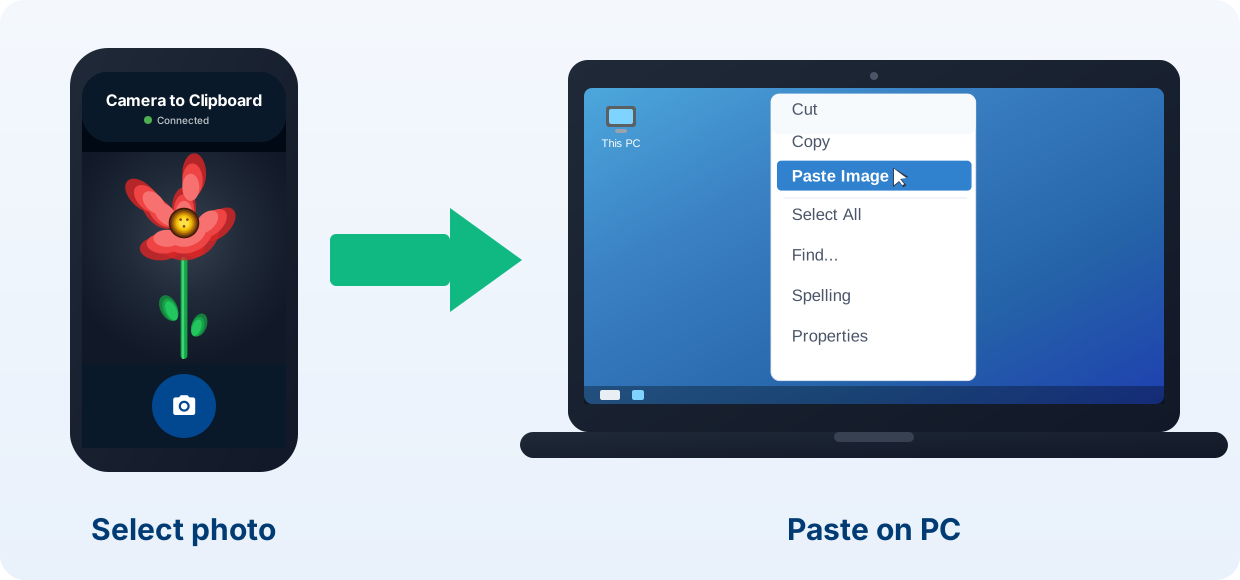
Camera to Clipboard sends a phone photo into your Win + V list
Clipboard history only holds what you copied on the PC, so a phone photo needs help getting there.
- Camera to Clipboard puts a photo from your phone straight onto the Windows clipboard over your own Wi-Fi. Press Ctrl + V in the document, the email or the chat.
- A photo sent with Camera to Clipboard appears in the Win + V list beside everything copied on the PC. It reaches the clipboard the ordinary way, so Windows records it like a screenshot.
- A phone photo delivered by Camera to Clipboard can be pinned in the Win + V list. Send a signature or a logo once, pin it, and it is still there after a restart.
- Camera to Clipboard needs no cable, no Trust dialog and no driver on the PC. Nothing is uploaded, and the two apps use the internet only to find each other.

Set up Camera to Clipboard on the phone and the PC in four steps
Setting it up takes about a minute and is a one time job.
- Install Camera to Clipboard on the phone and the Windows app on the PC.
- Pair the two once by scanning a QR code.
- Take or pick a photo on the phone and send it.
- Press Ctrl + V on the PC, or Win + V to find it later.
Free to download and try on both ends. The free version adds a small watermark and caps photos at 1920px. Pro removes both.

Windows clipboard history holds 25 items and drops the oldest
The list is short, and it records less than people assume.
- Windows clipboard history stores 25 entries, and the twenty sixth copy pushes the oldest off the end. No setting or registry value raises that limit.
- Windows clipboard history records images as well as text, so a copied screenshot joins the Win + V list. Formatted text keeps its formatting, so a spreadsheet table pastes back as a table.
- Windows clipboard history belongs to your user account, so nobody else signing in to that PC sees your list. Switching users does not expose one history to the other.

Files, large images and passwords never reach the Win + V list
Three kinds of copy are skipped on purpose, which is why entries go missing.
- Files and folders copied in File Explorer never appear in the Win + V list. Copying a file puts a reference on the clipboard, not the contents of the file.
- An image over 4 MB pastes normally but is never added to Windows clipboard history. Microsoft caps each entry at 4 MB, because the list is held in memory.
- A password copied out of a password manager is deliberately kept out of clipboard history. Apps can flag what they copy as sensitive, and Windows then skips recording it.

Pin an entry to keep it past the 25 cap and a restart
Pinning turns the list from a safety net into something you use on purpose.
- A pinned entry in Windows clipboard history is not pushed off the end as the list rolls over. Only unpinned copies are dropped to make room for new ones.
- Pinning an item in the Win + V list is one click on the pin that each entry carries. On some Windows builds the pin sits behind the three dot menu on that entry.
- A pinned clipboard entry is still in the Win + V list after you shut the PC down. Windows clears everything unpinned at a restart, because it lived only in memory.

Pin an address or a reference, never a password or a card number
What you choose to pin is worth a moment of thought.
- Pinning three or four things you retype turns Win + V into a small snippet keeper. A postal address, a customer reference or a standard reply becomes two keystrokes.
- Anything pinned in Windows clipboard history is written to the PC's disk, so never pin a credential. The persistence you wanted for an address is a risk for a password.
- Unpinning an entry puts it back under the 25 item limit rather than deleting it. It stays in the list until 25 further copies have pushed it out.

Clipboard sync needs the same Microsoft account on both PCs
Carrying what you copy from a desktop to a laptop has a few requirements.
- Sharing a clipboard between two PCs needs the same Microsoft account, or the same work account, on both. A local account cannot use it, because the syncing runs through that account's cloud service.
- The switch that shares clipboard items between devices sits on the Settings > System > Clipboard page. It is separate from the history switch, so turning one on does nothing to the other.
- Clipboard sharing has an automatic mode and a manual mode, and only manual waits for you to choose. Automatic sends every piece of text you copy without asking.
- Clipboard sharing that carries nothing between two PCs is nearly always a different account on one of them. It fails silently, so check the account signed in on both machines.

Everything you sync between PCs goes through Microsoft's servers
Sync has a real cost, and the setting that controls it is easy to miss.
- Text you sync between two PCs passes through Microsoft's servers on the way. Automatic mode uploads every line you copy, including the ones you copy without thinking.
- Only text travels between PCs, so an image copied on one machine never reaches the other's Win + V list. Nothing is broken when screenshots fail to arrive.
- Turning off clipboard sharing between devices leaves clipboard history working normally on each PC. You keep Win + V, the 25 entries and pinning, and nothing leaves either machine.

Win + V showing nothing means clipboard history is switched off
Almost every report of a broken clipboard history is one of these three.
- A Win + V panel that says there is nothing to show means clipboard history is off, not broken. That panel carries the Turn on button, so the fix is on the same screen.
- Win + V producing no reaction at all usually means the PC predates clipboard history. Type winver in the Start menu. Anything before Windows 10 version 1809 lacks the feature.
- A history list that stays empty while you copy is being fed things Windows refuses to record. Copy a line of plain text as a test.

Work down these checks when Win + V still does nothing
If none of those fit, go through six checks in this order.
- Press Win + V and confirm the panel opens at all.
- Open Settings > System > Clipboard and check the switch is on.
- Copy a short line of plain text, then press Win + V again.
- Check winver if the shortcut still does nothing.
- Restart the PC, sign back in and copy one more line.
- On a work laptop, ask IT whether policy blocks clipboard history.
A greyed out toggle with a note about your organisation is an IT policy, and Settings cannot override it.

Nothing built into Windows puts a phone photo on the clipboard
The moment the thing you want is on your phone, Windows runs out of answers.
- Windows clipboard history is fed entirely by copying on that PC, so it cannot reach a photo on your phone. Every entry got there through Ctrl + C or a right-click Copy on the machine itself.
- Windows has no built-in AirDrop equivalent for a phone. Windows Nearby sharing is Microsoft's PC to PC feature, and Google's Quick Share for Windows is a separate download.
- Phone Link can copy an Android phone's photo to the Windows clipboard, but has no photo panel for an iPhone. An iPhone can only send a file through the share sheet. Our Phone Link photos guide covers what else goes wrong.
- A photo already open on the PC does copy into clipboard history perfectly well. Right-click it, choose Copy, and it joins the Win + V list. Getting it onto the PC is the missing piece.

Emailing, OneDrive and a cable all end in a file, not a paste
Five ways move a phone photo into a Windows document, and only one finishes on the clipboard. Our Windows 11 photo transfer guide covers the file-based ones.
| Way to move a phone photo | Time until you can paste it | What it leaves on the PC | Needs an internet connection | Quality of the photo that arrives |
|---|---|---|---|---|
| Camera to Clipboard | Seconds, straight to the clipboard | Nothing, unless you ask it to save | Needs internet to connect, the photo stays on your Wi-Fi | Full resolution on Pro |
| Phone Link, Android phones only | Seconds, once it is paired and awake | Nothing, it copies to the clipboard | Yes, both devices must be online | Full resolution |
| USB cable and File Explorer | A minute or two, plus opening it | A file in a folder you picked | No | Full resolution |
| Emailing the photo to yourself | A minute or two, plus a download | A file in Downloads and a copy in Sent | Yes | Depends on the size the mail app picks |
| OneDrive or Google Photos | Minutes, upload then sync back down | A file in a synced folder | Yes | Full size on paid tiers only |

Pin what you reuse and use Camera to Clipboard for phone photos
Here is which of these is worth your next five minutes.
- Turning on Windows clipboard history is worth doing on any PC where you copy more than one thing. It costs nothing and changes nothing about Ctrl + V.
- Pinning suits the handful of things you retype every week, like an address or an account reference. Pinned entries ignore the 25 item limit and survive a restart.
- Clipboard sharing between PCs should stay off on a machine where you copy passwords or client data. Manual mode is the compromise, because nothing leaves until you pick an item.
- Camera to Clipboard is the tool to add when the thing you want to paste is on your phone. It lands in the same Win + V list, ready to pin. Our guide to pasting a phone photo into Word or email covers that end of it.
Common questions about clipboard history in Windows
How do I turn on clipboard history in Windows?
Press Win + V and choose Turn on in the panel that opens. The same switch also lives in Settings > System > Clipboard. Clipboard history arrived in Windows 10 version 1809, so a PC older than that has no Win + V at all.
How many items does Windows clipboard history keep?
Twenty five. The twenty sixth copy pushes the oldest entry off the end, and no setting raises that limit. A pinned item is not pushed off, and it also survives a restart.
Why is my clipboard history empty or not working?
Usually it is switched off, which the Win + V panel fixes in one click. If it is already on and nothing lands, you are copying something Windows skips. Files copied in File Explorer, anything over 4 MB and content an app marks as sensitive are all left out. On a work or school PC an IT policy can also grey the toggle out.
Can I get a photo from my phone into the Windows clipboard history?
Not with anything built into Windows, because clipboard history only records what you copy on the PC itself. Camera to Clipboard sends the photo from the phone straight to the Windows clipboard over your local Wi-Fi. It then appears in the Win + V list like anything else you copied, and you can pin it there.