
Microsoft Lens has gone from the store, and nothing has gone wrong at your end. Microsoft retired Lens in January 2026. This page covers what it did, where your old scans are, and what to scan with now.
The quick answer: Microsoft retired Lens in January 2026, so replace it rather than fix it. Your phone's built-in scanner is free and crops a page just as Lens did. It will not put the scan on your computer. Camera to Clipboard drops the page straight onto your computer's clipboard, ready to paste. Free for iPhone Free for Mac Free for Android Free for Windows

Microsoft retired Lens in January 2026, so stop waiting for a fix
The app has either stopped working or vanished from the store. Both have one cause:
- Microsoft retired the Lens scanning app in January 2026, so nothing on the phone will bring it back. Reinstalling and clearing the cache both fail, because there is nothing left to fix.
- Microsoft Lens left the App Store and Google Play on 9 February 2026, so the missing listing is not a fault with your phone. A pulled listing never comes back, so searching harder is wasted effort.
- Microsoft Lens stopped scanning altogether on 9 March 2026, so a copy still installed on your phone no longer works. The app may still open. It cannot scan a page any more.

Scanning survived inside bigger apps and on your phone already
Two places already have the scanning Lens used to do.
- Scanning did not leave Microsoft's phone apps when Lens was retired, because the bigger ones have carried a scan button for years. Look there first if your scans end up in a Microsoft account anyway.
- Replacing Microsoft Lens takes about two minutes, because your phone already has a document scanner in it. What follows covers what each replacement does well and where it stops.

Camera to Clipboard sends a scanned page to the PC ready to paste
Every other Lens replacement finishes at a file on the phone. You scanned the page for an email or form open on your computer, and Camera to Clipboard handles that second half.
- Camera to Clipboard has a document scan mode that finds the edges of a page, exactly as Microsoft Lens did. Point the phone at the document and it crops down to the page.
- A page scanned with Camera to Clipboard lands on the computer's clipboard, ready for Ctrl + V. There is no send step and no folder to open.
- Camera to Clipboard sends the scan to the computer over your own Wi-Fi, with nothing uploaded to a cloud. The two apps use the internet only to find each other, and a phone hotspot works too.
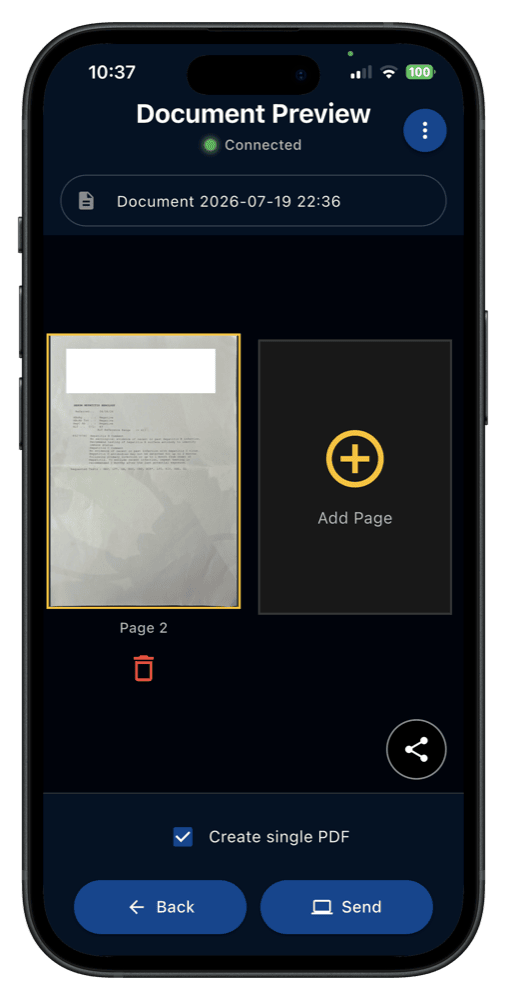
Camera to Clipboard keeps full resolution but stores no scans
One strength and one limit are worth knowing before you install it.
- Camera to Clipboard delivers the scanned page at full resolution, so small print stays readable. Emailing a scan to yourself compresses it, and small print is where that shows.
- Camera to Clipboard is a phone to computer tool, so it does not replace every part of Microsoft Lens. There is no library of past scans and no text recognition.
Four steps from paper to a pasted page:
- Install Camera to Clipboard on the phone and the desktop app on the computer.
- Pair the two once by scanning a QR code, which takes about ten seconds.
- Open document scan mode, line up the page and capture it.
- Press Ctrl + V on the computer, or Cmd + V on a Mac.
Free to download and try on iPhone, Android and the computer. More detail is in our guide to scanning a document from your phone to your computer.

Microsoft never said why it retired Lens, only what replaces it
The honest answer is shorter than you would expect:
- Microsoft's own retirement notice for Lens gives the dates and the replacement, but never a reason. Every explanation for why Lens was discontinued is somebody's guess, not Microsoft's words.
- Microsoft points Lens users at the scanner built into the OneDrive app, the only replacement it names. Scanning moved into an app most of those users already had. It saves to OneDrive, not the phone.
- Knowing why Microsoft retired Lens changes nothing you have to do next, because the app stops taking new scans either way. So the rest of this page is about picking a replacement.

Microsoft Lens cropped, straightened and evened out a page
A scan is not a photo of a page, and the difference is all in the processing:
- Microsoft Lens found the four corners of a page in the camera view and cropped down to the document. That is why a Lens scan had no desk or fingers around the edge.
- Microsoft Lens straightened a page shot at an angle, so a scan taken leaning over the table came out square. Holding a phone squarely above a page is awkward, so people miss this most.
- Microsoft Lens evened out the lighting on a page, so the paper came out white instead of grey and shadowed. A phone casts its own shadow, and that clean-up made the text sharp.

Microsoft Lens also chose a destination, read text and had modes
Three more Lens features go beyond cleaning up the picture.
- Microsoft Lens sent the finished scan to OneNote, OneDrive, Word, PowerPoint or a PDF, not only the camera roll. Most replacements handle that final destination step worst.
- Microsoft Lens could pull the words out of a photographed page so you could edit or search them. That is text recognition, a separate feature that not every replacement includes.
- Microsoft Lens had separate capture modes for a printed document, a whiteboard and a business card. Whiteboard mode cut the glare from ceiling lights, which an ordinary photo never gets right.

Your old Lens scans are still wherever you sent them, not lost
A retired app does not take your documents with it:
- Microsoft Lens saved each finished scan into OneNote, OneDrive, a Word file or a PDF, not inside the app. Losing Lens therefore does not lose the documents.
- Scans you sent from Microsoft Lens to OneDrive open in a browser on any computer, with no phone involved. Sign in with the same Microsoft account you used on the phone.
- Scans that Microsoft Lens saved only to the phone's camera roll are the ones at risk, because they leave with the phone. Copy those onto a computer before you replace the handset.
- Getting an old scan off the phone and onto a computer is a transfer problem, not a scanning one. Our guide to moving photos from a phone to a computer covers every way.

The scanner already on your phone replaces most of what Lens did
Both phone platforms shipped a document scanner years ago, and both crop and straighten a page the way Lens did:
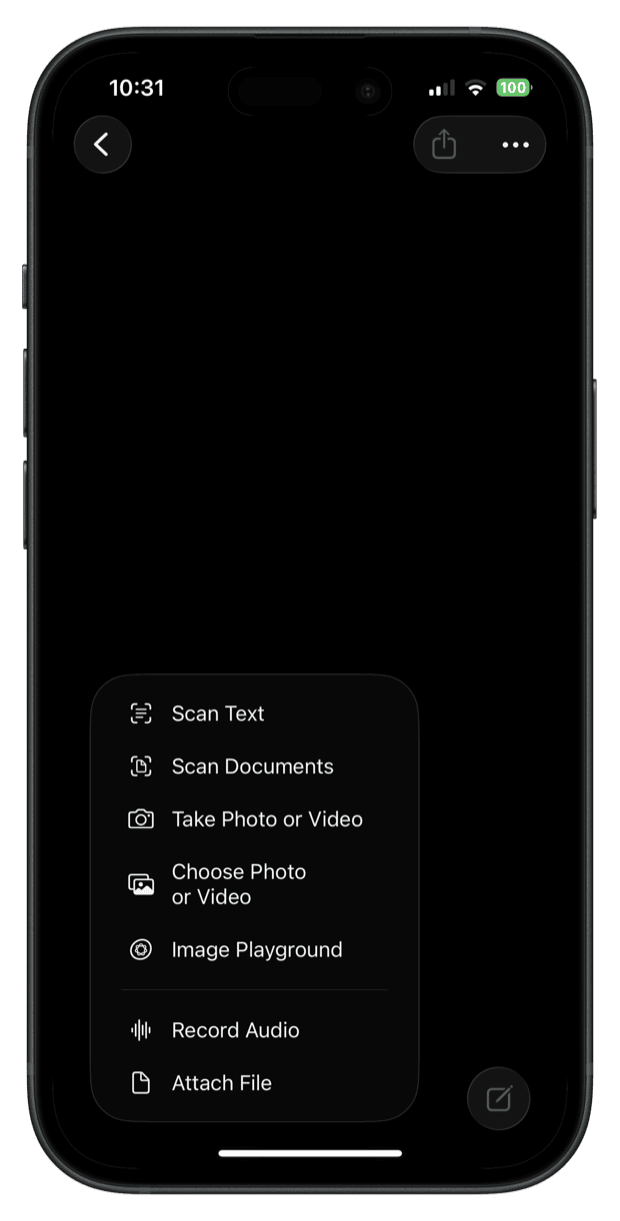
- Every current iPhone can scan a document without Microsoft Lens, through the Notes app. Start a note, tap the attachment button and choose Scan Documents. The camera finds the page edges.
- The iPhone Files app scans a page straight into a folder, for a scan you want as a PDF. Open the three-dot menu in Files and choose Scan Documents.
- An Android phone scans a page from the Google Drive app, the closest built-in match for Microsoft Lens. Tap the plus button and choose Scan. Many Samsung phones have the same shortcut in the camera app.
The built-in scanners are free but stop at the phone
One advantage and one gap come with the scanner you already have.
- The built-in iPhone and Android scanners cost nothing and need no new account, unlike most Microsoft Lens replacements. They are already installed, so there is nothing to sign up for.
- Neither the iPhone nor the Android scanner puts the finished scan on your computer, where Microsoft Lens users usually wanted it. Both stop at a file on the phone.

Three vendors have now switched off the same kind of app
Software that sits between a phone and a computer has a poor survival record, and the reasons are predictable:
- Microsoft Lens is the third well-known phone to computer helper app to be switched off, after Intel Unison and Dell Mobile Connect. Intel ended Unison in June 2025. Dell dropped Mobile Connect before that.
- A phone to computer tool given away by a chip or laptop maker exists to sell hardware, and ends when the hardware pitch changes. Intel Unison and Dell Mobile Connect were both bundled that way.
- A small free app inside a giant's product range competes with that company's own bigger apps, and the small one loses. Scanning survived inside larger Microsoft apps, so only the standalone Lens app went.

Pick a paid scanner and save every scan as a PDF or JPEG
Two habits protect you from the next shutdown.
- A scanner app you pay for, or one that is its maker's only product, has an obvious reason to keep existing. That is no guarantee, but it beats a free extra that sold something else.
- Saving scans as PDF or JPEG protects you from the next shutdown, whichever scanner you choose. A retirement then costs you an app and never the archive.

Where the scan has to end up decides which Lens replacement wins
These five are the options people actually try. The choice comes down to where the scan lands and what it costs.
| Replacement for Microsoft Lens | Edge detection and page clean-up | Where the finished scan ends up | What it costs | Account needed to scan |
|---|---|---|---|---|
| Camera to Clipboard | Finds the page edges and crops | On the computer's clipboard, ready to paste | Free to download and try | No account, paired once by QR code |
| iPhone Notes and Files scanner | Finds and straightens the page | A PDF on the phone, sent on by you | Free and already installed | No new account |
| Google Drive scan on Android | Finds and straightens the page | A PDF in Google Drive, downloaded later | Free within your Drive storage | A Google account is required |
| Adobe Scan | Automatic capture and clean-up | A PDF in Adobe's cloud, shared or downloaded | Free app, some features need a paid plan | An Adobe sign-in is required |
| Emailing a photo of the page to yourself | None, you get a photo of your desk | Your inbox, then a download | Free | Your own email account |

Use your phone's scanner for a PDF and Camera to Clipboard to paste
Microsoft Lens covered two jobs that most people think of as one, so the honest answer is two apps. Find the line that matches your use:
- Camera to Clipboard is the best Microsoft Lens replacement when the scan goes into an email or chat on your computer. Pasting is then the only step left.
- The iPhone Notes or Files scanner is the best Microsoft Lens replacement when you want a PDF kept on the phone. It is free, already installed, and straightens the page.
- The Google Drive scan is the best Microsoft Lens replacement on an Android phone when the document belongs in the cloud. The PDF reaches every device on that Google account within seconds.

Adobe Scan suits daily scanning, and always save an ordinary format
One heavy-use pick and one rule that applies to all of them.
- Adobe Scan is the best Microsoft Lens replacement if you scan documents most days and need the words searchable. It is built as a document scanner first, with text recognition included.
- Whichever replacement for Microsoft Lens you pick, save the result as a PDF or JPEG rather than an app's own format. Ordinary formats are why your old Lens scans outlived Lens.
Common questions about Microsoft Lens being discontinued
What happened to Microsoft Lens?
Microsoft retired Lens in January 2026. No setting brings it back, so you need a replacement rather than a repair. Every current iPhone and Android has a scanner built in. Camera to Clipboard puts a scanned page onto your computer's clipboard.
Can I still use Microsoft Lens if it is already installed on my phone?
No. Microsoft switched scanning off on 9 March 2026, so an installed copy cannot scan a page any more, whether or not it still opens. Move to another scanner, because there is nothing left to wait for.
Where did my Microsoft Lens scans go?
They are wherever you sent them, not inside the app. Scans you saved to OneNote or OneDrive are still in your Microsoft account and open in any browser. Scans saved only to the phone's camera roll leave with the phone, so copy those onto a computer now.
What is the best free replacement for Microsoft Lens?
The scanner already on your phone. On an iPhone it is in the Notes app under Scan Documents. On Android it is the Scan button in Google Drive. Both find the page edges and straighten it for free. Neither puts the scan on your computer. Camera to Clipboard does.