
People look for a cancel button inside CamScanner and never find one. It is not there. A subscription bought inside a phone app is held by Apple or by Google Play. That is where you stop it. This page shows where to go on each phone, what deleting the app or the account does, and what to scan with next.
The quick answer: on an iPhone, open Settings, tap your name, then Subscriptions, and cancel CamScanner. On Android, open the Google Play Store app, tap your profile picture, then Payments and subscriptions, then Subscriptions. Deleting the app cancels nothing. Cancelling deletes no scans. Want a scanned page on your computer? See the phone to computer scanning guide. Free for iPhone Free for Mac Free for Android Free for Windows

Cancel a CamScanner subscription in your iPhone Apple settings
If you subscribed inside the CamScanner app on an iPhone, Apple took the payment and holds the renewal. So Apple is where you stop it, in four steps:
- Open Settings on the iPhone and tap your name at the very top of the list.
- Tap Subscriptions.
- Tap CamScanner in the list of active subscriptions.
- Choose the option to cancel, and confirm it.

Only Apple can cancel an iPhone CamScanner subscription
Three things to know about cancelling CamScanner through Apple:
- Nothing inside the CamScanner app can cancel an iPhone subscription, because Apple does the billing. Apple charges your card through your Apple Account. A link in the app can only send you to Apple's list.
- Cancelling an iPhone CamScanner subscription through Apple normally keeps the paid features until the paid period ends. The cancellation stops the next renewal. It does not cut you off the moment you tap it.
- A CamScanner subscription missing from Apple's list of active subscriptions was cancelled already or bought on another Apple Account. If charges still arrive, check any other Apple Account you use. Subscriptions follow the account, not the phone.

Camera to Clipboard scans a page without uploading it anywhere
You still need a scanner afterwards. Getting one page onto your computer to paste is a much smaller job than keeping an archive:
- Camera to Clipboard has a document scan mode that puts the finished page on the computer's clipboard. It finds the page edges for you. Paste with Ctrl + V or Cmd + V into an email, a form or a chat.
- Camera to Clipboard sends a scanned page straight from the phone to the computer over your local Wi-Fi. Nothing is uploaded, so there is no stored copy to delete later.
- Camera to Clipboard can combine several scanned pages into one PDF, saved as a file on the computer. A single page arrives on the clipboard as an image instead, which is quicker.
- Camera to Clipboard needs no sign-up and no password, so there is no account to delete later. The phone and the computer pair once with a QR code.
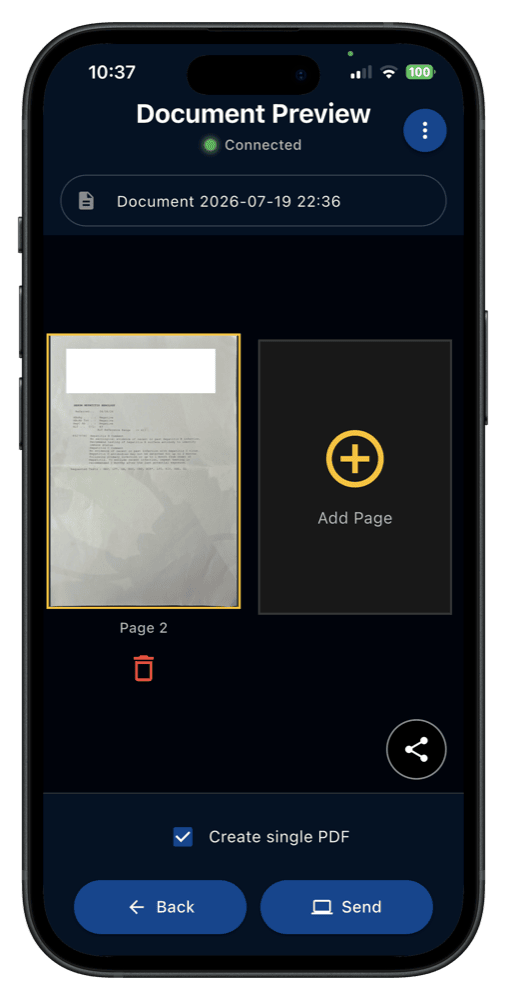
Send a scanned page to your computer with Camera to Clipboard
Four steps get your first scanned page onto the computer:
- Install Camera to Clipboard on the phone and the matching app on the computer.
- Pair once by scanning a QR code. It takes about ten seconds.
- Open document scan mode, line up the page and capture it.
- Press Ctrl + V on a PC, or Cmd + V on a Mac.
Free to download and try on iPhone, Android and your computer. For a longer walkthrough, see the guide to scanning a document from your phone to your computer.

Cancel a CamScanner subscription in Google Play on Android
Android works the same way, with Google in place of Apple. The subscription is a Google Play record, so it ends in the Play Store app, not in CamScanner:
- Open the Google Play Store app on the Android phone.
- Tap your profile picture in the top corner.
- Go to Payments and subscriptions, then Subscriptions.
- Tap CamScanner, choose to cancel, and confirm.

Check where you paid if CamScanner is missing from Google Play
Four more things to know when you cancel CamScanner on Android:
- A CamScanner subscription bought on an iPhone never appears in Google Play, even after you switch to Android. Only Apple can stop it. Reinstalling the app on a new phone does not move the billing.
- A CamScanner subscription taken out on the company's own website is held by neither Apple nor Google. It shows in neither store's list, so cancel it with the company directly.
- A CamScanner subscription held by Google Play can also be cancelled from a computer, by signing in to Google Play in a browser. That helps if the phone is lost, wiped or handed on.
- Keep the confirmation that Google Play or Apple shows when you cancel a CamScanner subscription. A screenshot with the end date is the simplest evidence if a later charge is disputed.

Deleting the CamScanner app does not cancel the subscription
This is the costliest mistake on this page. Deleting an app feels final, but it is not:
- Deleting the CamScanner app from a phone does not cancel the subscription or stop the next charge. Apple or Google holds the subscription, so it outlives the app and even the phone.
- Being charged again after uninstalling CamScanner is how most people learn the subscription is still running. Nothing warns you when you delete the app.
- Cancel the CamScanner subscription first and delete the app second. Deleting the app first blocks nothing. It only removes the icon that would remind you the subscription exists.
- Signing out of CamScanner, clearing its data or muting its notifications leaves the billing untouched. None of those reach the store's record. Only a cancellation in the store does.

Cancelling a CamScanner subscription leaves your documents online
Cancelling and deleting your account sound alike, but they do different things. Cancelling only touches the money:
- Cancelling a CamScanner subscription stops the payments and leaves your account and every scan in it. You keep the login. Anything already uploaded stays on the service under the free tier.
- Scans uploaded to CamScanner from an old phone are still stored in your CamScanner account. Check the account itself, not just the app on your current phone.
- A refund for a CamScanner charge comes from Apple or Google, not from CamScanner, because the store took the payment. Cancelling and refunding are separate requests. Cancelling never returns money already taken.

Export your scans before you delete a CamScanner account
Deleting the account is the step that removes your documents, so do it carefully:
- Deleting a CamScanner account is a separate step from cancelling, and it removes your stored scans. Do both if privacy is why you are leaving. Cancelling alone deletes nothing, which surprises many people.
- Export or download every scan you want to keep before you delete a CamScanner account. Account deletion is generally not reversible. A document that only lived in the account goes with it.
- Deleting a CamScanner account while the subscription runs does not refund the rest of the period. Cancel first, let the paid time run out, then delete the account.

CamScanner keeps your scans in its cloud, so mind what you scan
Many people cancel CamScanner over privacy, not the fee. Here is that concern in plain terms:
- CamScanner is a cloud scanner, so the pages you scan are uploaded to the company's servers. That is how its syncing and shared links work. It is a design choice, not a fault.
- The pages people put through a document scanner are passports, payslips, bank statements, contracts and medical letters. Those are a bigger risk than holiday photos in a photo app.
- CamScanner's handling of user data has been publicly questioned more than once, and many people cancel over that. Any scanner that uploads your documents asks for more trust, whatever its record.
- A scanner that works only between your phone and your computer asks you to trust no company with the page. No server holds the page, so no server breach can expose it.
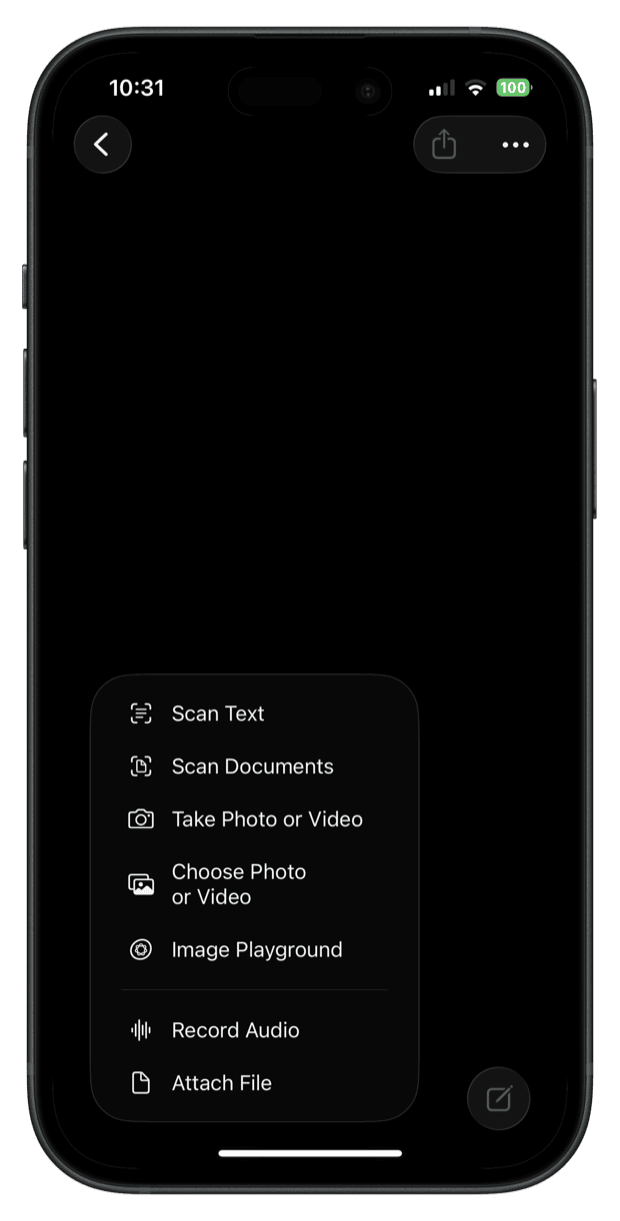
Your iPhone already has a free scanner that makes multi-page PDFs
Check your phone before you buy a replacement. On an iPhone, the free scanner is in two apps:
- The iPhone Notes app scans a document into a cropped, multi-page PDF for free. Start a note, tap the attachment button in the toolbar and choose Scan Documents. Capture the pages and save.
- The iPhone Files app has the same document scanner and saves the PDF into a folder you pick. Open Files, tap the three-dot menu and choose Scan Documents.

Android phones scan to a free PDF in the Google Drive app
On Android, the free scanner most people already have is in Google Drive:
- The Google Drive app on Android scans a document into a PDF from its plus button. Tap +, choose Scan, capture the page, adjust the crop and save. Many Samsung and Pixel phones also have a scan shortcut in the camera or notes app.
- A Google Drive scan is stored in your Google cloud storage, so it is still uploaded to a server. Leaving CamScanner to keep documents off the cloud? This swaps one cloud for another.

Built-in phone scanners copy text but leave the filing to you
The free scanners can also pull text out of a page. What they lack is a library:
- An iPhone lets you select and copy the text in a scanned page right on screen. Press and hold on the words in the image, as you would on a web page, then copy them.
- Google Drive pulls the text out of a scanned PDF when you open that PDF as a Google Doc. It is rough on a poor scan, but it is free.
- The built-in phone scanners give you a file, not a searchable library of everything you have scanned. Naming and filing each file is up to you, and that is what a paid document manager sells.

Where each scanner stores your document decides how private it is
Here are five ways to scan a page. They differ on where the scan is stored, the account needed, the cost and multi-page PDFs.
| Scanner | Where the finished scan is stored | Account needed to use it | What it costs | Makes a multi-page PDF |
|---|---|---|---|---|
| CamScanner | Its own cloud | Yes, a CamScanner account | Free tier, paid plan above it | Yes |
| Adobe Scan | Adobe's cloud | Yes, an Adobe account | Free tier, paid plans above it | Yes |
| Camera to Clipboard | Nowhere, phone to computer only | None, pairing is a QR code | Free to download and try | Yes, but keeps no library |
| Google Drive scan on Android | Your Google Drive | Yes, a Google account | Free within your Drive space | Yes |
| iPhone Notes or Files scan | On the iPhone, iCloud if you sync | None beyond the phone itself | Free, already installed | Yes |

Use your phone's own scanner for PDFs and a clipboard app to paste
What you replace CamScanner with depends on which part of the job you were paying for:
- The iPhone Notes or Files scanner is the best free replacement for CamScanner when you want a multi-page PDF. On Android the Google Drive scan does the same job. Both are free and crop the page properly.
- Camera to Clipboard is the best replacement for CamScanner when the scanned page has to be on your computer now. The page lands on the clipboard, ready to paste.
- Keep paying for a document scanner only if you use its library, its search and its sync across devices. Otherwise you are paying for a filing cabinet you never open.
- Scan a passport or a bank statement with a scanner that keeps the page on your own devices. Use any scanner for everyday receipts. An identity document deserves more care.
Common questions about cancelling a CamScanner subscription
How do I cancel my CamScanner subscription?
Cancel it in the store you bought it from, not inside CamScanner. On an iPhone, open Settings, tap your name, choose Subscriptions and cancel CamScanner there. On Android, open the Google Play Store app and tap your profile picture. Go to Payments and subscriptions, then Subscriptions, and cancel CamScanner there. If you subscribed on CamScanner's own website, cancel with the company directly.
Does deleting the CamScanner app cancel the subscription?
No. The subscription is a record held by Apple or Google, not by the app, so the billing carries on. Cancel it in the App Store or Google Play subscription settings first. Then delete the app if you want to.
Does cancelling CamScanner delete the documents I scanned?
No. Cancelling stops the billing and leaves your account and stored scans alone. Deleting the account is a separate step, and that is what removes your scans. Export anything you want to keep first, because account deletion is generally not reversible.
What can I use instead of CamScanner?
For a multi-page PDF, use the scanner already on your phone. That is Scan Documents in the iPhone Notes or Files app, or Scan in the Google Drive app on Android. Both are free. For a scanned page on your computer, Camera to Clipboard puts it straight on the clipboard over your local Wi-Fi. Nothing is uploaded to a server.