
Video is where the easy tricks fall apart. A short 4K clip from your iPhone runs to hundreds of megabytes. Email bounces it, chat apps crush it, and a cloud upload makes you wait twice. This guide covers the wireless way with Camera to Clipboard, plus the built-in USB and iCloud methods for a Windows PC.
The quick answer: send the clip over your own Wi-Fi with Camera to Clipboard. It saves the full-resolution video on your PC and puts the file path on the clipboard. Press Ctrl + V to drop it into an email, a chat or an editor. No 25 MB email limit and no cloud upload wait. The free USB and iCloud methods are further down.
Free for iPhone Free for Mac Free for Android Free for Windows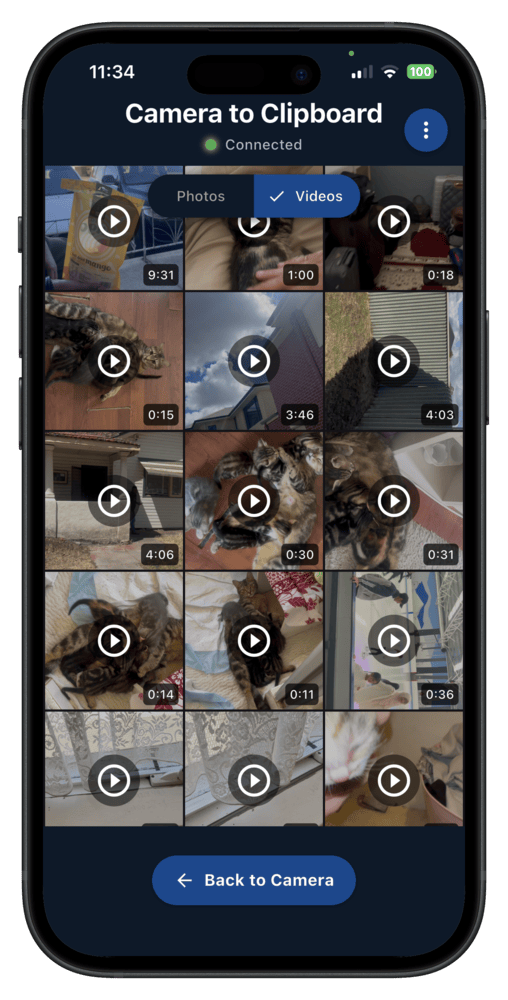
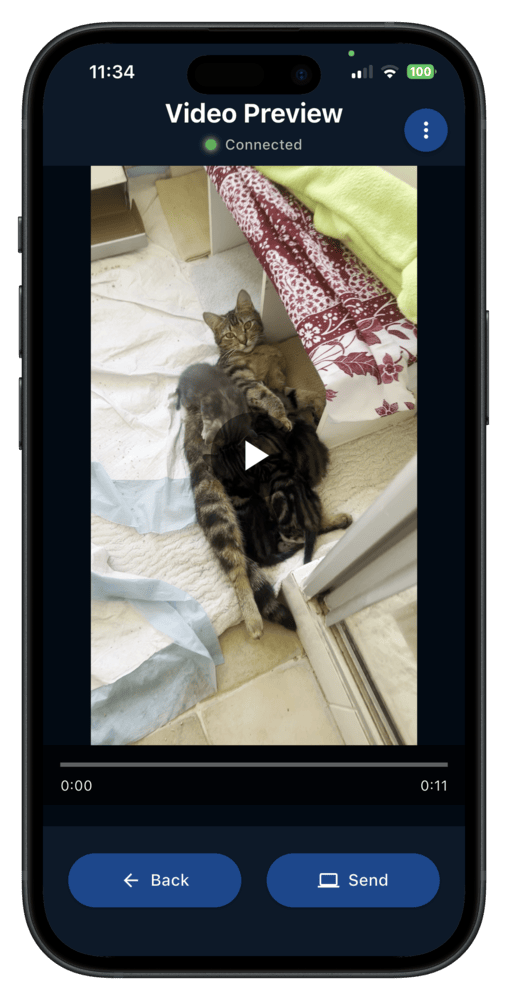
Camera to Clipboard sends an iPhone video straight to a Windows PC
Here is what happens when you send a clip from the iPhone app.
- Camera to Clipboard sends an iPhone video across your own Wi-Fi to the PC. Nothing is uploaded to a cloud service. The two apps use the internet only to find each other.
- An iPhone video sent with Camera to Clipboard is saved on the PC as a file. The clip arrives at full resolution, exactly as the iPhone recorded it.
- Camera to Clipboard puts the saved video's file path on the PC clipboard. Press Ctrl + V to attach it to an email or drop it into an editor.
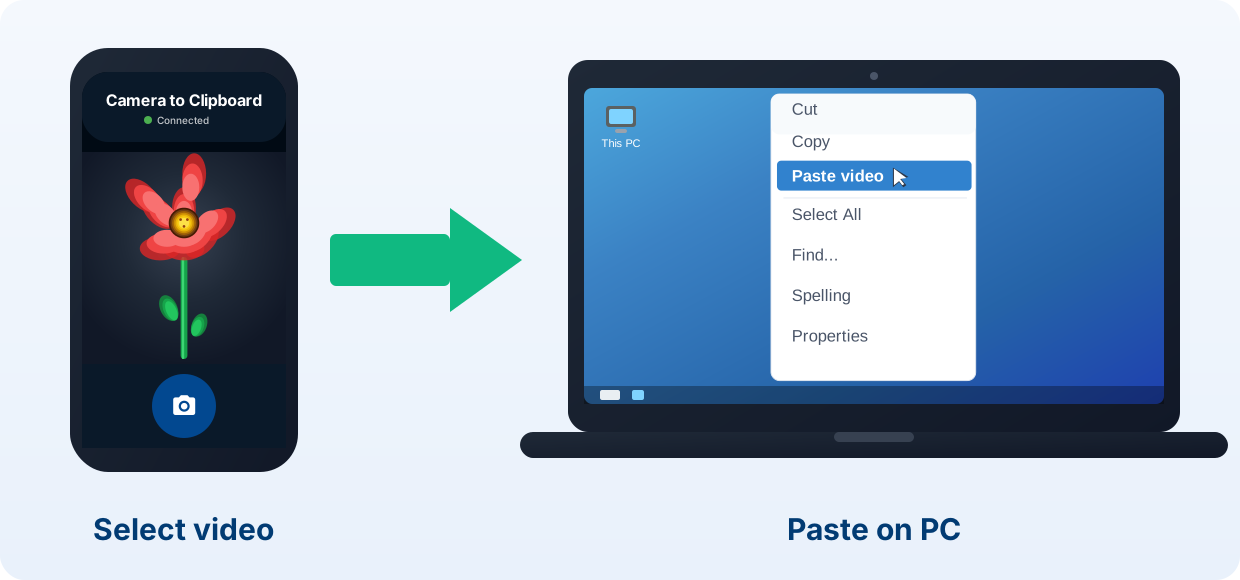
Pair the iPhone and the PC once, then send a video in four steps
Setup takes about ten seconds, and you only do it once.
- Install Camera to Clipboard on your iPhone and the desktop app on your PC.
- Pair them once by scanning a QR code.
- On the iPhone, pick the video you want to send.
- On the PC, press Ctrl + V to paste the file where you need it.
Free to download and try on both the iPhone and Windows. The free version adds a small watermark and caps photos at 1920px. Pro removes both.
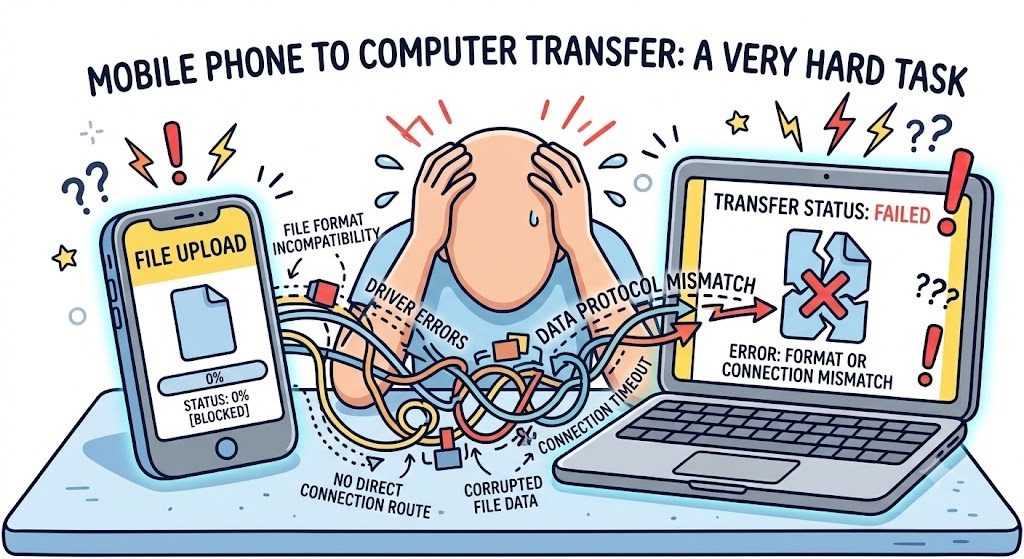
Moving a big iPhone video to Windows by hand is genuinely fiddly
The built-in methods do work, but three things make them slow going.
- A single iPhone video is big enough to make any manual transfer slow. A short 4K clip runs to hundreds of megabytes. A long one passes a gigabyte.
- A USB transfer of iPhone videos can stall on a driver or a dropped connection. You often find out only after waiting for the copy to finish.
- An iPhone records video in a format Windows may refuse to play. The file copies across fine and then will not open.
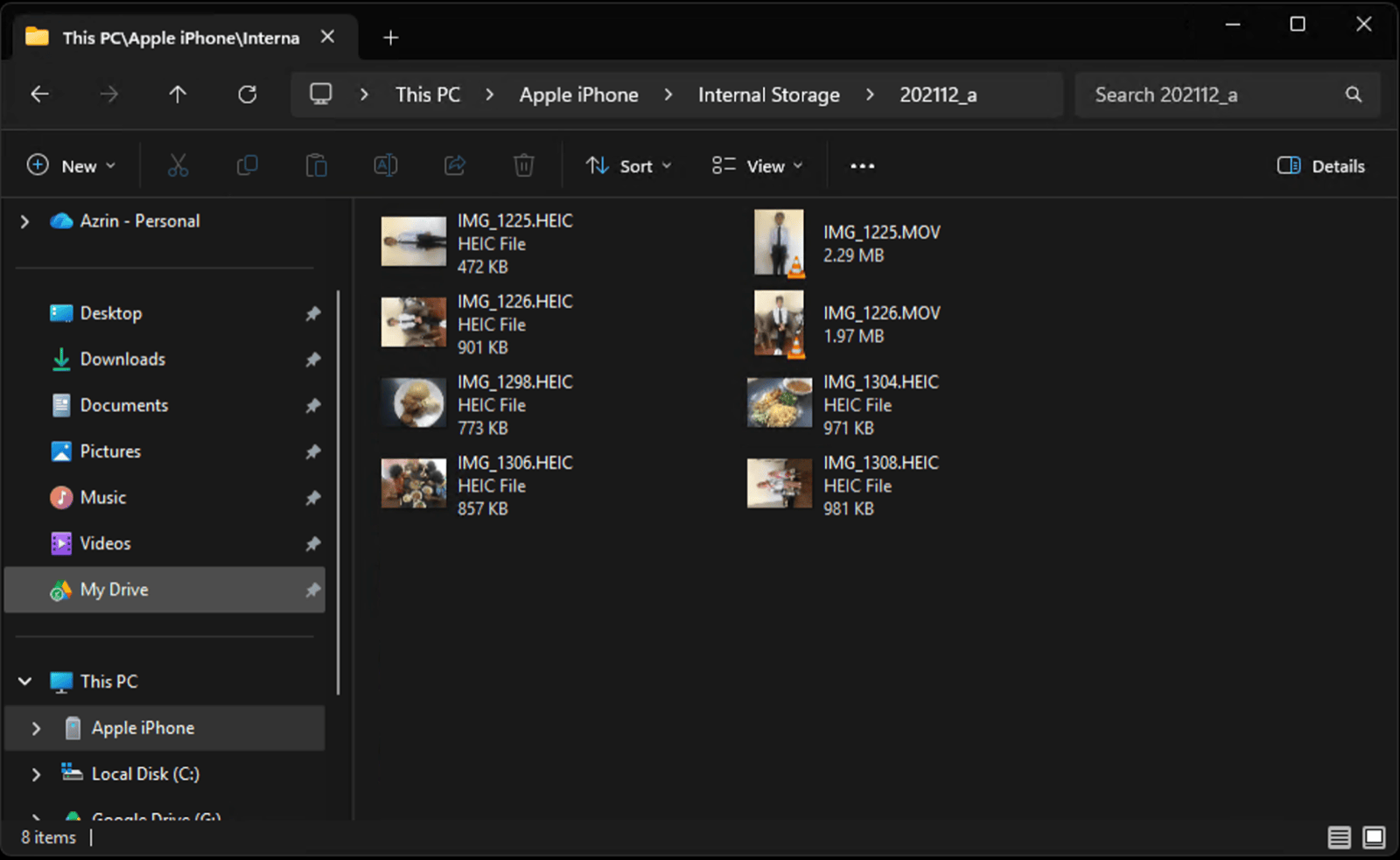
Use a USB cable to copy many iPhone videos to a PC at once
This is the free built-in method, and it is the fastest way to move a big batch.
- Connect the iPhone to the PC with a cable.
- Unlock the iPhone and tap Trust This Computer.
- In File Explorer, open This PC > Apple iPhone > Internal Storage > DCIM.
- Open the dated folders and drag the .MOV files into a folder on your PC.
Nothing leaves your desk, and there is no attachment limit to work around.
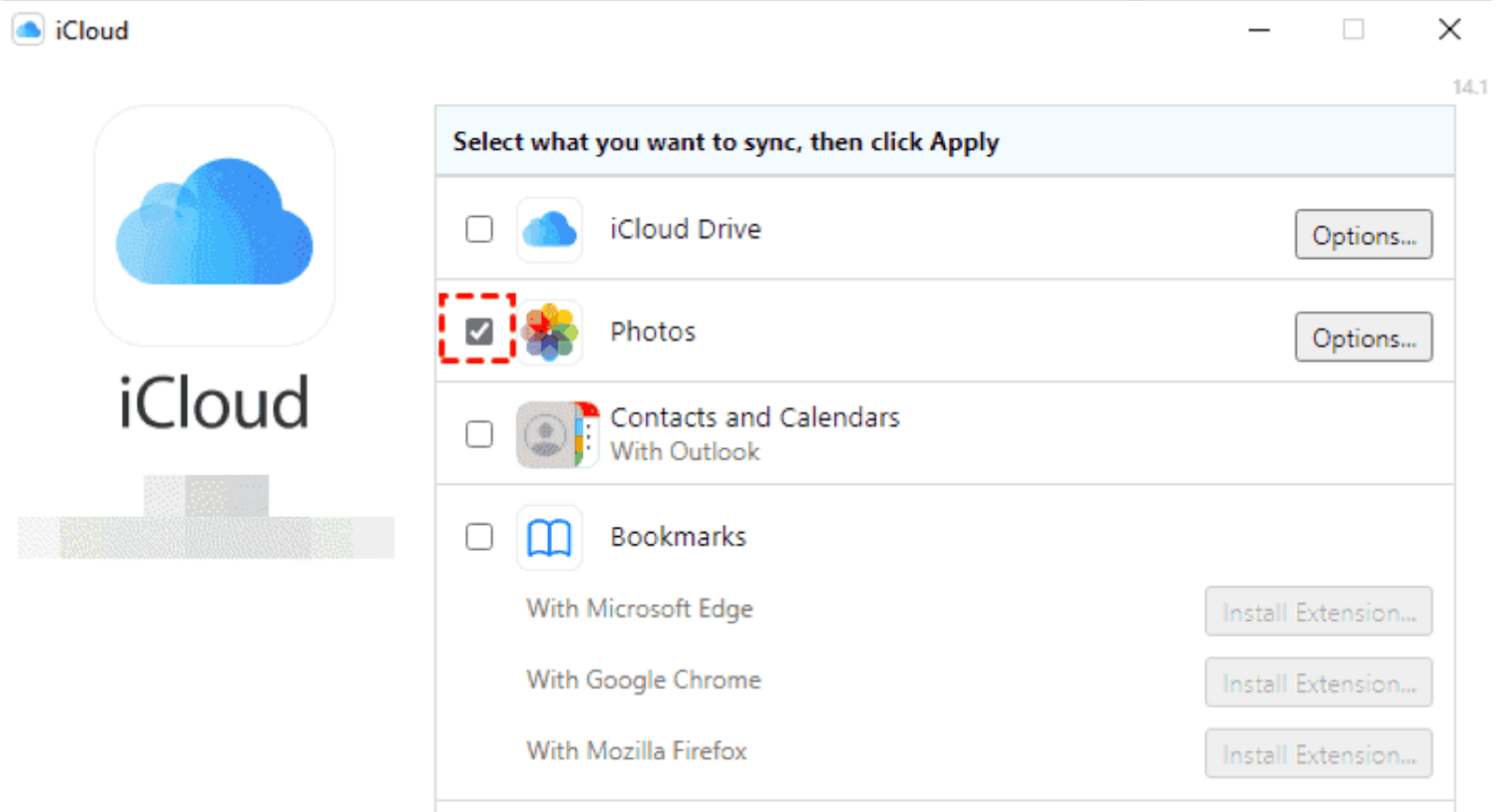
Turn on iCloud for Windows to mirror every iPhone video to a PC
iCloud suits people who want the whole camera roll on the PC, not one clip.
- iCloud for Windows copies every new iPhone video to a folder on the PC. Install it from the Microsoft Store, sign in with your Apple ID, and turn on Photos.
- An iCloud sync can lag when you want one iPhone video right now. The clip arrives when it arrives, which is no help against a deadline.
- iPhone videos stored in iCloud eat the free 5 GB allowance quickly. A few long clips fill it, and the sync then stops until you buy more space.
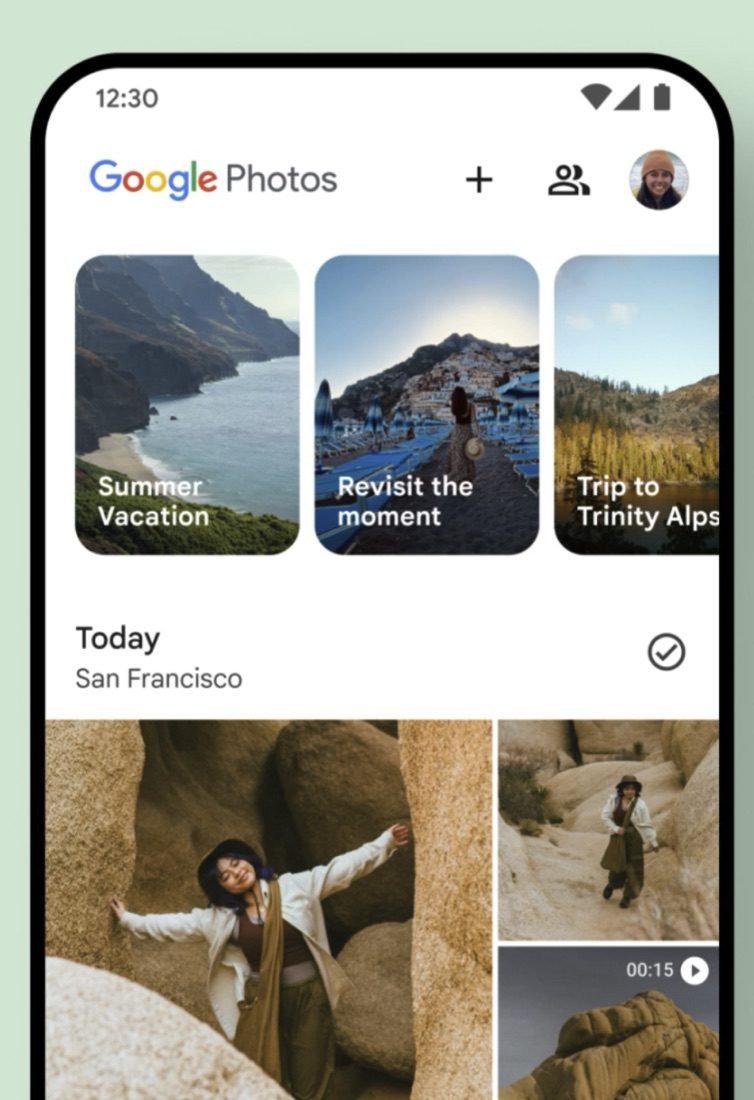
Google Photos and OneDrive make you wait through two video transfers
A backup app can do the job, at the cost of doing the work twice.
- Backing an iPhone video up to Google Photos or OneDrive means a full upload and then a full download. You wait once on the phone and again on the PC.
- A free backup tier can shrink an iPhone video or simply run out of space. What you download is then softer than the clip you shot.

A chat app compresses an iPhone video before it reaches your PC
Sending the clip through a messaging app is the quickest way to lose quality.
- WhatsApp, Messenger and similar apps shrink an iPhone video before they send it. The copy that reaches the PC is smaller and softer than the original.
- A direct transfer of an iPhone video leaves the original file untouched. Camera to Clipboard and a USB cable both deliver the clip the camera wrote.

Install the HEVC codec so Windows can play an iPhone video
A clip that copies across fine and then refuses to play is a codec problem.
- An iPhone records video as HEVC, also called H.265, inside a .MOV file. Windows often has no codec for it out of the box.
- HEVC Video Extensions from the Microsoft Store makes Windows play the .MOV clip. It is a one-off purchase of about a dollar. Some PCs already carry a free version from the maker.
- Setting the iPhone to Most Compatible records standard H.264 instead. Open Settings > Camera > Formats. It only changes the clips you record from then on.

Camera to Clipboard skips the 25 MB email limit and the cloud wait
Three things make the app quicker than emailing or syncing one clip.
- Camera to Clipboard moves an iPhone video outside email, so the 25 MB attachment limit never applies. Gmail and Outlook stop a clip that size before it leaves the phone.
- Camera to Clipboard sends the iPhone video without uploading it to a server. There is no upload to sit through and no download afterwards. None of your cloud storage is used.
- Camera to Clipboard sends the iPhone video over your own Wi-Fi, and the phone's hotspot works too. The hotspot's mobile data is only what lets the two apps find each other.

Camera to Clipboard delivers the iPhone video ready to paste
The file that lands on the PC is the one the iPhone recorded.
- Camera to Clipboard keeps an iPhone video at full resolution, with no compression on the way. It is the same file the camera wrote, unlike the copy a chat app makes.
- An iPhone video sent with Camera to Clipboard arrives with its file path on the clipboard. Press Ctrl + V to attach it, with no folder to go hunting through.
Here is how the three methods compare for one iPhone video.
| What you want to do | Camera to Clipboard | USB | iCloud |
|---|---|---|---|
| Get a full-res video onto a PC | ✔ | ✔ | ✔ |
| No 25 MB email limit | ✔ | ✔ | ✔ |
| No cloud upload wait | ✔ | ✔ | Uploads then downloads |
| No compression | ✔ | ✔ | May recompress |
| Original quality kept | ✔ | ✔ | Depends on settings |
| Works over a phone hotspot | ✔ | Cable only | Sends the video to a server first |
| Free to try | ✔ | ✔ | ✔ |

Use Camera to Clipboard for one video and USB for a whole trip
The choice comes down to how many clips you are moving.
- Camera to Clipboard is the best way to get one big iPhone video onto a PC right now. Pick the clip on the phone and paste the file where it is wanted.
- A USB cable and File Explorer are the best way to archive a trip of iPhone videos. You drag every .MOV across in one go at cable speed.
- iCloud for Windows and OneDrive are the best way to keep iPhone videos mirrored on a PC. Set the sync up once and new clips arrive on their own.
Common questions
What is the fastest way to transfer videos from iPhone to PC?
A direct wireless transfer over your own Wi-Fi. Camera to Clipboard sends the full-resolution clip straight to the PC and saves it there as a file. Its file path goes on the clipboard, ready for Ctrl + V. Nothing is uploaded, so there is no upload and download to wait through.
How do I send a video too big to email?
Email will not do it. Gmail and Outlook stop an attachment at about 25 MB, and even a short 4K clip is far larger. Send it with Camera to Clipboard over your own Wi-Fi, or copy it across with a USB cable. Neither has an email-sized limit.
Why won't my iPhone video play on Windows?
The clip is HEVC, also called H.265, inside a .MOV file. Install HEVC Video Extensions from the Microsoft Store to play it. You can also set Settings > Camera > Formats to Most Compatible on the iPhone, so it records standard H.264 from then on.