
People say move rather than copy when the iPhone is low on space. The pictures have to reach the computer, and then the originals can go. The order is what keeps them safe. Get them onto a Mac or Windows PC, check they arrived, and only then delete.
The quick answer: Camera to Clipboard sends one picture to your computer's clipboard over your own Wi-Fi, ready to paste and save. For a whole library, copy it across a cable first. Whatever you use, check the pictures opened on the computer before you delete anything.
Free for iPhone Free for Mac Free for Android Free for Windows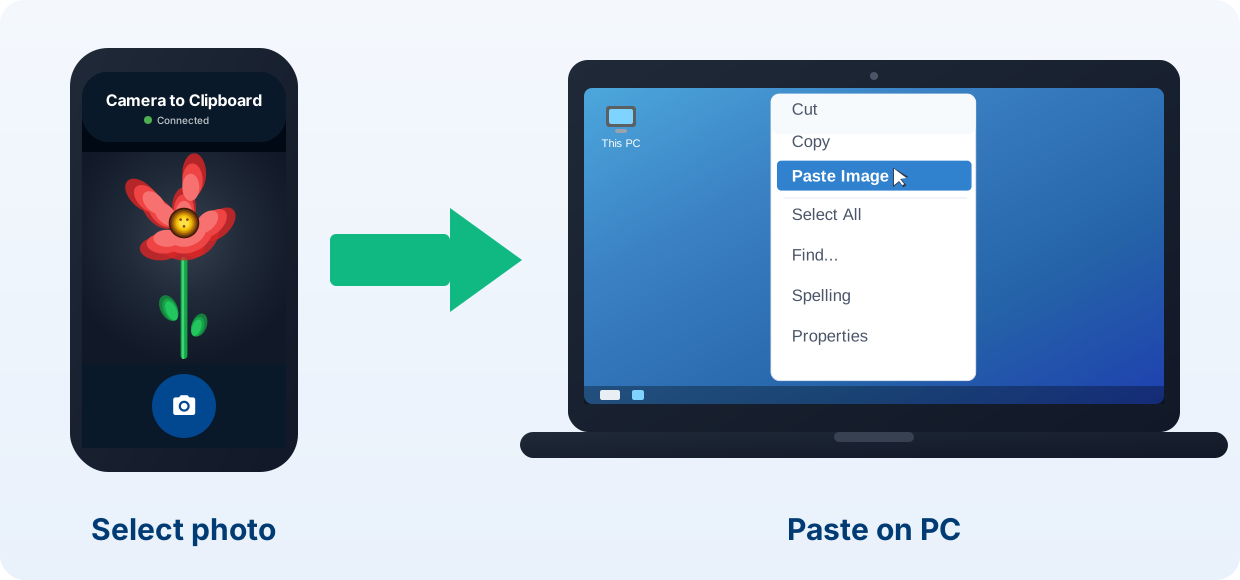
Camera to Clipboard moves one iPhone picture to a computer instantly
Here is what happens when you need one picture off the phone now.
- Camera to Clipboard puts an iPhone picture on the computer clipboard in seconds. Pick it on the phone. It lands before you put the phone down.
- An iPhone picture sent with Camera to Clipboard pastes with Ctrl + V or Cmd + V. Drop it into a folder, an email or an image editor, then save it as a real file.
- Camera to Clipboard carries the iPhone picture straight across your own Wi-Fi. Nothing is uploaded to a cloud, and the full resolution image arrives.

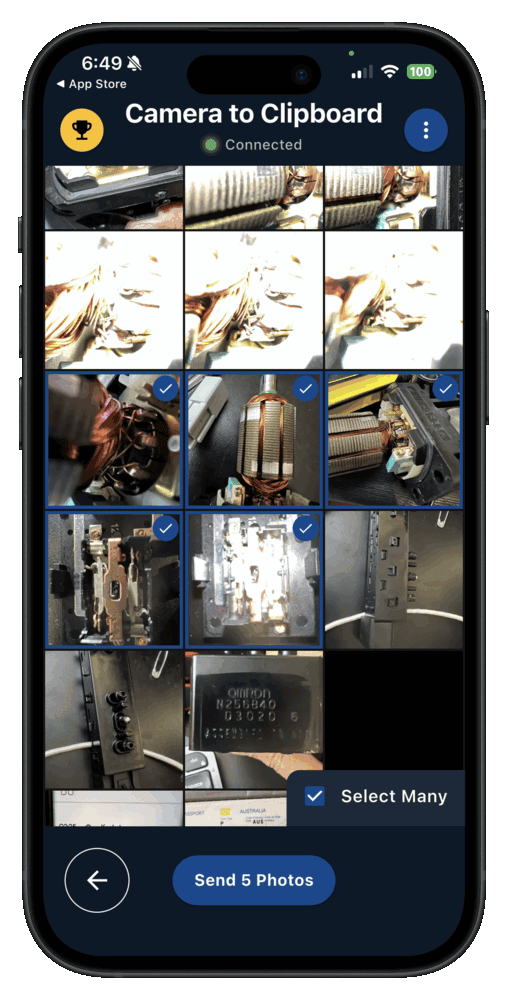
Set up Camera to Clipboard on your iPhone and computer in four steps
Pairing happens once, and it takes about ten seconds.
- Install Camera to Clipboard on your iPhone and the desktop app on your computer.
- Pair them once by scanning a QR code.
- On the iPhone, pick the picture you want to move.
- Press Ctrl + V on a PC, or Cmd + V on a Mac, and save the file.
Free to download and try on both the iPhone and your computer. The free version adds a small watermark and caps photos at 1920px. Pro removes both.
Moving a whole iPhone camera roll needs a cable and a careful order
A whole library is a bigger job than one picture, and the order protects you.
- A bulk move of the iPhone camera roll is only a copy until you check it. Open the files on the computer first. Nothing is safe to delete before that.
- Windows and a Mac each have a free built-in way to pull a whole roll across. Both want the cable and a desk.
- Deleting the iPhone originals before the copies open is how pictures get lost. Check first, delete second.
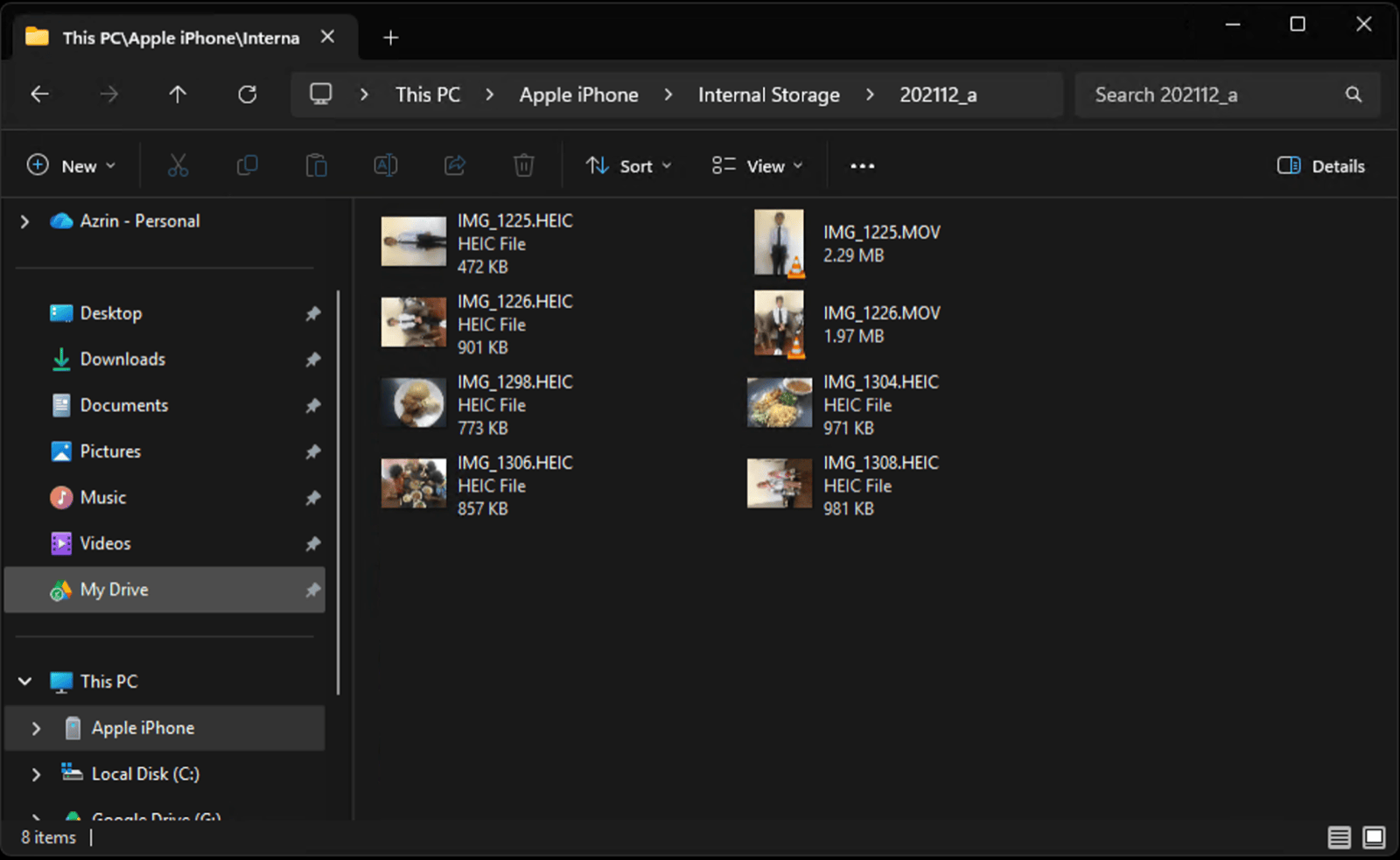
Copy thousands of iPhone pictures to a PC in Windows File Explorer
This is the route to reach for when the whole camera roll has to move.
- Connect the iPhone to the PC with a cable.
- Unlock the phone and tap Trust This Computer.
- In File Explorer, open This PC > Apple iPhone > Internal Storage.
- Open DCIM, then drag the dated folders into a folder on the PC.
Nothing beats a cable on a big batch. It is a genuine local copy, so the originals can go once you have checked them.

Import iPhone pictures to a Mac with the Photos app
A Mac does the same bulk job with no extra software.
- Connect the iPhone to the Mac with a cable and unlock it.
- Open the Photos app and pick the iPhone under Devices.
- Click Import All New Items, or select some and click Import Selected.
- Wait for the import to finish, then open a few pictures to check them.
Image Capture runs the same import and saves into any folder you choose. It also has an option to delete after import, which sometimes copies the pictures and leaves them on the phone anyway. Check the copies on the computer, then delete from the iPhone yourself.
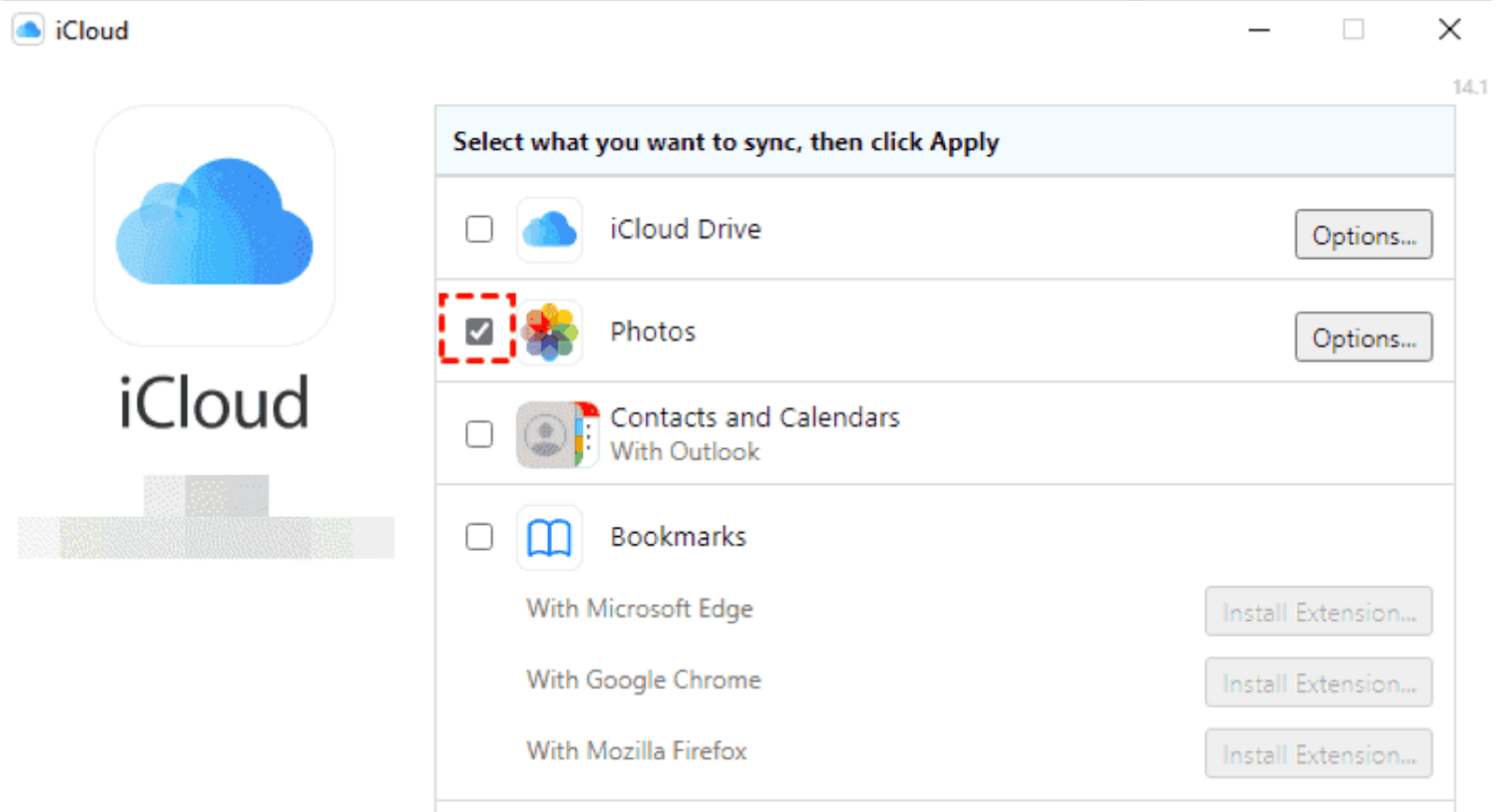
iCloud and Google Photos mirror iPhone pictures and free no space
A sync service looks like a move, and it is not one.
- iCloud Photos, OneDrive and Google Photos mirror the camera roll instead of moving it. The same pictures stay on both sides.
- Optimize iPhone Storage can leave the full-size picture in iCloud and a preview on the phone. Download the real file before you count it as moved.
- Deleting from a synced iCloud library takes the picture off every device on the account. A sync on its own frees nothing on the iPhone.

Open every moved picture on the computer before you delete anything
This check is what turns a copy into a real move.
- A moved picture is safe only once it opens full size on the Mac or PC. A thumbnail, a broken file or a short count all mean the copy is unfinished.
- Delete the moved pictures in the iPhone Photos app once they all open. Tap Select, choose the pictures, then tap the trash icon and confirm.
- Anything that will not open on the computer stays on the iPhone for now. Send that one again before you touch the original.

Empty the Recently Deleted album to reclaim the iPhone space
Deleting a picture in Photos does not hand the storage back yet.
- Pictures deleted on an iPhone sit in Recently Deleted for up to 30 days. They still take up the space you are trying to free.
- Open Albums, then Recently Deleted, tap Select and then Delete All. The gigabytes come back once that album is empty.
- Settings is where you confirm the iPhone storage actually went down. Open Settings > General > iPhone Storage and look at the bar.

Check iCloud Photos first, because deleting there hits every device
One setting decides whether a delete on the phone stays on the phone.
- With iCloud Photos on, deleting a picture on the iPhone deletes it from iCloud too. Every other device signed into that Apple Account loses it as well.
- Open Settings, tap your name, then iCloud and Photos to find the switch. That screen tells you whether the library is synced.
- A picture moved with Camera to Clipboard never reaches iCloud at all. Deleting the phone copy afterwards removes it from the phone only.

Camera to Clipboard moves an iPhone picture with nothing to plug in
Set against the built-in routes, two things change straight away.
- Moving an iPhone picture with Camera to Clipboard needs no cable and no Trust This Computer prompt. There is nothing to plug in and nothing to unlock.
- An iPhone picture sent with Camera to Clipboard arrives at full resolution. You save the real image, which is what a move should leave you with.

Camera to Clipboard never uploads your iPhone picture to a cloud
That is what makes deleting the phone copy afterwards feel safe.
- A picture sent with Camera to Clipboard crosses your own Wi-Fi and is never uploaded. The two apps use the internet only to find each other.
- Camera to Clipboard leaves no cloud copy to delete by accident later. Removing the picture from the phone removes it from the phone alone.
- Camera to Clipboard lets you watch the picture land before you delete the original. The phone space goes only once you can see that nothing was lost.
- Camera to Clipboard moves iPhone pictures even on your phone's own hotspot. The hotspot's mobile data lets the two apps find each other, and the picture stays local.
| What you want to do | Camera to Clipboard | USB / iCloud |
|---|---|---|
| Move one picture instantly | ✔ | Cable or sync first |
| Bulk-move a whole library | Better over USB | ✔ |
| No cable needed | ✔ | iCloud only, not USB |
| Nothing uploaded to a cloud | ✔ | Uploads to iCloud |
| Full resolution, no compression | ✔ on Pro | ✔ |
| Frees phone space safely | ✔ | Risk of deleting from cloud |
| Works over a phone hotspot | ✔ | iCloud uploads before you can download |
| Free to try | ✔ | ✔ |

Use Camera to Clipboard for a few pictures and a cable for the rest
The right method comes down to how many pictures you are moving.
- A few iPhone pictures you want off the phone move fastest with Camera to Clipboard. Send them across, save them, then delete them from the phone.
- A whole iPhone camera roll is a job for a cable and File Explorer or the Mac Photos app. Copy everything, check every file opened, then delete the originals.
- Keeping every iPhone picture while trimming phone storage is what iCloud with Optimize iPhone Storage does. Deleting on the phone still removes the picture from every device on the account.
Common questions
How do I move pictures from my iPhone to my computer to free up space?
Transfer them, check they opened on the computer, then delete the originals and empty Recently Deleted. Camera to Clipboard moves one picture in seconds. A cable and File Explorer suit the whole roll.
How do I move photos off my iPhone and delete them safely?
Open the copies on the computer first and check they are full size. Then tap Select in the Photos app, pick the pictures, tap the trash icon, and empty Recently Deleted. Never delete before a working copy exists.
Does moving photos to my computer delete them from iCloud?
With iCloud Photos on, deleting from the iPhone also deletes from iCloud and every signed-in device. Download full-size copies first. A transfer with Camera to Clipboard never touches iCloud.